



JCFAQ 1.1.9 User Guide
Overview
JCFAQ shows Frequently Asked Questions on a Joomla 6 site. You manage FAQs by category, then display them with a module (Tabs, Grid or Classic List layout) or with a shortcode inside an article.
Main features: multi-category FAQs, accordion expand/collapse with arrow or plus-minus icons, live keyword search, category filter, colour settings, FAQ count per category, shortcode and external-site embedding, and responsive layouts.
You will do these steps: enable plugins, create categories, create FAQs, show FAQs with a module, show FAQs with a plugin shortcode, and add a menu item.
Step 1: Enable the plugins
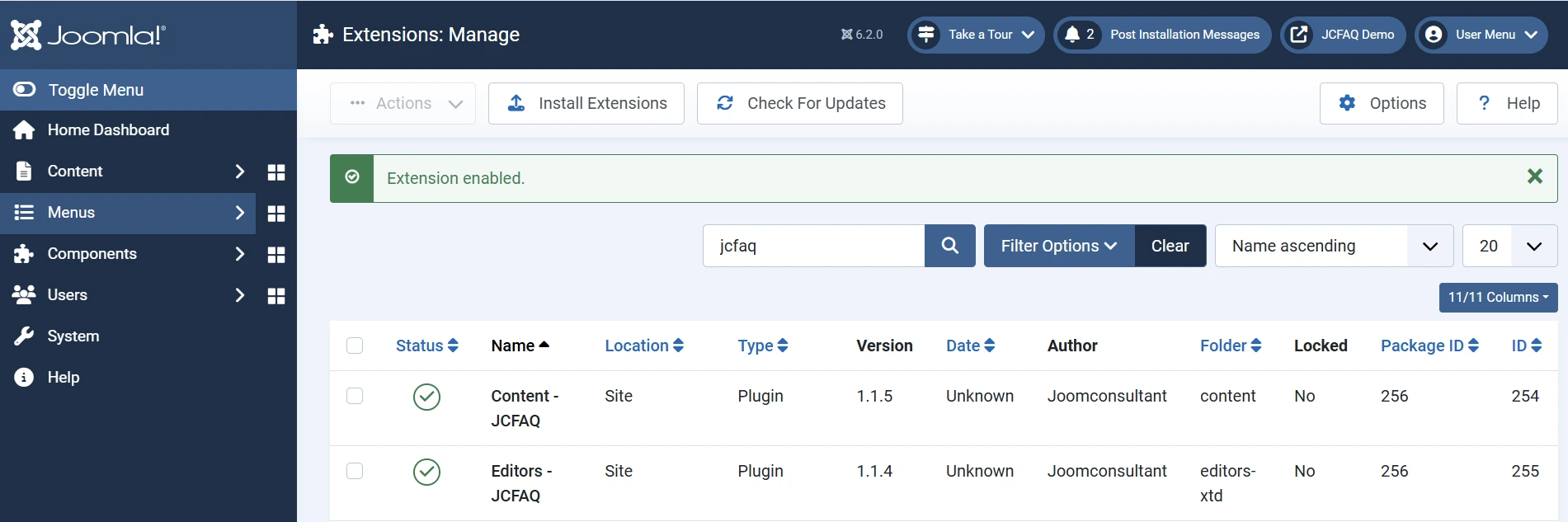
JCFAQ installs two plugins: Content - JCFAQ (renders the shortcode in articles) and Editors - JCFAQ (adds the Insert FAQ button to the editor). Both must be enabled.
- Go to System → Manage → Extensions in the administrator.
- Type jcfaq in the search box and press Enter.
- Check that Content - JCFAQ and Editors - JCFAQ show a green check in the Status column.
- If a plugin is disabled, click its status icon to enable it.
The Package ID column shows 256 for both plugins. This means they came from the JCFAQ package.
Step 2: Create FAQ categories
Categories group your FAQs. Create them before you create FAQ items.
- Go to Components → JCFAQ! → Categories and click New.
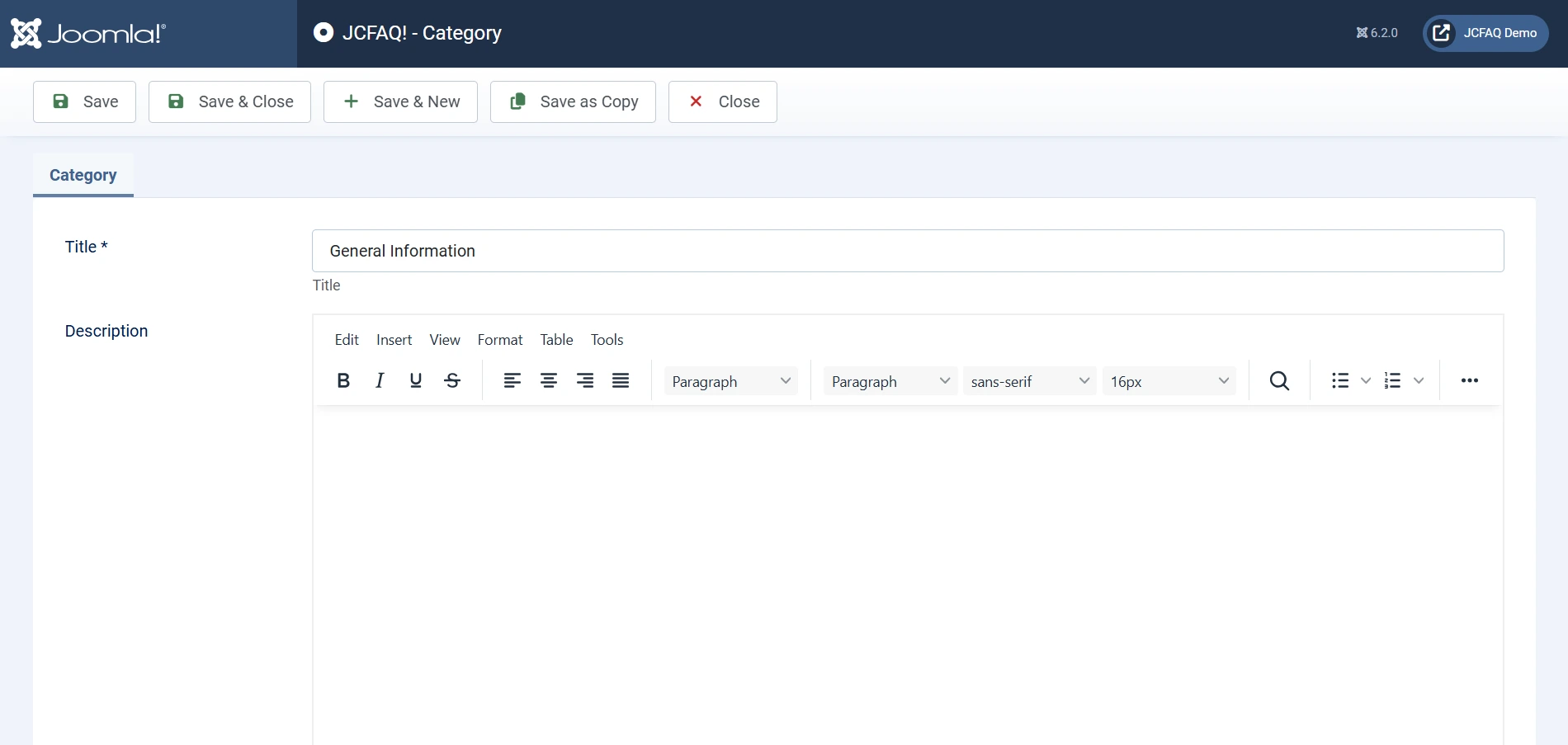
- Enter a Title, for example General Information.
- Optionally add a Description in the editor.
- Click Save & Close.
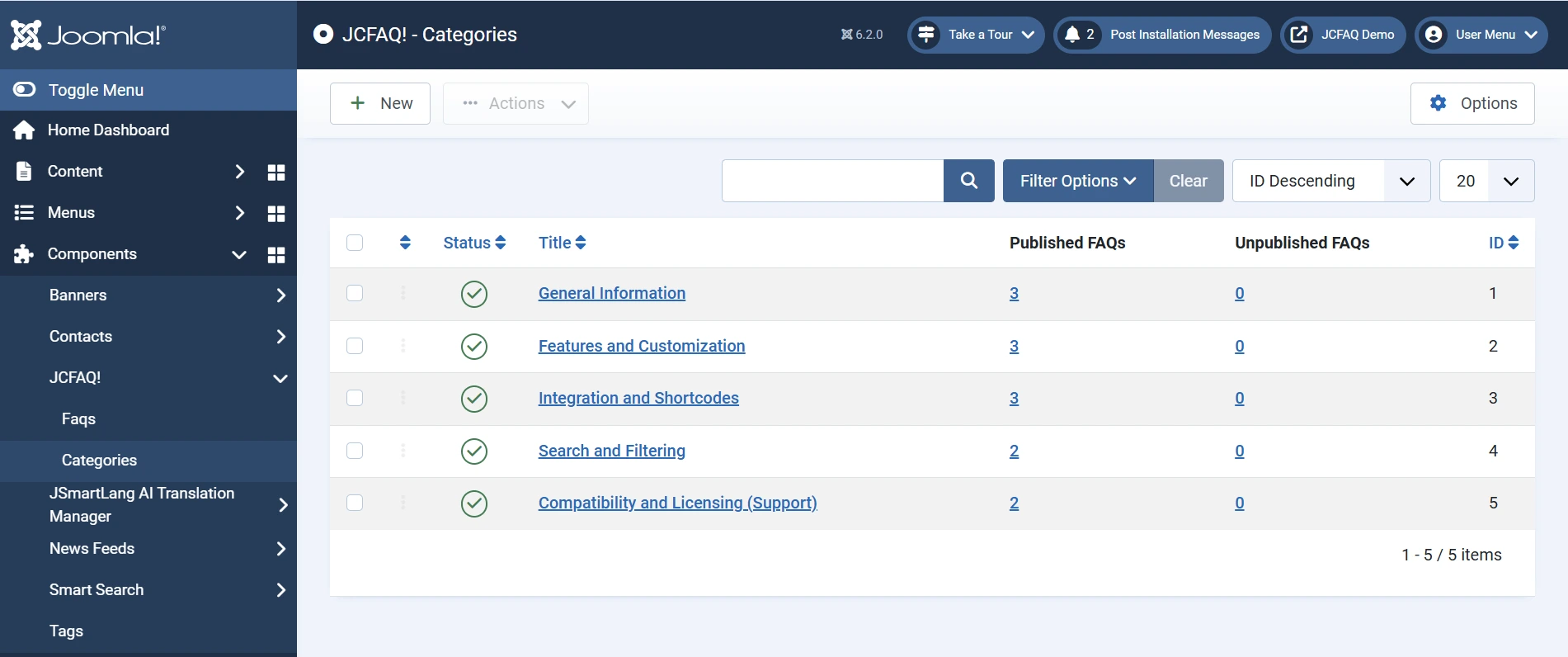
- Create the other categories the same way. The example site uses five: General Information, Features and Customization, Integration and Shortcodes, Search and Filtering, and Compatibility and Licensing (Support).
The categories list shows Published FAQs and Unpublished FAQs counts for each category. The ID column is the number you need when you write shortcodes.
Step 3: Create FAQ items
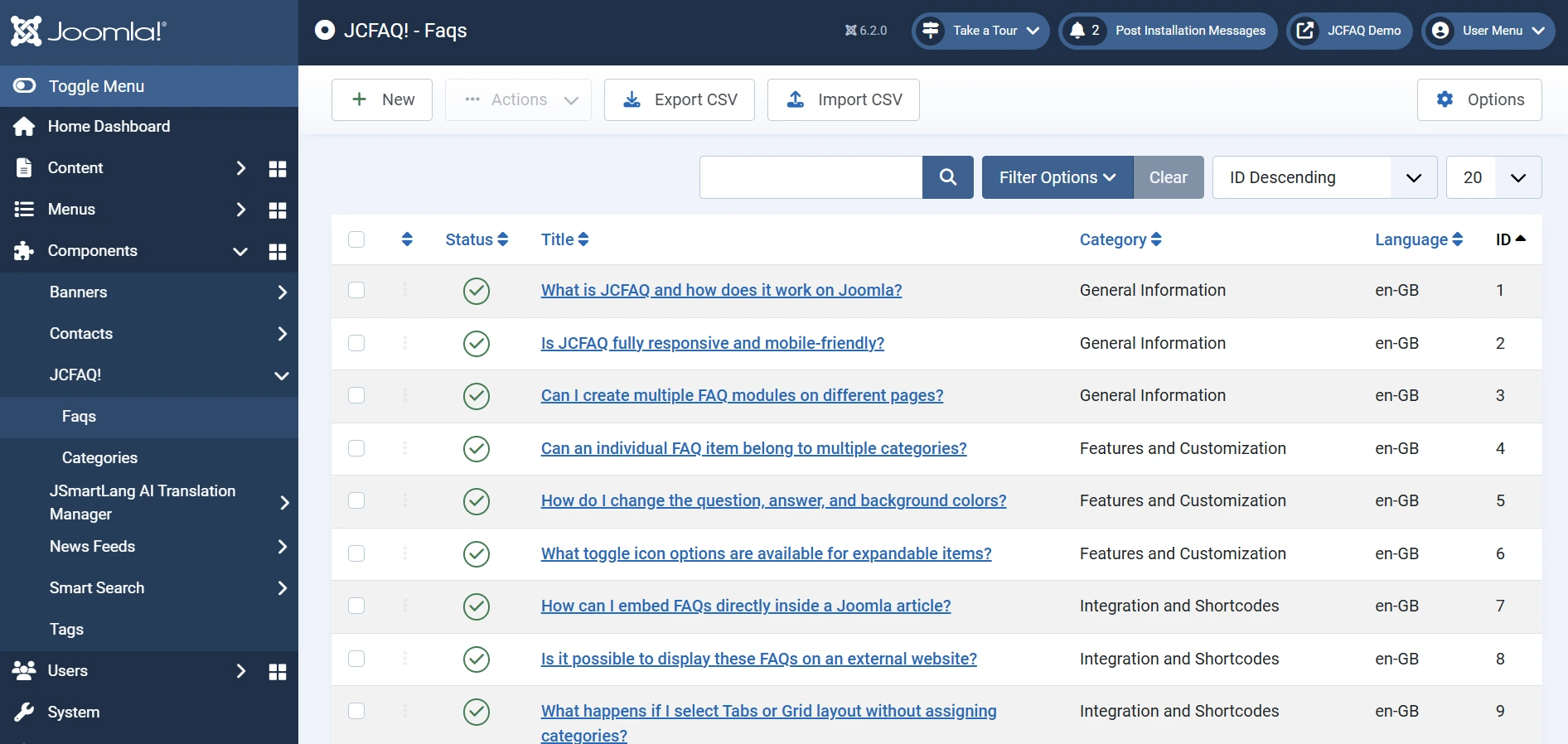
- Go to Components → JCFAQ! → Faqs and click New.
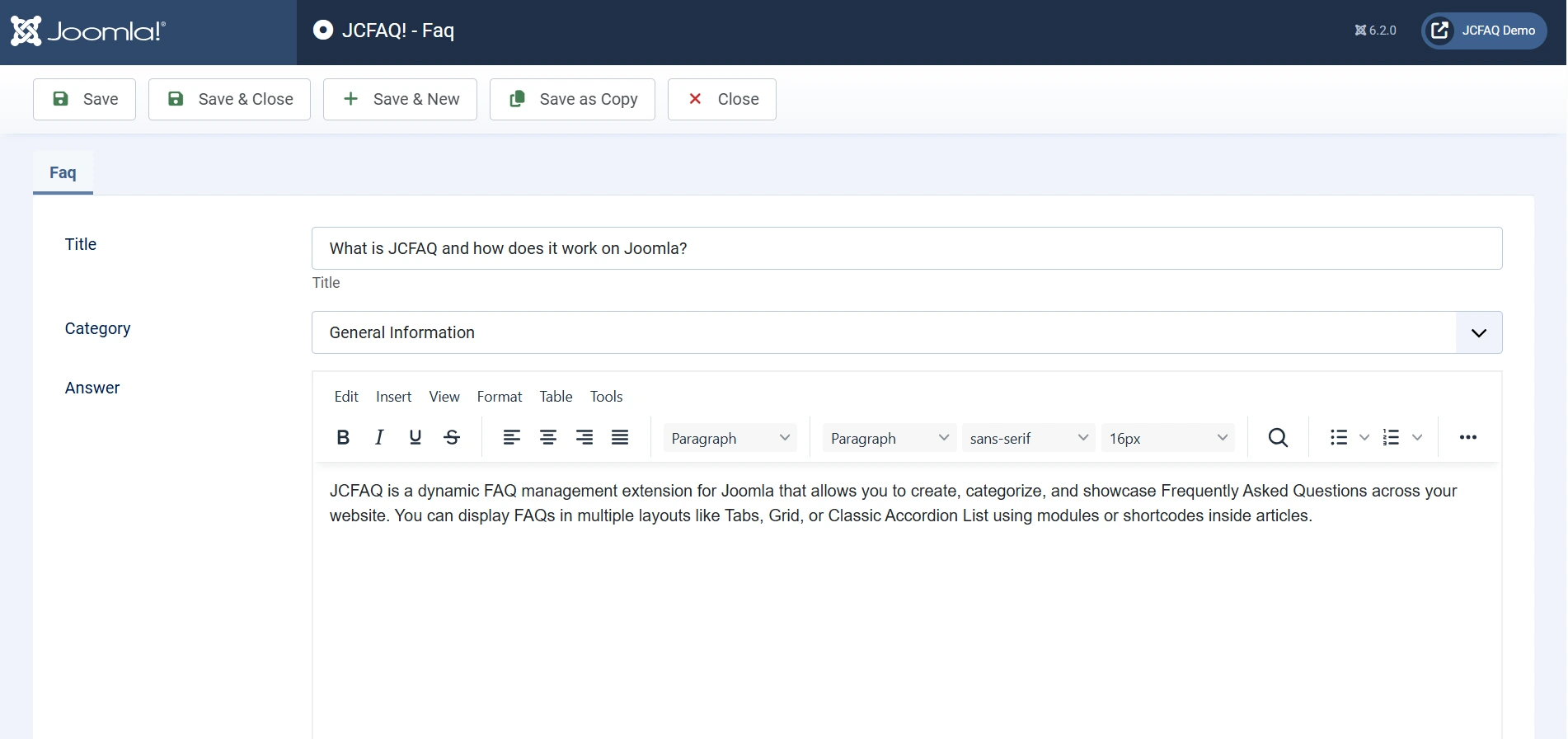
- Enter the question in Title, for example What is JCFAQ and how does it work on Joomla?
- Choose one Category from the list.
- Type the answer in the Answer editor.
- Click Save & Close. Use Save & New to add the next FAQ faster.
The FAQs list shows each item's Status, Title, Category, Language and ID. Use the Export CSV and Import CSV buttons to move many FAQs at once.
Step 4: Show FAQs with a module
The module puts FAQs in any Joomla module position, such as the sidebar or the main body.
- Go to Content → Site Modules → New and choose JCFAQ!.
- Enter a Title, for example JCFAQ!.
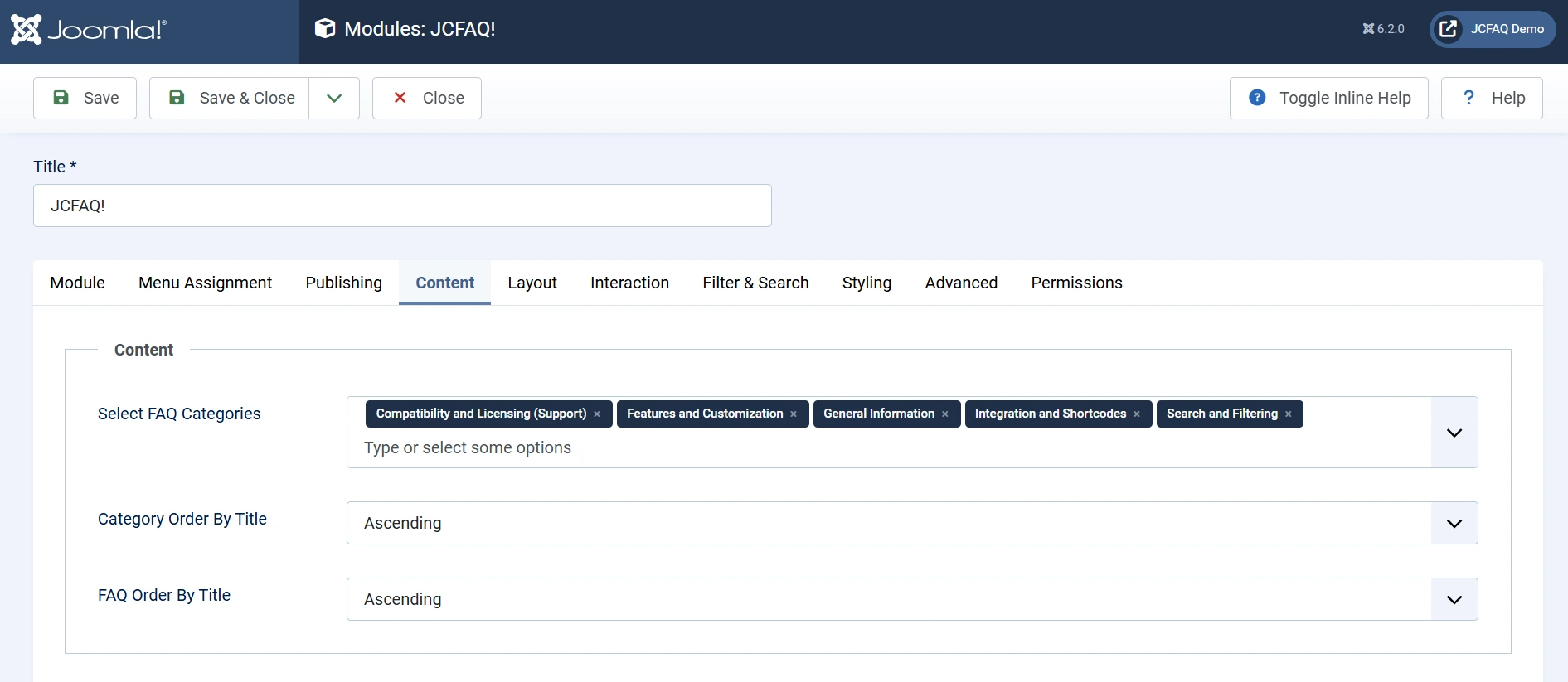
- Open the Content tab. In Select FAQ Categories, pick the categories to show. Only published categories appear in the list.
- Set Category Order By Title and FAQ Order By Title to Ascending or Descending.
- Open the Layout tab and choose FAQ Display Layout: Default (list), Tabs or Grid. Tabs and Grid need categories assigned.
- Open the Module tab, choose a Position, and set Status to Published.
- Open Menu Assignment and choose the pages where the module shows.
- Click Save & Close.
All other tab settings are listed in the module options reference below.
Step 5: Show FAQs in an article with the plugin
The editor button inserts a shortcode such as { jcfaq cat-1,3 }. The Content - JCFAQ plugin turns that shortcode into the FAQ list when the article is shown.
- Open or create an article: Content → Articles → New.
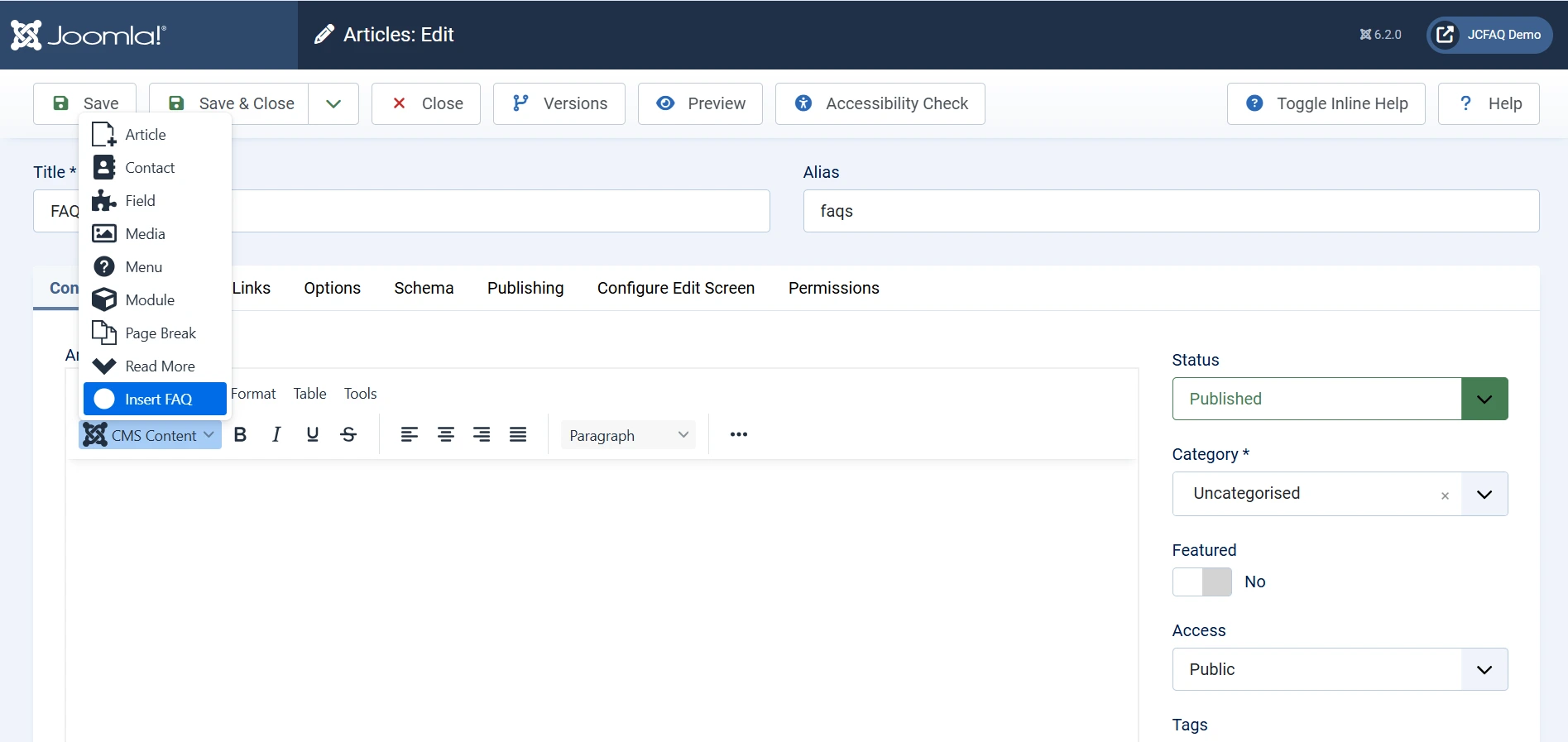
- Click the CMS Content dropdown in the editor toolbar and choose Insert FAQ.
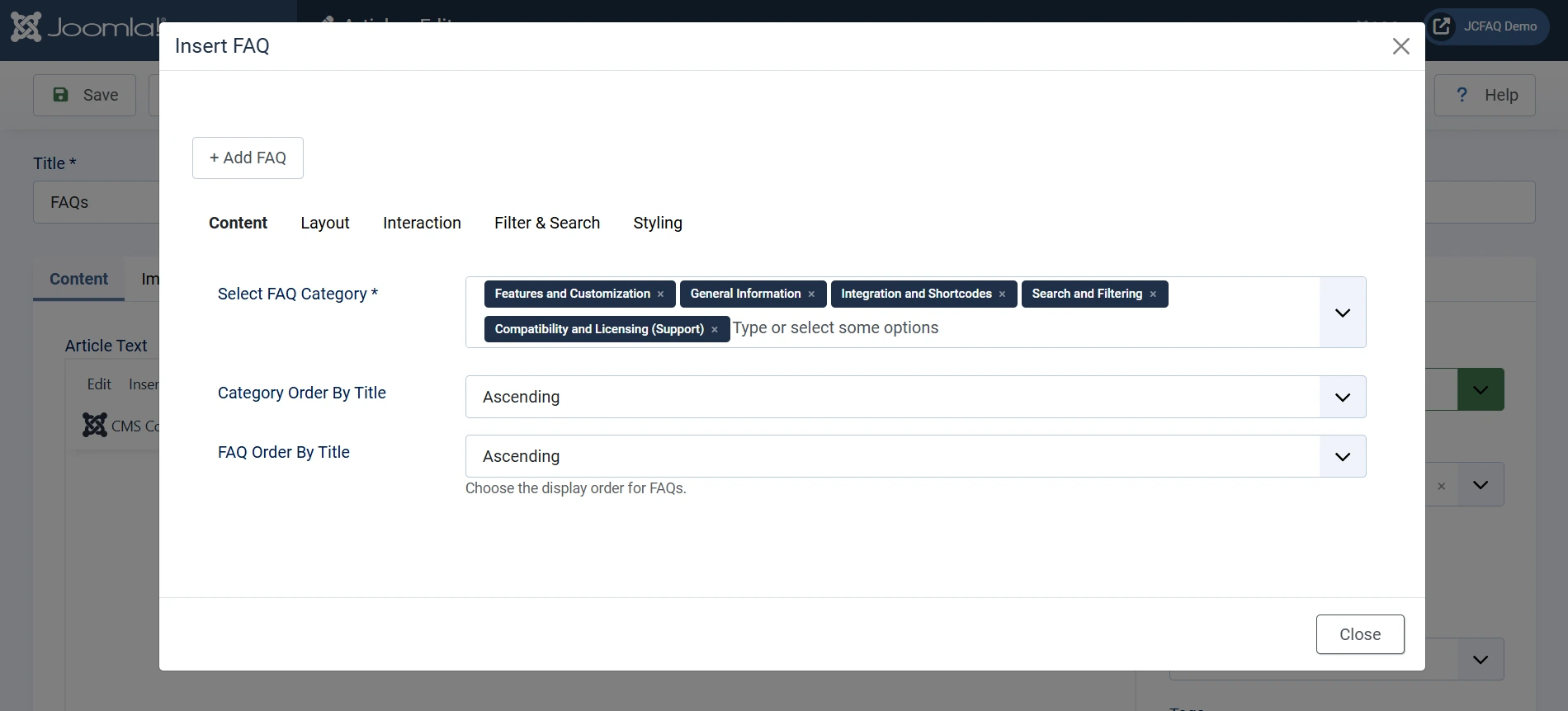
- In the Insert FAQ dialog, select one or more Select FAQ Category values. Set Category Order By Title and FAQ Order By Title.
- Set the Layout, Interaction, Filter & Search and Styling options if you want to change the defaults. These match the module options.
- Click Close. The shortcode is inserted into the article text.
- Click Save & Close, then open the article on the frontend.
The shortcode only works while the Content - JCFAQ plugin is enabled (Step 1). You can also click + Add FAQ in the dialog to create a new FAQ without leaving the article.
Step 6: Create a menu item and check the frontend
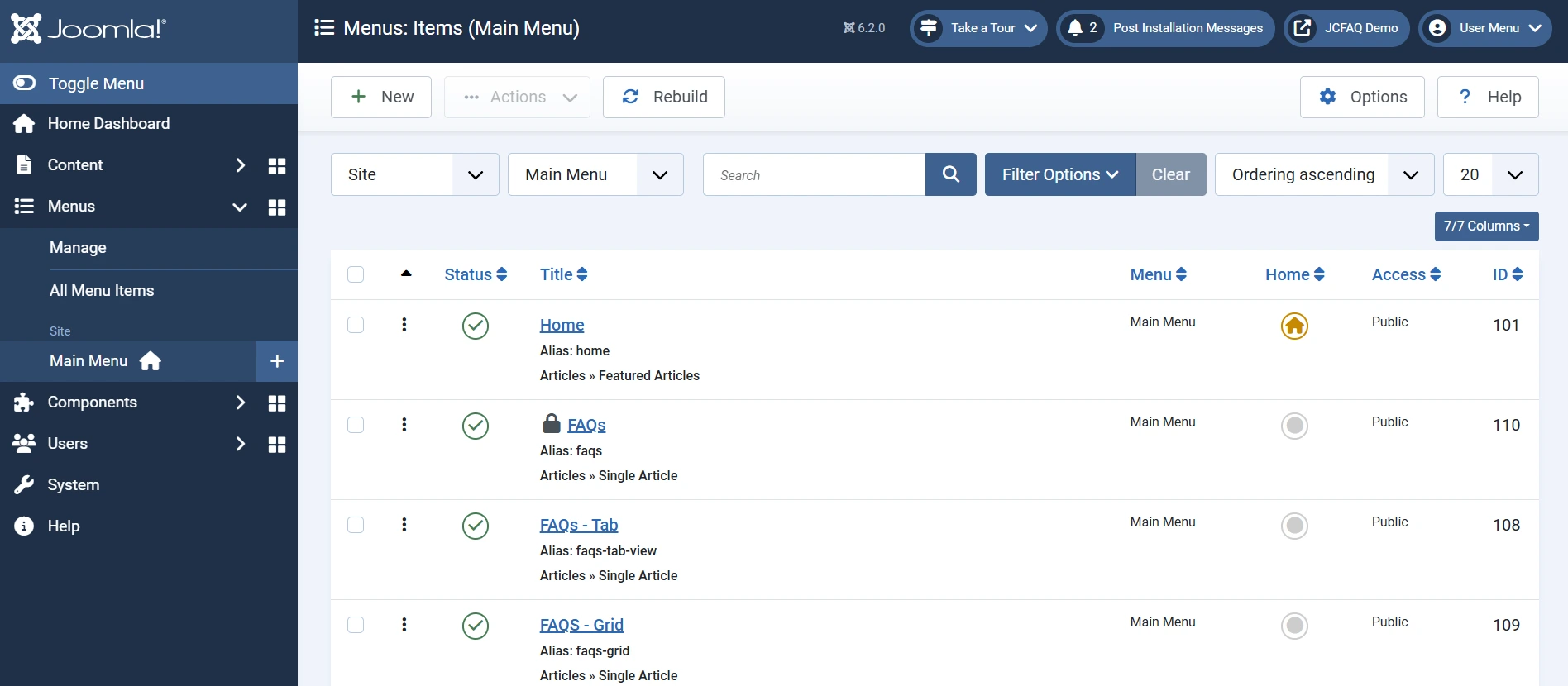
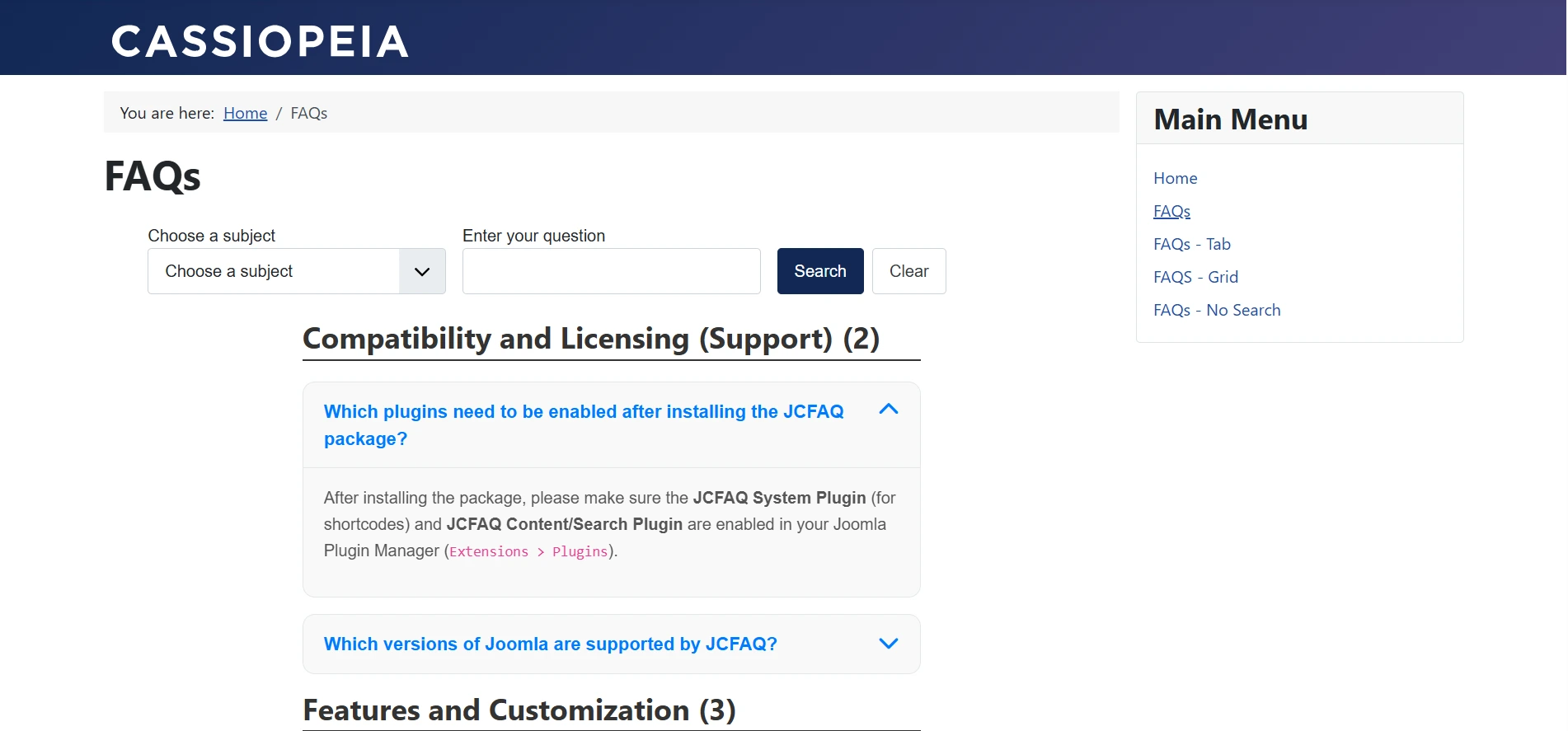
A menu item makes the FAQ page reachable from your site menu. The example site uses one menu item per layout: FAQs (list), FAQs - Tab and FAQS - Grid, each pointing to an article.
- Go to Menus → Manage → Main Menu and click New.
- Enter a Menu Item Title, for example FAQs.
- Click Select next to Menu Item Type and choose Articles → Single Article.
- Choose the article that contains the
{ jcfaq ... }shortcode from Step 5. - Click Save & Close.
- Open your site in a new tab and click the menu item. The FAQ list appears on the page.
To show the module on the frontend, make sure it is published, assigned to a position and set to show on the page you are testing.
Options reference
The module and the Insert FAQ dialog use the same options. The default value is in the Default column.
| Tab | Option | Values | Default | What it does |
|---|---|---|---|---|
| Publishing | Embed | Code | — | Copy code to show these FAQs on an external website, with jQuery or iFrame. |
| Content | Select FAQ Categories | Published categories | None | FAQ categories to display. Pick one or more. |
| Content | Category Order By Title | Ascending, Descending | Ascending | Sort order of the categories. |
| Content | FAQ Order By Title | Ascending, Descending | Ascending | Sort order of the FAQs inside each category. |
| Layout | FAQ Display Layout | Default, Tabs, Grid | Default | Default is a list. Tabs and Grid need categories assigned; otherwise the frontend falls back to Default. |
| Layout | Expand/Collapse Icon Style | Arrow, Plus-Minus | Arrow | Icon that opens and closes each FAQ. |
| Interaction | FAQ Expand Behavior | Single Open, Multiple Open | Single Open | Single Open closes the others when one opens. Multiple Open lets several stay open. |
| Interaction | Open First FAQ by Default | No, Yes | Yes | Opens the first FAQ when the page loads. |
| Filter & Search | Display Category Filter | No, Yes | No | Shows a dropdown so users can filter by category. |
| Filter & Search | Display Search Box | No, Yes | No | Shows a keyword search box. |
| Filter & Search | Show FAQ Results | No, Yes | Yes | Shows search or category filter results below the inputs. Appears when a filter or search box is on. |
| Filter & Search | Display Number of FAQs per Category | No, Yes | No | Shows the FAQ count next to each category title. |
| Styling | FAQ Question Text and Icon Color | Colour | #007BFF | Colour of the question text and icon. |
| Styling | FAQ Answer Text Color | Colour | #555555 | Colour of the answer text. |
| Styling | FAQ Item Background Color | Colour | #f9f9f9 | Background of each FAQ item. |
| Styling | Category Title Color | Colour | #333333 | Colour of category titles. |
| Styling | Faqs Title Case | None, Lower, Upper | None | Changes the case of FAQ questions. |
| Styling | Category Title Case | None, Lower, Upper | None | Changes the case of category titles. |
Plugin and shortcode reference
The two plugins have no settings of their own. Their behaviour is set by the shortcode and the options in the Insert FAQ dialog.
- Content - JCFAQ reads
{ jcfaq ... }shortcodes in article text and renders the FAQ list. It must be enabled. - Editors - JCFAQ adds the Insert FAQ item under the CMS Content button in the article editor.
Shortcode format:
| Part | Meaning |
|---|---|
| {jcfaq | Start of the JCFAQ shortcode. |
| cat-1,3 | Category IDs to show, separated by commas. Find IDs in Categories (the ID column). Required. |
| categories_case-upper | Optional. Sets the category title case: lower or upper. |
| } | End of the shortcode. |
The dialog adds these parts for you. Other options, such as layout, icons and colours, are set in the dialog's tabs and listed in the module options reference above.
Troubleshooting
| Problem | Cause | Fix |
|---|---|---|
| { jcfaq ... } appears as plain text on the frontend | Content - JCFAQ plugin is disabled | Enable it in System → Manage → Extensions (Step 1). |
| No Insert FAQ item in the editor | Editors - JCFAQ plugin is disabled | Enable it (Step 1), then reload the article. |
| Tabs or Grid layout shows as Default | No category is assigned | Select at least one category in the Content tab. |
| FAQ list is empty | Categories or FAQs are unpublished | Check the Published FAQs count in Categories and set the category and FAQs to Published. |
| Category missing from the module or dialog | Category is unpublished | Publish the category. Only published categories are listed. |
| Installing the package shows an error about the old package | An older JCFAQ package is still registered | Uninstall the old package first, or use the updated package 1.1.9. |