



JC System Report: User Guide
Installation, how it works and how to use it
| Item | Details |
|---|---|
| Extension | JC System Report (component com_jc_systemreport) |
| Version covered | 1.1.2 |
| Joomla versions | Joomla 3, 4, 5 and 6 (as stated by the vendor; see Section 2) |
| Author / vendor | Abdulgani, JoomConsultant (joomconsultant.com) |
| Licence | GNU General Public License version 2 or later |
| Document date | 17 November 2026 |
Contents
- What is JC System Report?
- Requirements and compatibility
- Installation (step by step)
- First-time set-up
- The dashboard, option by option
- Site Statistics boxes and Copy to Clipboard
- Downloading the PDF report (step by step)
- Reading the PDF report
- How it works behind the scenes
- Practical workflows
- Troubleshooting
- Uninstalling
- Analysis notes: limitations and issues found
1. What is JC System Report?
JC System Report is a Joomla administrator component that creates a complete overview of a website in one click. The report covers the Joomla version, PHP and MySQL versions, installed extensions, available updates, content counts and template overrides. You can export it as a PDF file.
It was built for a common situation: clients often do not share backend access, and many non-technical clients do not know which extensions are installed or whether the site is up to date. With this component the client (or the site administrator) can generate the report and send only the PDF to the developer or agency. No login details and no screenshots are needed.
Main features
| Feature | What it does for you |
|---|---|
| PDF report download | Creates a file named jc_system_report.pdf with only the sections you selected. |
| Site Statistics dashboard | Shows live boxes for categories, articles, users, menus, tags, extensions, PHP, MySQL, Joomla version, next Joomla version, languages and the current template. |
| Choose what to include | Thirteen checkboxes decide what appears in the PDF. All are ticked by default except Include Joomla Core Extensions. |
| Extension list with versions | Lists each extension with its installed version and the available update version. |
| Template override scan | Finds files that override the default site template, so you can see customised layouts. |
| Copy to Clipboard | Copies the key facts as plain text, ready to paste into an email or support ticket. |
| Read-only | The component only reads data. It does not change articles, users or settings, and it does not save your checkbox choices. |
2. Requirements and compatibility
| Item | What you need |
|---|---|
| Joomla | Joomla 4, 5 or 6 is confirmed by the code in this package. The vendor also states Joomla 3. The code uses the Joomla 4+ structure, so test on Joomla 3 before you rely on it. |
| PHP | The PHP version that your Joomla version supports. The test site runs PHP 8.5.5. |
| Database | MySQL or MariaDB. The test site runs MariaDB 11.4.10. |
| User rights | A Super User, or a user who has access to the component (see Section 4.1). |
| Internet access on the server (optional) | Needed only for the "Next Joomla version" value. The server must reach downloads.joomla.org (Joomla 5.4.1 and newer) or update.joomla.org (older versions). |
| Internet access in the browser (optional) | The dashboard loads jQuery from code.jquery.com. Without it the checkbox behaviour and the copy button will not work. |
| Browser | Any modern browser (Chrome, Edge, Firefox). Copy to Clipboard needs the site to be opened over HTTPS or on localhost. |
3. Installation (step by step)
Step 1 - Log in to the Administrator area. Open https://yoursite.com/administrator and sign in with a Super User account.
Step 2 - Open the Extension installer. In the left sidebar, click System, then Install, then Extensions.
Step 3 - Select the upload method. Open the "Upload Package File" tab.
Step 4 - Choose the file. Click "Select Package" (or drag the file into the box) and pick the JC System Report .zip file from your computer.
Step 5 - Install. Click "Upload & Install". Wait until Joomla shows a green success message for the component.
Step 6 - Open the component. In the left sidebar, click Components, then JC System Report, then JC System Report. The dashboard opens (see Figure 1).
Step 7 - Check that it works. You should see the "PDF Report Configuration" section, the "Download as PDF" button and the "Site Statistics" boxes.
What the installer does automatically
The installer runs a small script after the files are copied. It does two things:
- It copies the file jcsystemreport-extensions.php into the public /api folder of your site. This file is the entry point of the optional JSON API (see Section 4.2).
- It adds one rewrite rule to /api/.htaccess, so that the address /api/jcsystemreport/extensions reaches that file. Other rules in the file are kept.
If you uninstall the component, these two changes are removed as well (see Section 12).
4. First-time set-up
4.1 Give access to other users (optional)
Step 1 - Open the component options. Go to Components, then JC System Report, then Options (toolbar button).
Step 2 - Open the Permissions tab. Joomla shows the rules for this component.
Step 3 - Set the rights. "Manage" (core.manage) lets a user open the report. "Admin" (core.admin) lets a user change the component options. Only give these rights to people you trust, such as a site manager or your developer.
Step 4 - Save. Click Save & Close.
4.2 API key (optional, advanced)
The options page has an API tab with one field, "API key". The key protects a JSON address that returns the extension list. Leave the field empty if you only want the PDF report. An empty key rejects all API requests. Section 13 explains the current status of this feature.
4.3 Check for updates before you create a report
The "New Version" column in the PDF shows the update values that Joomla has stored. If you have not checked for updates recently, that column shows "-" for most extensions. Run the check first:
Step 1 - Go to Extensions. In the left sidebar, click Extensions, then Manage.
Step 2 - Check for updates. Click the "Check for Updates" button in the toolbar and wait for it to finish.
Step 3 - Check Joomla itself (optional). Also open System, then Joomla Update, and check for a new Joomla release.
5. The dashboard, option by option
Open Components, then JC System Report, then JC System Report. The top of the page is the PDF Report Configuration. The blue "Download as PDF" button is in the top right corner of this section. Below the checkboxes is the Site Statistics section (Section 6).
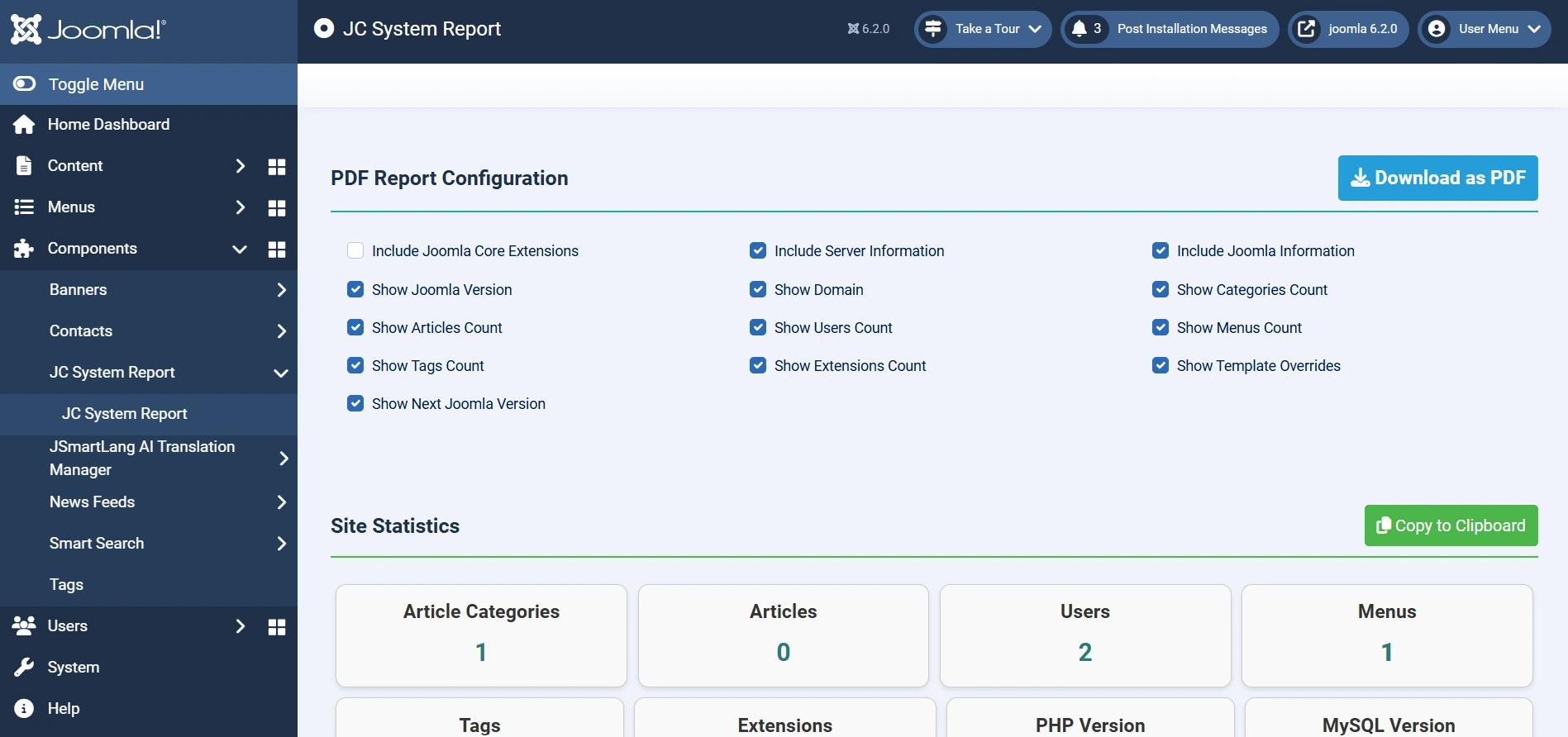
Figure 1 - JC System Report dashboard: PDF Report Configuration and the Site Statistics heading
The thirteen checkboxes
Each checkbox is either ticked (included) or not ticked (left out). The defaults are shown below. Tick or untick a box, then click "Download as PDF". Your choices are used only for that download.
| Checkbox | Default | What it adds to the PDF | Notes |
|---|---|---|---|
| Include Joomla Core Extensions | Not ticked | Every extension row in the Installed Extensions list, including Joomla core modules, plugins and libraries. | Off = only enabled third-party components are listed. |
| Include Server Information | Ticked | The "Server Information" table: PHP version and MySQL version. | |
| Include Joomla Information | Ticked | The "Joomla Information" table: enabled languages, default language, next Joomla version and default template. | Turning this off also unticks and hides "Show Next Joomla Version". |
| Show Joomla Version | Ticked | Adds the line "Joomla Version: x.y.z" under the report title. | Only the header line. |
| Show Domain | Ticked | Adds "of [domain/folder]" to the report title, for example "of localhost/joomla6.2.0". | Untick it if you do not want to reveal the domain name. |
| Show Categories Count | Ticked | The "Categories" box in the summary: number of published article categories. | Summary boxes appear only for ticked count options. |
| Show Articles Count | Ticked | The "Articles" box: number of published articles. | |
| Show Users Count | Ticked | The "Users" box: total number of user accounts. | Only a count. No names, usernames or emails are included. |
| Show Menus Count | Ticked | The "Menus" box: number of published menus, excluding the main menu type and the root item. | |
| Show Tags Count | Ticked | The "Tags" box: number of published tags, excluding the root tag. | |
| Show Extensions Count | Ticked | The "Extensions" box: number of extensions (follows the core checkbox). | |
| Show Template Overrides | Ticked | A "Template Overrides" table, only if overrides are found in the default site template. | If there are no overrides, the section is not printed. |
| Show Next Joomla Version | Ticked | The "Next Joomla Version" row in the Joomla Information table. | Needs Include Joomla Information to be ticked. Needs internet access on the server. |
Tips for choosing options
- Sending to a developer: keep the defaults. The developer needs the versions, the extension list and the update values.
- Sending to a client or a third party: untick "Show Domain" and "Show Users Count" if you do not want to reveal these details.
- Full audit: tick "Include Joomla Core Extensions". The list becomes much longer.
6. Site Statistics boxes and Copy to Clipboard
The Site Statistics section shows the same facts live on the screen. These boxes are not affected by the PDF checkboxes. Figure 2 shows the complete section on the test site (1 category, 0 articles, 2 users, 1 menu, 0 tags, 2 extensions, PHP 8.5.5, MariaDB 11.4.10, Joomla 6.2.0, language English, template cassiopeia).
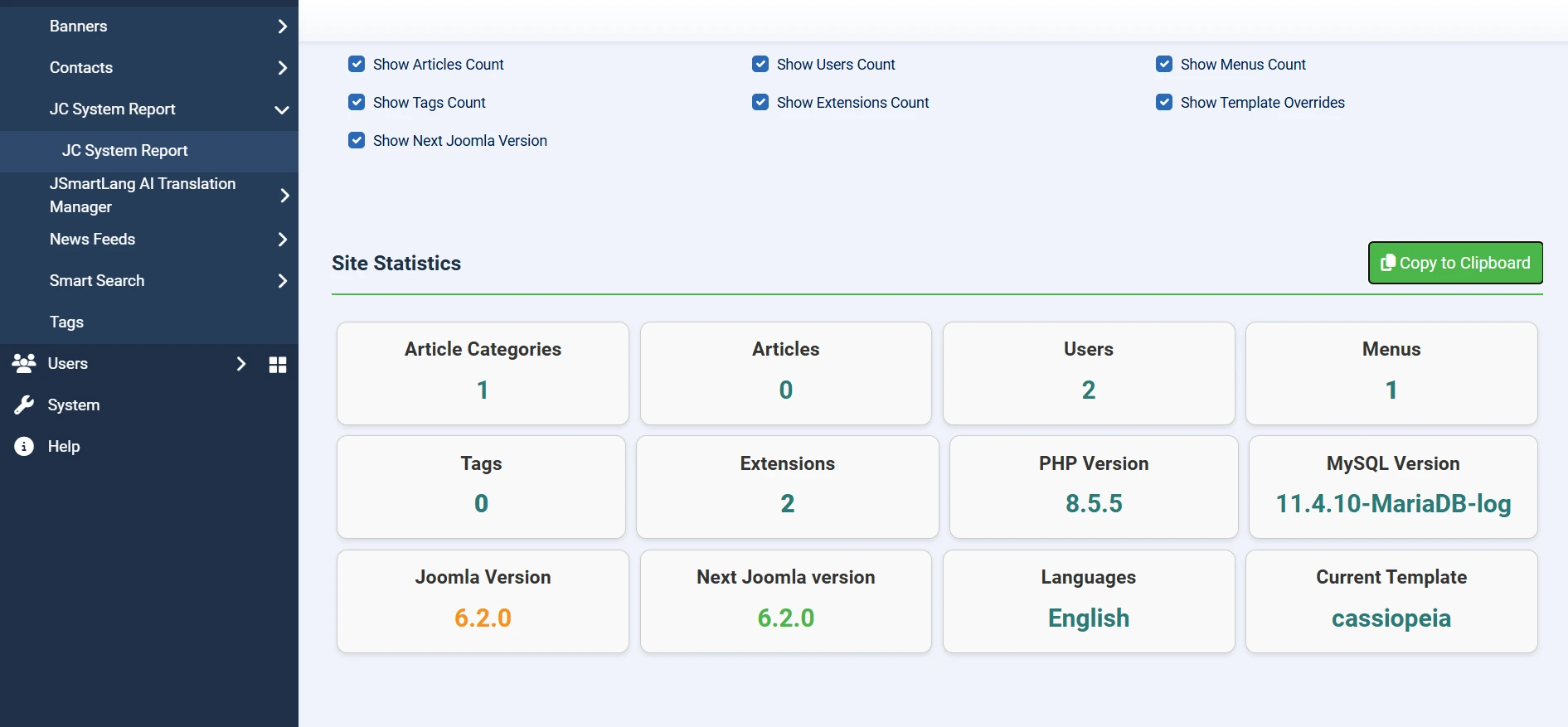
Figure 2 - Site Statistics: Article Categories, Articles, Users, Menus, Tags, Extensions, PHP Version, MySQL Version, Joomla Version, Next Joomla version, Languages and Current Template
What each box means
| Box | What it shows | Where the number comes from |
|---|---|---|
| Article Categories | Published article categories. | Categories table, extension "com_content". |
| Articles | Published articles. | Content table, state = published. |
| Users | Total user accounts. | Users table (all users). |
| Menus | Published menus, excluding the main menu type and the root item. | Menu table. |
| Tags | Published tags, excluding the root tag. | Tags table. |
| Extensions | Enabled non-core components. | Extensions table. |
| PHP Version | PHP version running on the server. | Server. |
| MySQL Version | Database server version. | Database connection. |
| Joomla Version | The installed Joomla version (shown in orange). | Joomla itself. |
| Next Joomla version | The latest Joomla release (shown in green). If the check fails, a red message explains why, for example "Version check failed". | Joomla download server (needs internet access). |
| Languages | Published site languages. | Languages table. |
| Current Template | The default site template (cassiopeia on the test site). | Template styles table. |
Copy to Clipboard (step by step)
Step 1 - Click "Copy to Clipboard" in the green box at the top right of the Site Statistics section.
Step 2 - Wait for the confirmation. The button text changes to "Copied!" for about 1.5 seconds.
Step 3 - Paste the text into an email, ticket or chat (Ctrl+V). You get seven lines in this form:
- Extensions: 2
- PHP Version: 8.5.5
- MySQL Version: 11.4.10-MariaDB-log
- Joomla Version: 6.2.0
- Next Joomla version: 6.2.0
- Languages: English
- Current Template: cassiopeia
7. Downloading the PDF report (step by step)
Step 1 - Open the report. Go to Components, then JC System Report, then JC System Report.
Step 2 - Choose the options. Tick or untick the thirteen checkboxes in "PDF Report Configuration" (see Section 5). The default settings are a good starting point.
Step 3 - Click "Download as PDF". The blue button in the top right corner of the PDF Report Configuration section. The page does not change; the browser downloads the file.
Step 4 - Open the file. Find jc_system_report.pdf in your Downloads folder and open it. Check the title, the date and the sections you expected (Section 8).
Step 5 - Send the file. Attach the PDF to your email or support ticket. The file is not stored on the website, so keep a copy if you need it later.
8. Reading the PDF report
Figure 3 shows the first page of a report generated on the test site. The sections appear in the order shown below. A section appears only when you ticked the related option.
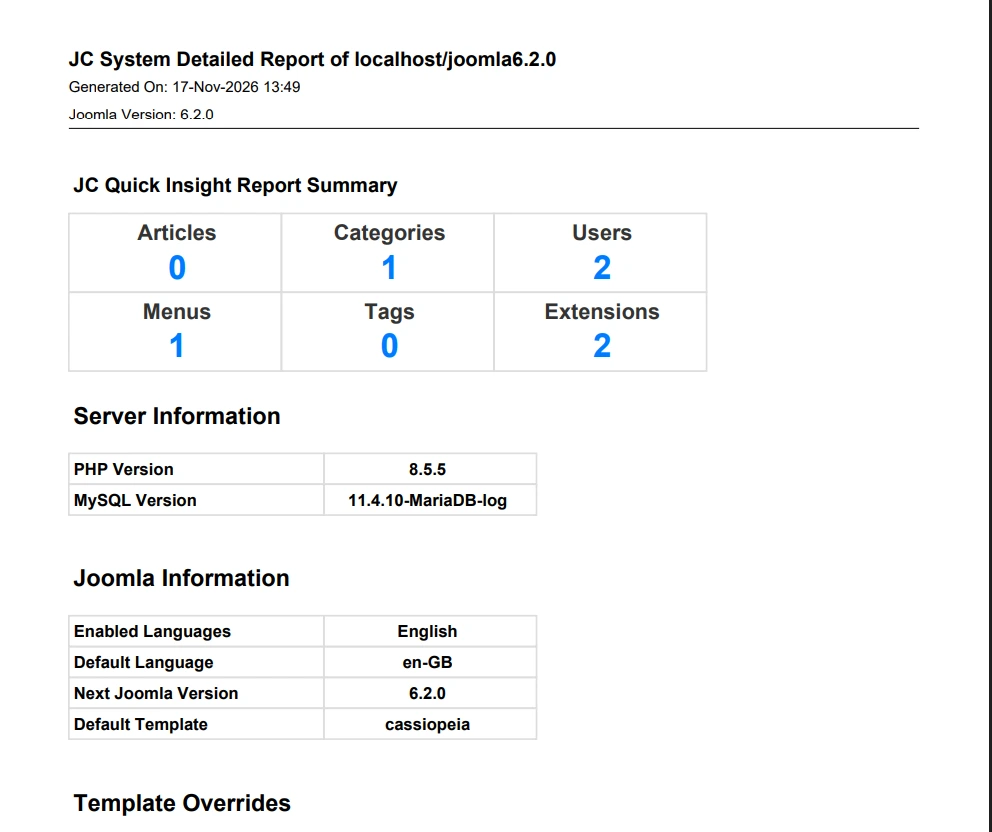
Figure 3 - First page of the generated PDF report (jc_system_report.pdf)
Sections of the report
| Section | What it contains | Depends on |
|---|---|---|
| Title and header | "JC System Detailed Report of [domain]", the "Generated On" date and time of the server, the Joomla version line and a horizontal line. Each page has a page number in the footer ("Page x/y"). | Show Domain, Show Joomla Version |
| JC Quick Insight Report Summary | Boxes with the counts you chose: Articles, Categories, Users, Menus, Tags and Extensions. | The matching Show ... Count options |
| Server Information | PHP version and MySQL version. | Include Server Information |
| Joomla Information | Enabled languages, default language code (for example en-GB), next Joomla version and the default template. | Include Joomla Information (and Show Next Joomla Version) |
| Template Overrides | A numbered table: Type (Component, Module, Plugin, Layout, Language or SP Page Builder) and File / View (the name of the overridden folder). Appears only when overrides exist. | Show Template Overrides |
| Installed Extensions | A numbered table with Name, Type, Current Version and New Version (the update version Joomla has stored). By default only enabled third-party components are listed. | Include Joomla Core Extensions changes which rows appear |
9. How it works behind the scenes
The component is simple. The steps below describe what happens when you use it.
1. The dashboard opens. The component reads the counts and facts it needs from the Joomla database and from the files of the default template. The Site Statistics boxes are filled in from this data.
2. You click "Download as PDF". The form sends your thirteen checkbox values to the server. The task is named jcsystemreport.generatePDF. The controller converts the values into options.
3. The PDF is built. The report generator reads the data it needs, adds the sections you chose and draws the document with the TCPDF library. TCPDF is included inside the component, so nothing else needs to be installed.
4. The file is sent to you. The PDF is streamed directly to your browser as jc_system_report.pdf. Nothing is written to the website folders or to the database.
5. Small helpers run in the browser. The copy button writes the statistics to the clipboard. A small script hides or shows the "Next Joomla Version" option depending on "Include Joomla Information".
Where each piece of information comes from
| Information | Source | Notes |
|---|---|---|
| Category, article, user, menu and tag counts | Joomla database tables: categories, content, users, menu, tags | Counts only. No article titles, usernames or emails are read or printed. |
| Extension list, versions and status | Joomla database table: extensions | Default: enabled third-party components only (extension ID above 245). |
| Available update versions | Joomla database table: updates | Filled only after Joomla has checked for updates. |
| Languages and default language | Languages table and the site configuration | |
| Default template | Template styles table (site template with Home = yes) | Also used for the template override scan. |
| Template overrides | Files on disk in templates/[default template]/html and sppagebuilder folders | Only file names are listed. File contents are not read into the report. |
| Next Joomla version | Internet request to downloads.joomla.org (Joomla 5.4.1 and newer) or update.joomla.org (older) | The only outgoing request made by the component. A failed request shows a message instead of stopping the report. |
| PHP and MySQL versions | The running PHP and the database server |
Privacy and safety
- No usernames, passwords or email addresses are included in the dashboard or the PDF.
- The component is read-only. It does not change site data, and it does not save your checkbox choices.
- The PDF is generated only for logged-in administrators who have access to the component.
- The report shows the server and the versions of your site. Share it only with people you trust, or untick the sensitive options first.
10. Practical workflows
A. The client asks the developer for a site report
1. The client logs in to the Administrator area and opens Components, then JC System Report.
2. The client clicks Extensions, then Manage, then Check for Updates (Section 4.3).
3. The client goes back to JC System Report, keeps the default options and clicks "Download as PDF".
4. The client emails jc_system_report.pdf to the developer. No backend access is shared.
B. Monthly health check for an agency
1. Run Check for Updates on the first working day of the month.
2. Open JC System Report, make sure "Include Joomla Core Extensions" is not ticked and "Show Next Joomla Version" is ticked.
3. Download the PDF and save it in the client folder, named with the month.
4. Compare the Current Version and New Version columns with the previous month to plan the updates.
C. Quick check before a support ticket
1. Open the dashboard and click "Copy to Clipboard".
2. Paste the seven lines at the top of the ticket. This gives the support team the Joomla, PHP, MySQL and template details straight away.
11. Troubleshooting
| Problem | Likely cause | What to do |
|---|---|---|
| Next Joomla version shows "Version check failed" or "XML load failed" | The server cannot reach the Joomla download or update server, or outgoing HTTP is blocked. | Ask the hosting provider to allow outgoing HTTPS to downloads.joomla.org. The rest of the report still works. |
| Next Joomla version shows "Version not found" or "Invalid version data" | The server reached Joomla but the answer was not in the expected format. | Try again later. If it persists, note the message for the vendor. |
| "New Version" column shows "-" for most extensions | Joomla has not checked for updates yet. | Go to Extensions, then Manage, then Check for Updates, and generate the PDF again. |
| Next Joomla Version is missing in the PDF | Include Joomla Information or Show Next Joomla Version is not ticked. | Tick both boxes. |
| No summary boxes at the top of the PDF | All count options are unticked. | Tick at least one "Show ... Count" option. |
| No Template Overrides section | The default template has no overrides, or the option is unticked. | This is normal for a clean template. Only the default site template is scanned. |
| Warning: "allow_url_fopen" | PHP has allow_url_fopen turned off. | Ask the server administrator to enable allow_url_fopen in php.ini, or upgrade to Joomla 5.4.1 or newer. |
| Copy to Clipboard does nothing | The page is not on HTTPS or localhost, or the browser blocked clipboard access. | Open the site over HTTPS, allow clipboard access, or copy the values by hand. |
| PDF does not download, or the page shows a server error | PHP error, memory limit, or a blocked download in the browser. | Allow downloads for the site. Ask the administrator to check the PHP error log and memory limit. |
| Extensions box does not change when "Include Joomla Core Extensions" is ticked | Known issue in this version (see Section 13). | The PDF is still correct. Use the PDF to see the complete list. |
| Component page says access is not allowed | The user does not have the Manage right for this component. | A Super User must give the right in the component Permissions tab (Section 4.1). |
12. Uninstalling
Step 1 - Open the extension manager. In the Administrator area, go to Extensions, then Manage.
Step 2 - Find the component. Type "JC System Report" in the search box.
Step 3 - Uninstall. Tick the box next to JC System Report, click the Uninstall button in the toolbar and confirm.
The uninstall script removes the copied API file from /api and removes only the JC System Report rewrite rule from /api/.htaccess. Other rules stay in place.
13. Analysis notes: limitations and issues found
The following points were found when the component code (version 1.1.2) was reviewed for this guide. They are not fatal, but they are useful to know before you rely on the component for a client.
| No. | Finding | Effect and suggested action |
|---|---|---|
| 1 | The "Extensions" box does not update when "Include Joomla Core Extensions" is ticked. The script writes to "#box-extensions" but the box has the ID "box_extensions". | The count stays the same on screen. The PDF is correct. Fix: change the selector to "#box_extensions". |
| 2 | The label "Include Joomla Core Extensions" really means "show all extension rows". Plugins, modules, libraries and disabled extensions also appear. | Expected behaviour, but the wording can confuse users. |
| 3 | Checkbox names start with "hide_", but a ticked box means "show". | Works correctly. Only the naming is confusing for developers. |
| 4 | The vendor text says the report lists components, modules, plugins and templates. By default the PDF lists enabled third-party components only. | Use the core checkbox to see all types. |
| 5 | The vendor text says "Click Generate Report". This version has no such button. The report is shown on the page at once, and the blue button creates the PDF. | Update the vendor instructions. |
| 6 | The vendor text mentions export as PDF only. The code contains a comment about CSV but no CSV export exists. | PDF is the only export format in this version. |
| 7 | The JSON API address answers: a request with a wrong key returned HTTP 401, so the key check works. However, the forwarder asks for the task "extensions", which the controller does not define. A correct key was not tested. | Treat the API as unconfirmed. Ask the vendor before using it in production. |
| 8 | The allow_url_fopen warning message contains an unclear sentence. | Cosmetic. It should be rewritten, for example: "PHP setting allow_url_fopen is off. Ask your host to enable it." |
| 9 | The dashboard loads jQuery from code.jquery.com. On an offline or restricted network the checkboxes, the copy button and the AJAX count will not work. | The PDF download still works, because it is a normal form submit. |
| 10 | The vendor states Joomla 3 support. The code uses the Joomla 4+ structure. | Do not rely on Joomla 3 until it is tested. |
| 11 | The installer changes files in /api and /api/.htaccess. | Keep a backup before install and uninstall, especially if your site already uses the /api folder. |
| 12 | The "Next Joomla version" check depends on a live internet request from the server (5-second timeout). | Slow or blocked networks show a red message. The report is still created. |
Overall assessment: JC System Report does what it promises for its core use. It creates a clear, privacy-friendly PDF overview of a Joomla site without sharing backend access. The most useful fix is item 1, the wrong element ID in the Extensions box.
Prepared from the component code and from the test screenshots. Joomla 3 and the optional JSON API were not tested on a live site.