



System - JC Maintenance plugin, version 1.0.2, for Joomla 6.x
Publisher: joomconsultant.com | Document date: 17 November 2026
1. Overview
JC Maintenance replaces Joomla's plain offline page with a custom maintenance page while the public website is offline. It also gives selected people a secret preview link, so clients, testers and developers can review the live frontend while visitors still see the maintenance page.
- Public visitors see a branded maintenance page sent with HTTP status 503 (Service Temporarily Unavailable), which tells search engines the outage is temporary.
- Authorised people open a secret Preview URL and browse the full website for a limited time.
- Every page visit renews the access timer. A Logout button lets the reviewer end access early.
- Administrators are never blocked from the Joomla administrator area.
- Optional whitelisted URLs keep payment notifications or web cron jobs working during maintenance.
Typical uses: Website redesign review, Joomla or extension updates, client approval, QA testing, and preparing a site before launch (a "coming soon" page).
2. Requirements
- A Joomla 6.x site. The screenshots in this guide were taken on Joomla 6.2.0.
- An administrator account with permission to manage plugins and extensions.
- The plugin must be Enabled and its Access level must stay Public.
3. Installation
If the plugin is not installed yet, follow these steps. Skip to section 4 if it is already installed.
- Log in to the administrator area, for example https://yoursite.com/administrator.
- Go to System > Install > Extensions.
- Click Upload Package File, choose the JC Maintenance plugin ZIP file and click Upload & Install.
- Wait for the success message. The plugin is now installed.
Future versions can be applied from System > Manage > Extensions and the Check For Updates button, because the plugin registers its update server in its manifest.
To verify the installation, go to System > Manage > Extensions and search for "jc". The list shows System - JC Maintenance (type Plugin, location Site, folder system). The Status icon must be a green check mark, which means the plugin is enabled.
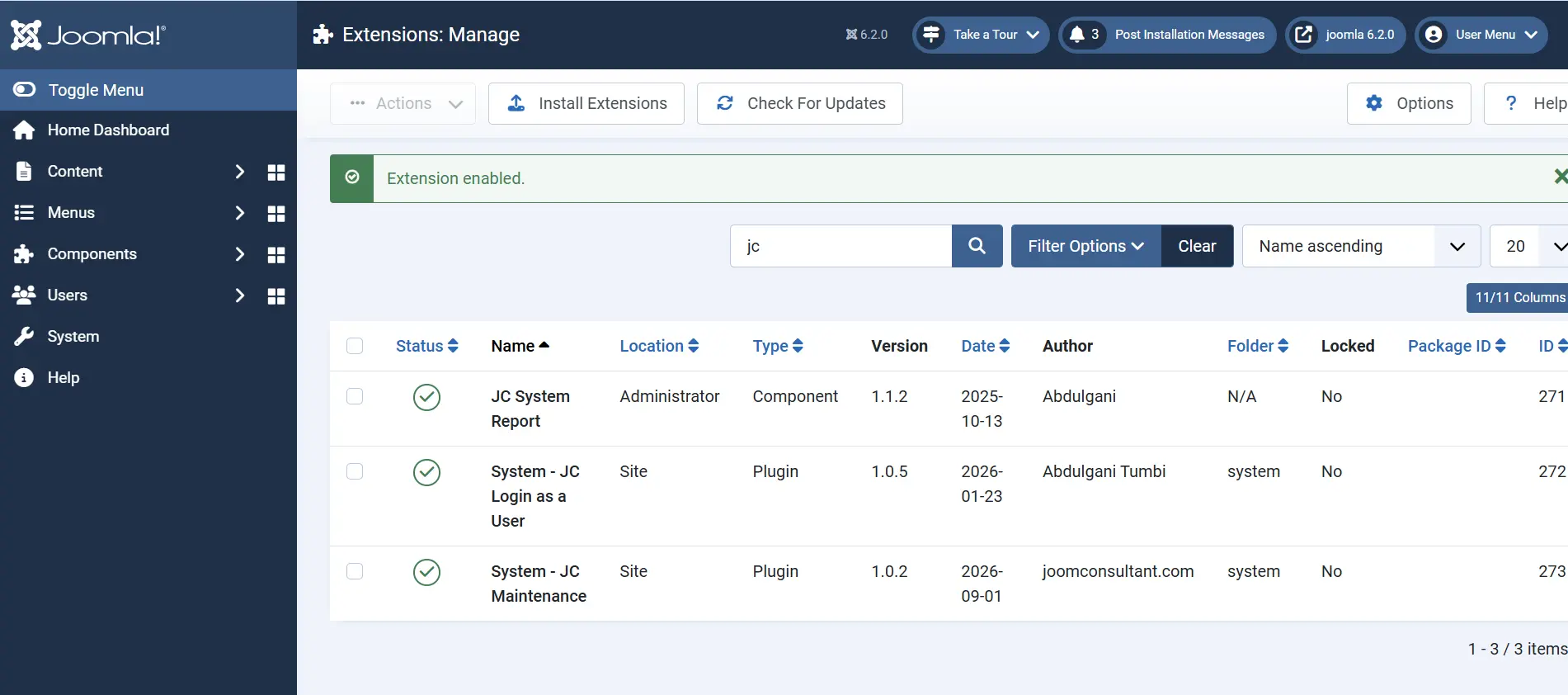
Note: The same search also lists JC System Report and System - JC Login as a User. Those are separate extensions and are not covered in this guide.
4. Opening the plugin settings
Go to System > Manage > Plugins, search for "jc maintenance" and click System - JC Maintenance. The plugin has two tabs:
- Plugin - status, offline switch, secret key, preview URL, session time and whitelisted URLs.
- Maintenance Page - image, message, contact details, social media, text color and background.
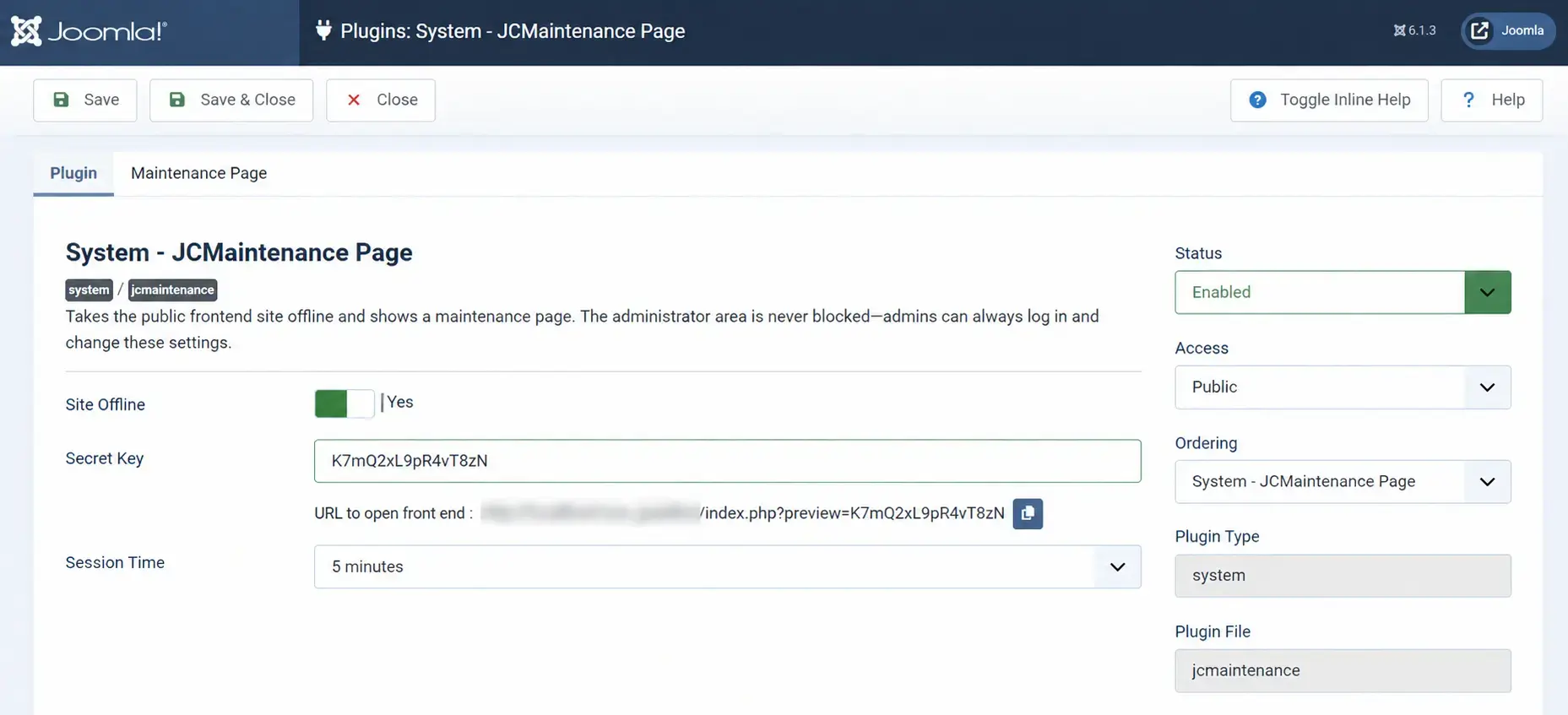
Screenshot note: Figure 2 was captured on an earlier build where the plugin was titled "System - JCMaintenance Page". The current title is "System - JC Maintenance" (version 1.0.2). The settings are the same.
5. Plugin tab: settings reference
The Site Offline, Secret Key, Preview URL, Session Time and whitelist fields only appear while Site Offline is set to Yes.
| Setting | What it does | Recommendation |
|---|---|---|
| Status | Enabled or Disabled. The plugin does nothing while disabled. | Enabled |
| Access | Access level of the plugin. | Public (leave as is) |
| Ordering | Position of the plugin in the list of system plugins. | Leave the default |
| Site Offline | Yes shows the maintenance page to public visitors. No shows the normal website. | Yes during maintenance, No when live |
| Secret Key | The key that opens the site through the Preview URL. Maximum 16 characters. | Use 12 to 16 random letters and digits. Change it after each review round. |
| Preview URL | Generated automatically: your site address plus index.php?preview=KEY. The copy button copies it. | Share only with authorised people, and only privately |
| Session Time | How long preview access lasts: 5, 10, 15, 30, 60 or 120 minutes. Each page visit renews the timer. | 15 to 30 minutes for client or QA reviews |
| Whitelisted URLs | Requests that keep working while the site is offline (for example payment notifications or web cron). | Add only what you need (section 10) |
6. Step-by-step: putting the website into maintenance
- Open the plugin (section 4). Set Status to Enabled and keep Access as Public.
- Set Site Offline to Yes. The Secret Key, Preview URL, Session Time and Whitelisted URLs fields appear.
- Recommended: also turn on Joomla's own offline mode in System > Global Configuration > Site > Site Offline. Test the preview link afterwards (step 10).
- Type a Secret Key of up to 16 characters. The Preview URL updates as you type. Click the copy button to copy it.
- Choose a Session Time.
- Design the maintenance page on the Maintenance Page tab (section 7).
- Click Save. Review the page as described in section 8.
- Click Save & Close.
- Open the site in a private (incognito) browser window. You should see the maintenance page.
- Open the Preview URL in the same private window. You should reach the full website. Then share the link as described in section 9.
7. Customizing the maintenance page
Open the Maintenance Page tab. Every element is optional: an empty field hides its section, so the page stays clean.
7.1 Image
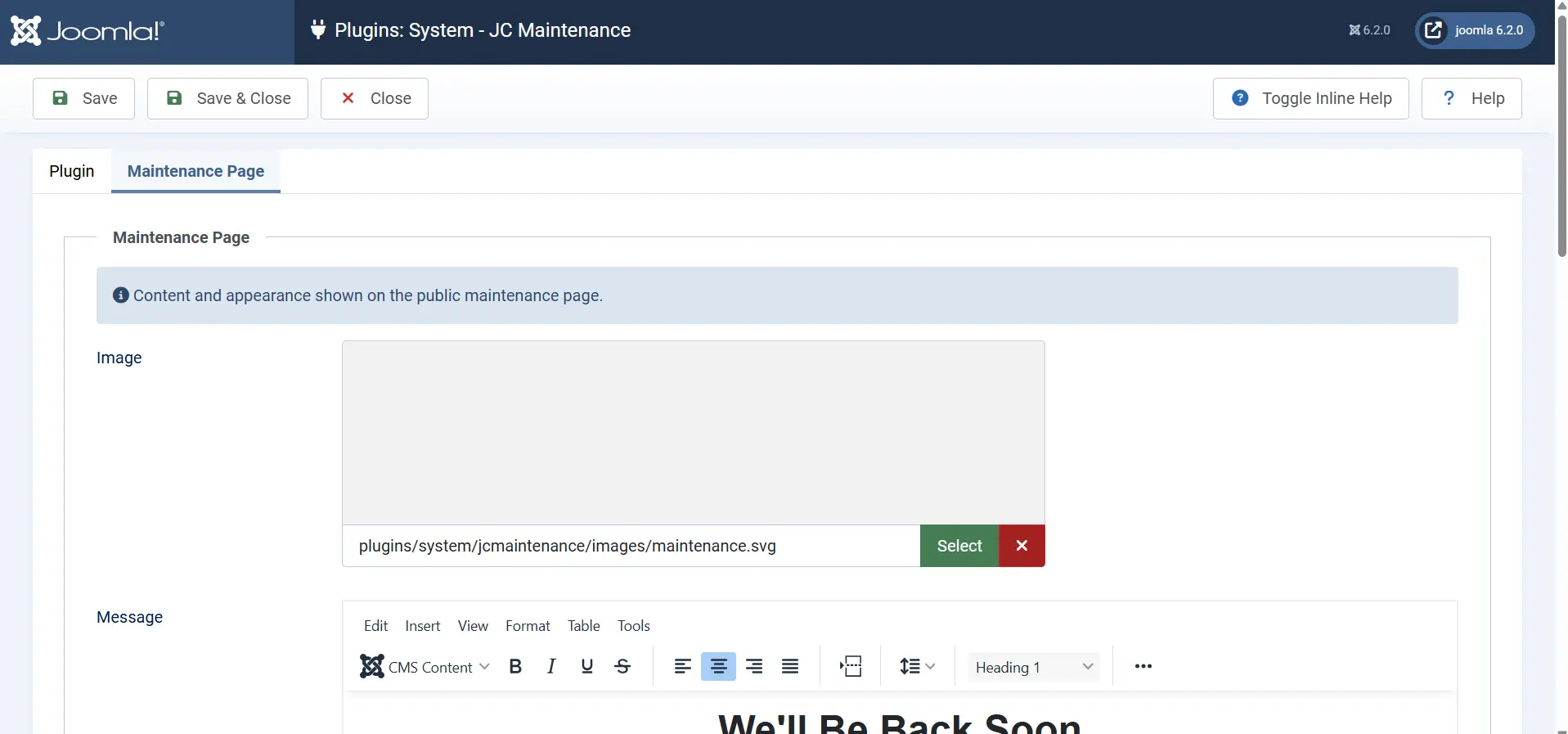
- Click Select to choose an image from the Joomla media manager, or upload one. The default is the illustration maintenance.svg installed with the plugin.
- Click the red X to remove the image. An empty image field shows no image.
- The image is displayed at most 12 rem (about 192 px) wide, so a simple logo or illustration works best. SVG or PNG files are recommended.
7.2 Message
- The Message is a full editor with formatting (bold, italic, underline, alignment, headings and the CMS Content button). The text is shown exactly as you format it.
- Use the message to say what is happening and when the site will return, for example: "We will be back on 20 November 2026."
- If the message is left empty, the default text "We'll Be Back Soon" with a short paragraph is shown.
- Some editor features that do not belong on a standalone page (read more, modules, menus, articles) are hidden.
7.3 Contact details and social media
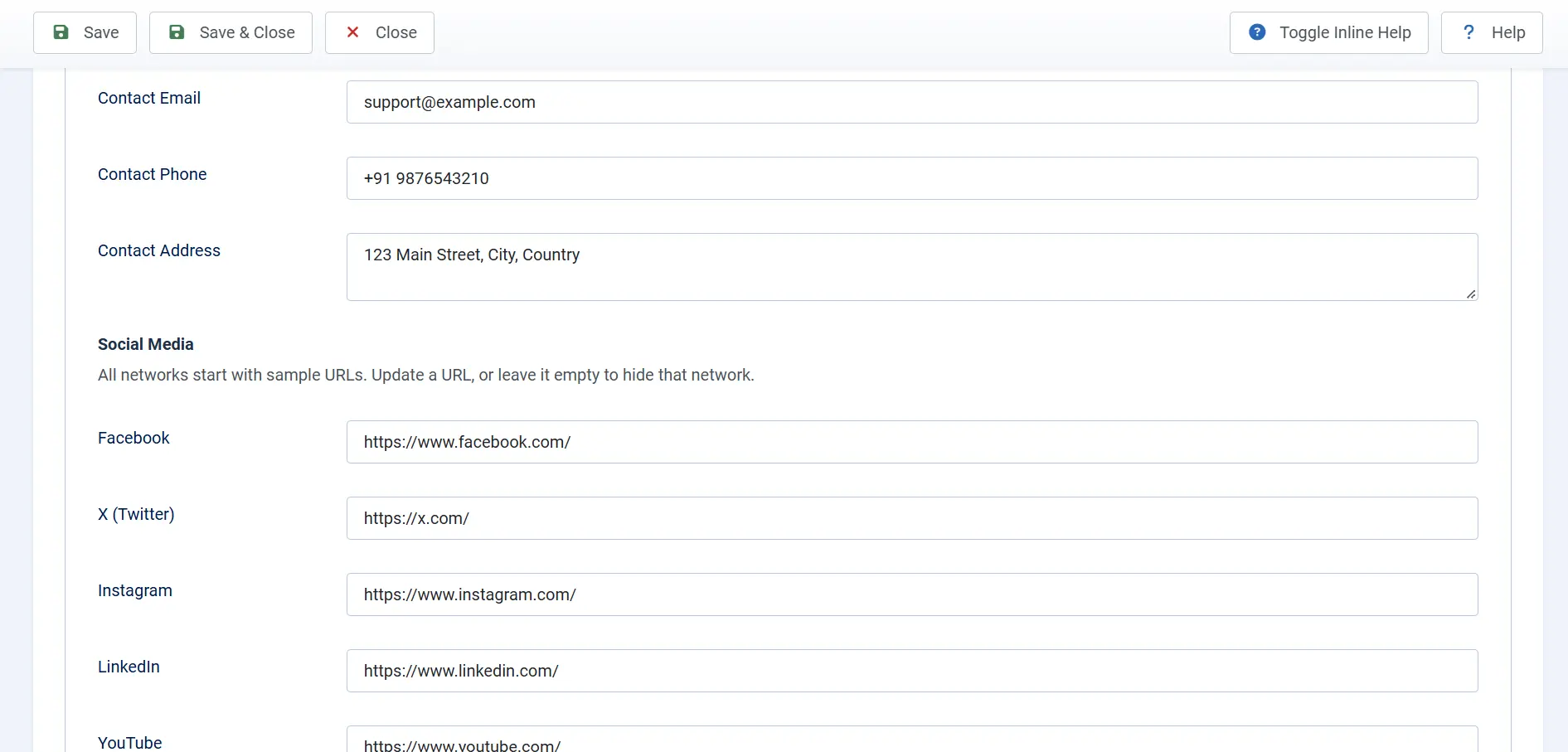
- Contact Email, Contact Phone and Contact Address are shown in a CONTACTS section. A line break in the address is shown as a comma. If all three fields are empty, the section is hidden.
- Social Media has seven networks: Facebook, X (Twitter), Instagram, LinkedIn, YouTube, TikTok and WhatsApp. Enter a full profile URL for each network you use, or leave it empty to hide that icon.
- Only http:// and https:// addresses are shown. Icons open in a new tab.
Before going live: The plugin fills every social field with a sample URL (for example https://www.facebook.com/) until you change it. Replace these with your real links or clear them, and check the contact details, before visitors see the page.
7.4 Text color and background
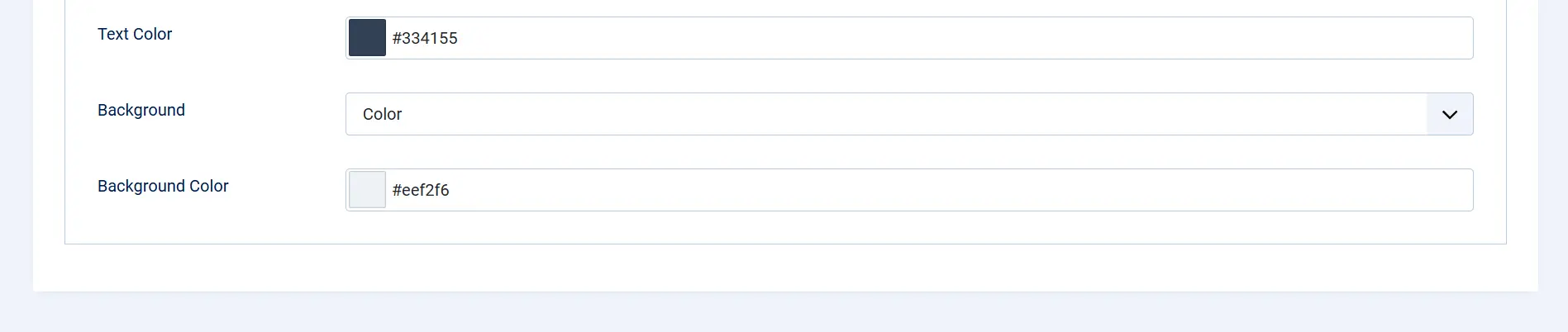
- Text Color: enter a hex color such as #334155 (default). Use the color swatch or type the code. Invalid values fall back to the default.
- Background: choose Color (default) or Image.
- Background Color: a hex color such as #eef2f6 (default). Shown when Background is set to Color.
- Background Image: a media file that fills the page (cover, centered). Shown when Background is set to Image.
8. What visitors see
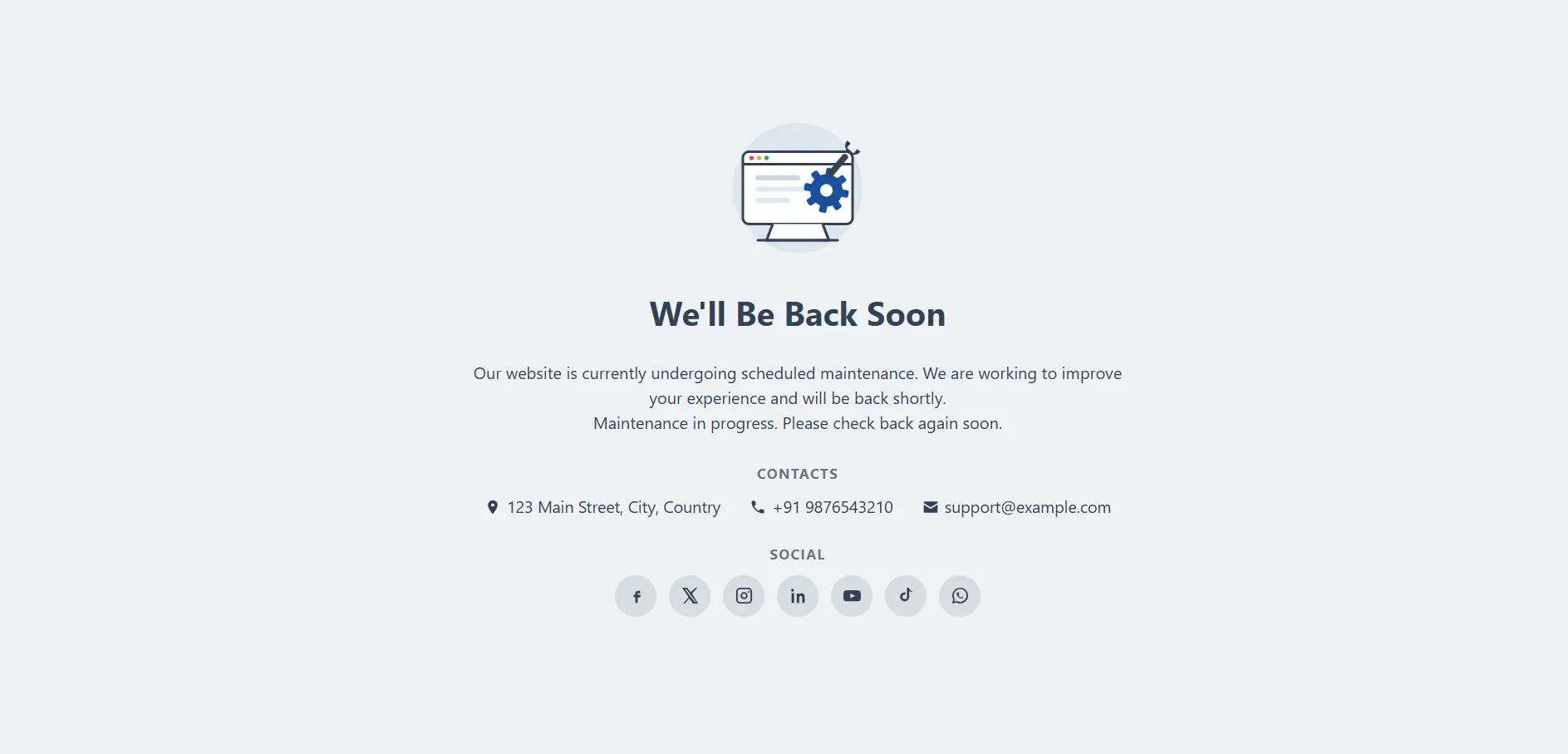
- The page is sent with HTTP status 503 and a noindex meta tag, so it is not indexed by search engines.
- Cache-Control is set to no-store, so browsers and proxies do not keep the page.
- The layout works on phones and desktops. Phone numbers are tap-to-call and email addresses open the mail app.
- Visitors see no Joomla menus or content while the site is offline.
9. Sharing the secret login (Preview) URL
9.1 How the link works
The Preview URL has this form: https://yoursite.com/index.php?preview=YOURKEY. When someone opens it, the plugin compares the key with the Secret Key. If it matches, the plugin starts an access session, and the visitor is redirected to the home page with full access to the website.
9.2 Steps to share the link
- Copy the Preview URL from the plugin (Copy button).
- Send it privately (email or a secure chat) to the client, tester or reviewer.
- Tell them the link works in any browser, access lasts for the chosen Session Time, and they should use the Logout button when they finish.
9.3 Session behaviour
- Access lasts for the Session Time you chose (5 to 120 minutes).
- Every page visit renews the timer. After a period with no activity longer than the Session Time, the maintenance page returns. Opening the Preview URL again restores access.
- Access belongs to the reviewer's browser session, so each person who opens the link gets their own session. One key can be shared with several reviewers.
9.4 Logout
While a preview session is active, a blue Logout button appears at the bottom right of every page. Clicking it ends the access session and returns the visitor to the maintenance page.
9.5 Administrators
Users with the Offline Access permission (core.login.offline) see the normal website without a preview link. Check or change this in System > Global Configuration > Permissions. The Joomla administrator area is never affected.
9.6 Changing the Secret Key
Changing the Secret Key stops the old link from opening the site for new visits. Sessions that are already active are not cut off immediately; they end when their timer runs out. Change the key after each review round, and share the new link with the reviewers.
Security: Treat the Preview URL like a password. Do not publish it, post it on social media or put it in screenshots. Use a unique key for each project and change it after each review.
10. Whitelisted URLs
Use whitelisted URLs when an external service must reach the site while it is offline, for example a payment gateway notification, a webhook or the Joomla web cron. Click Add in the Whitelisted URLs field and enter the URL, for example:
index.php?option=com_virtuemart&view=vmplg&task=pluginnotification
- Every query parameter in the entry (for example option, view and task) must have the same value in the request.
- If the entry includes a path (for example component/ajax/), the request path must match too.
- An entry with neither a path nor query parameters is ignored, so a whitelist can never open the whole website.
11. Going live: checklist
- Test the website through the Preview URL and fix any issues.
- Replace the sample social media URLs and check the contact details, or clear them.
- Set Site Offline to No on the plugin and click Save & Close. If you also turned on Joomla's offline mode, set it back to No in Global Configuration.
- Open the site in a private window and confirm the normal homepage loads.
- Change or clear the Secret Key if you want the old Preview URL to stop working for future visits.
- Keep the plugin installed and enabled for the next maintenance window, or disable it if you no longer need it.
12. Troubleshooting
| Problem | Likely cause | Fix |
|---|---|---|
| The Preview URL box says "Enter a Secret Key above..." | The Secret Key field is empty. | Type a key and click Save. |
| The Preview URL shows the maintenance page | Site Offline is No, the plugin is disabled, the key was typed differently, or the session time has passed. | Check Status and Site Offline, copy the URL again with the copy button, and reopen the link. |
| The Logout button is not visible | No preview session is active (for example after the timer ran out). | Expected behaviour. Reopen the Preview URL to start a new session. |
| A social icon is missing | The field is empty, or the URL does not start with http:// or https://. | Enter the full URL, including https://. |
| The contact section is missing | All three contact fields are empty. | Fill in at least one contact field. |
| The image is not shown | The image was removed or the file was deleted from the media folder. | Click Select and choose the image again. |
| Colors are not applied | The hex value is invalid. Only #RGB and #RRGGBB formats are accepted. | Enter a value such as #1b4f9c. |
| A payment or web cron request is blocked | The request URL is not in the whitelist. | Add it as described in section 10. |
13. Plugin files and developer notes
| File | Purpose |
|---|---|
| jcmaintenance.xml | Manifest: version 1.0.2, configuration fields, language files and update server. |
| src/Extension/Jcmaintenance.php | Main logic: offline check, whitelist, preview key, session timer, logout button and the 503 response. |
| src/Field/PreviewurlField.php | The Preview URL field with the live update script and copy button. |
| tmpl/maintenance.php | Maintenance page template: HTML, CSS, contact details and social icons. |
| script.php | Installer script. Adds the default image, contact and social values on install or update without overwriting saved values. |
| services/provider.php | Joomla service provider registration. |
| language/en-GB/*.ini | Language strings for the plugin. |
| images/maintenance.svg | Default maintenance illustration. |
Observations from reviewing the source code (for the developer, not for end users):
- language/en-GB/plg_system_jcmaintenance.ini, line 8: the end of PLG_SYSTEM_JCMAINTENANCE_SECRET_KEY_DESC and the PLG_SYSTEM_JCMAINTENANCE_PREVIEW_URL_LABEL line are on the same line. Add a line break after the closing quote, otherwise the preview label may not load.
- PreviewurlField.php uses literal English strings such as "Preview URL Prefix" instead of language keys with Text::_(), so these labels will not follow the site language. Jcmaintenance.php also hardcodes "Logout" although PLG_SYSTEM_JCMAINTENANCE_LOGOUT exists. Check that the labels in your build match the screenshots.
- The session check does not compare the Secret Key, so changing the key does not end active sessions immediately (see section 9.6).