



A Joomla multilingual website lets you present your content in several languages while managing everything from one Joomla installation. Joomla includes multilingual features in the core, so you do not need a separate website for every language or a third party extension for a basic setup.
I have built the English, German and Dutch versions of JoomConsultant.com on Joomla, and the lesson is always the same. A reliable multilingual setup is not just a language pack. Content languages, articles, menus, modules, associations and the language switcher must all work together. This tutorial walks through each of those steps in the Joomla 6 administrator interface.
The screenshots in this guide come from a Joomla 6 test site with English and Arabic. You can follow the same process for any other installed language.
What is a Joomla multilingual website?
Think of a Joomla multilingual website as one website with separate versions of its content for each language. A business might have English and Arabic pages, for example. Visitors choose their preferred language, and Joomla shows the matching articles and navigation. When translations are associated with each other, visitors can switch between matching pages easily.
- Language packs translate Joomla’s built in interface labels and messages.
- Your own articles, menu titles, module text and page builder content still need translation.
- Joomla manages all language versions from one administrator dashboard.
Step 1: Check your Joomla installation
Log in to your Joomla administrator area and confirm you are working with Joomla 6. You need an account with permission to manage languages, menus, articles and modules.
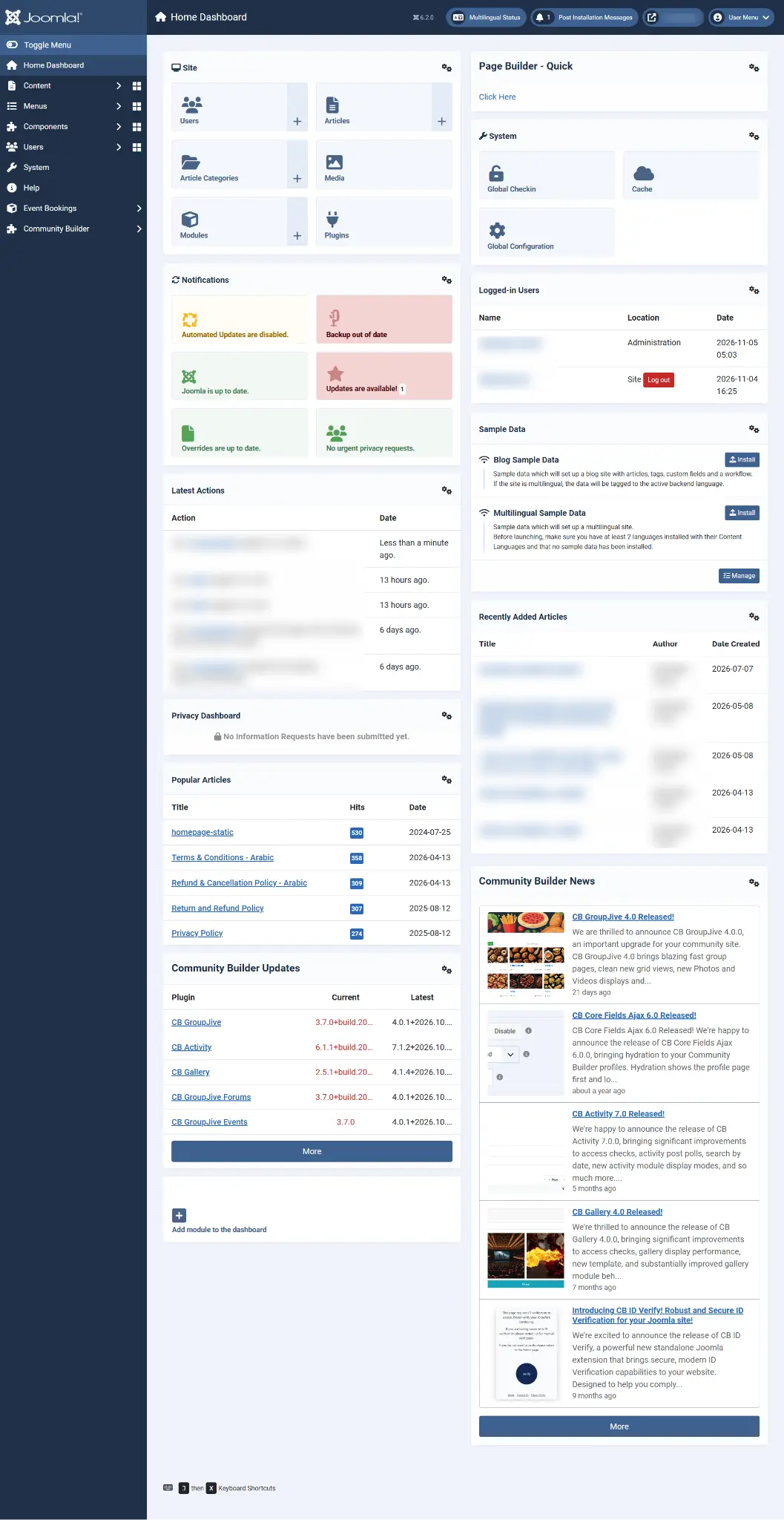
Before you change language settings on a live website, take a full backup. This matters most when the site already has content and menus. A backup gives you a safe way back if something unexpected happens.
Step 2: Install the language packs
In the administrator area, go to System, then Install, then Languages. Search for the language you want to add, select it and install it. Repeat this for every language you plan to use.
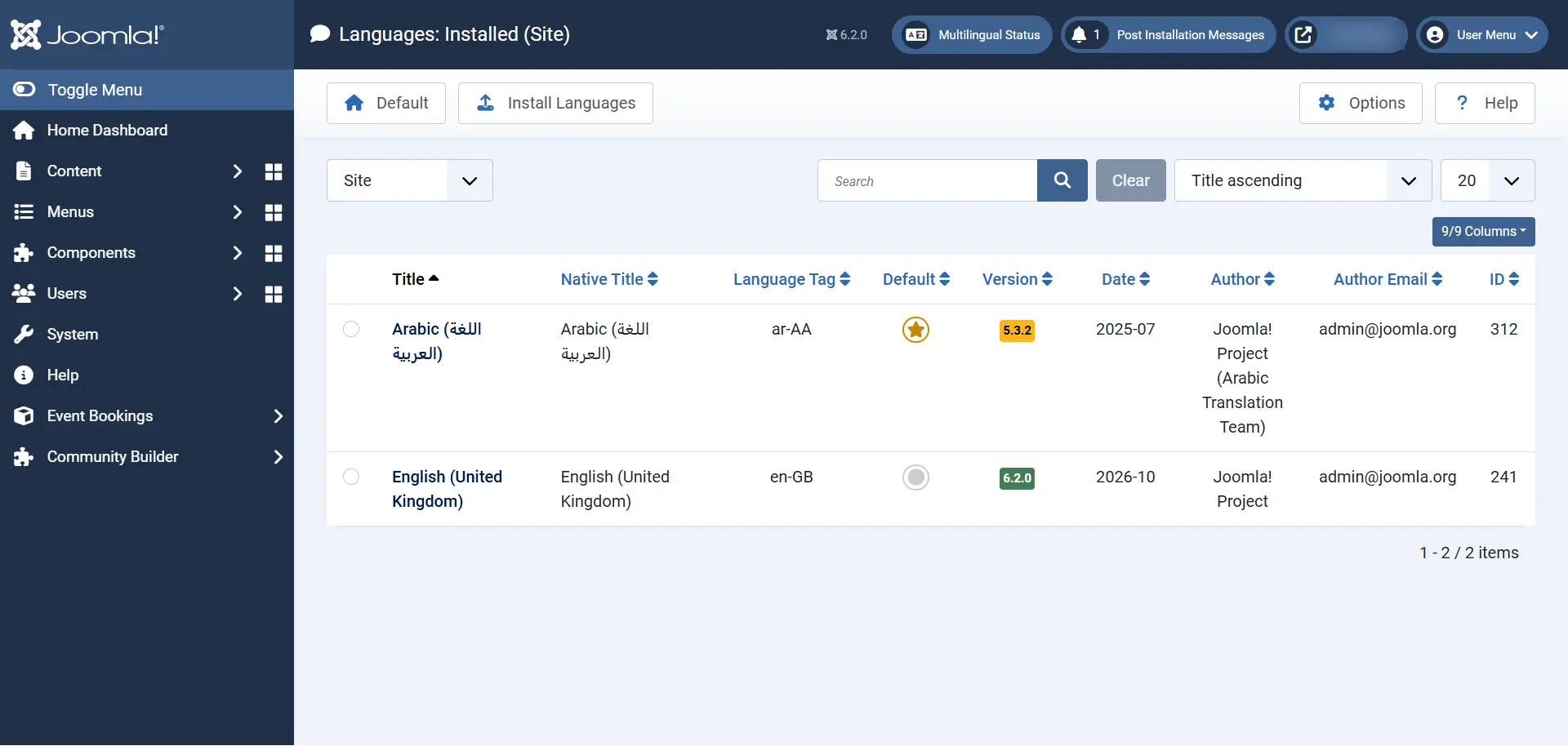
This list shows the languages installed for the site. Installing a language pack only adds Joomla’s language files. It does not translate your articles, custom modules or page builder content.
Step 3: Publish the Content Languages
Next, open Content Languages and make sure every language you want to use is published. While you are there, check the language title, native title, language tag, URL language code and flag.
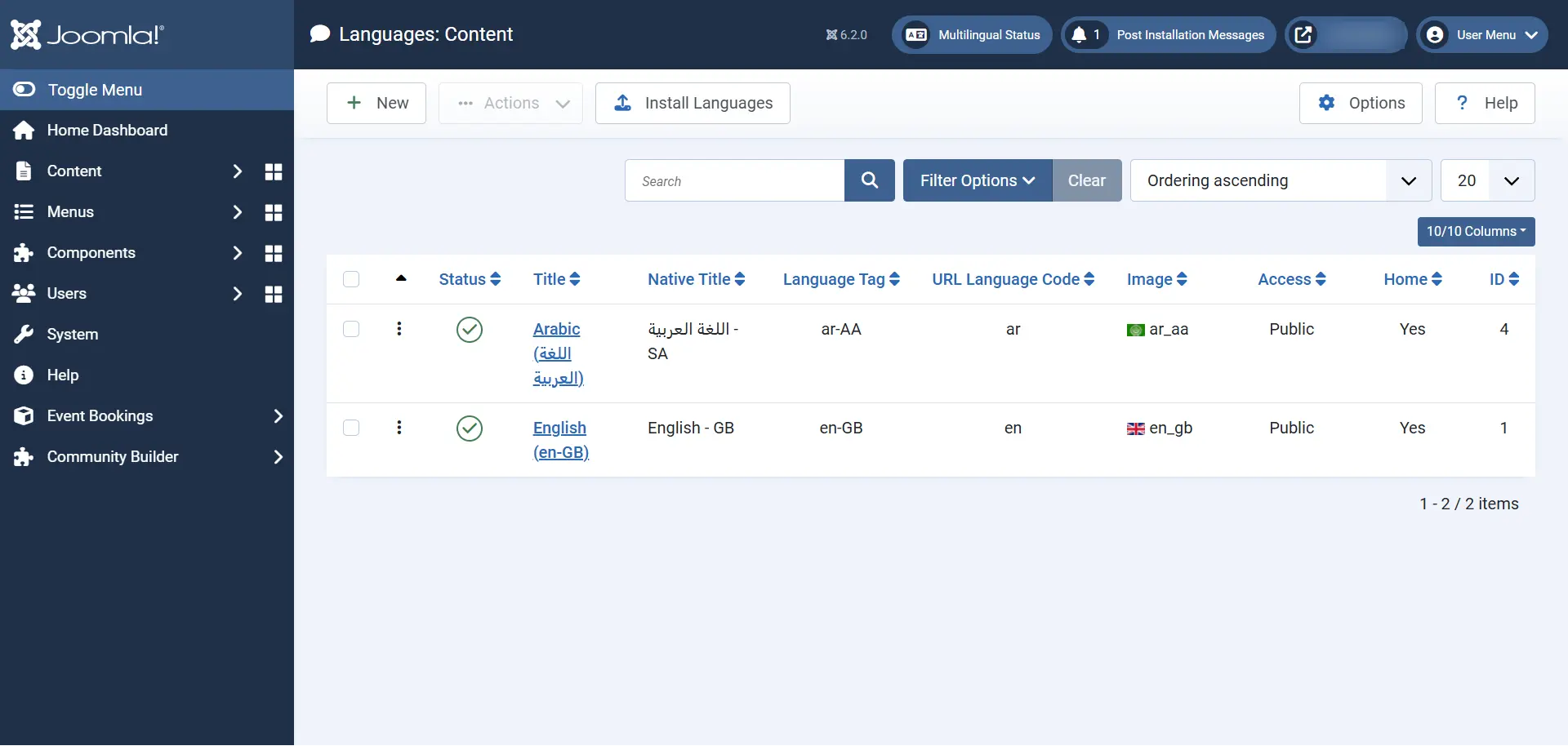
These values help Joomla identify each language. Usually you should leave them as provided unless you have a specific reason to change them. On an established website, changing language codes without planning can break URLs and language detection.
Step 4: Enable the Language Filter plugin
Now open the Plugins list and search for Language Filter, which belongs to the System plugin group. Open the plugin, enable it and review its settings before saving.
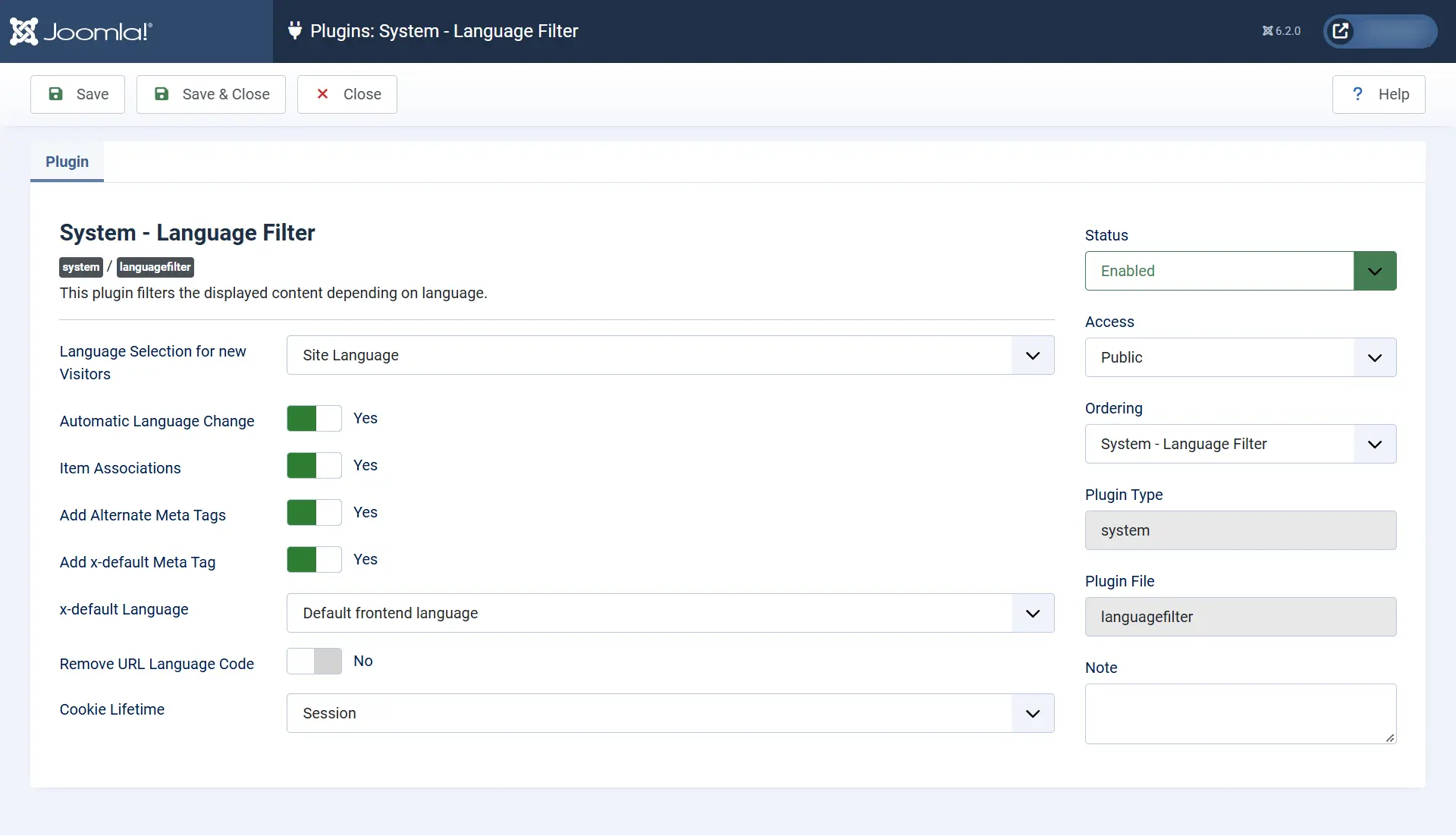
A few settings are worth understanding before you move on:
- Language Selection for new Visitors
- Automatic Language Change
- Item Associations
- Add Alternate Meta Tags
- Add the default alternate Meta Tag
- Remove URL Language Code
No single combination of settings suits every website. Test Automatic Language Change carefully. It can be useful in some situations, but make sure it behaves the way you expect before you enable it on a production site.
Step 5: Create categories and articles for each language
Joomla keeps each language version as its own content item. Create categories for the languages you use, then add a separate article for each translation. When you edit an article, select the correct language in the Language field.
When you create or edit an article, check the following:
- The title and article text are translated.
- The category selected belongs to the same language.
- The Language field matches the article language.
- The alias and metadata suit that language.
- Images, captions and embedded text are translated where necessary.
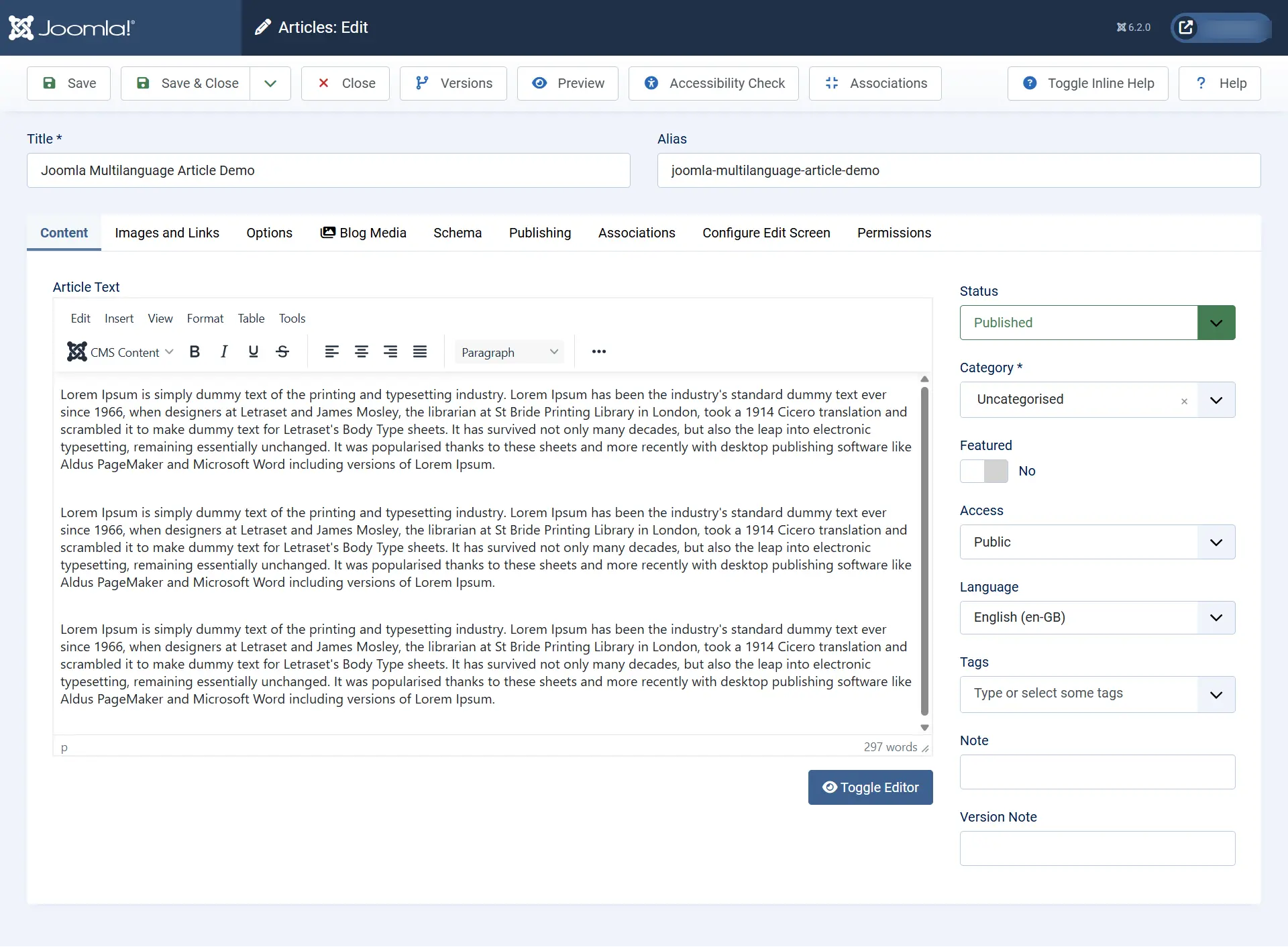
Do not take an English article and simply change its Language field to Arabic, German or another language. That field identifies the language of the content. It does not translate the article. Create a separate article for each translated version.
Step 6: Connect translations using Associations
Once the translated articles exist, tell Joomla which ones belong together. Open an article, go to the Associations tab, select its matching translation in the other language and save.
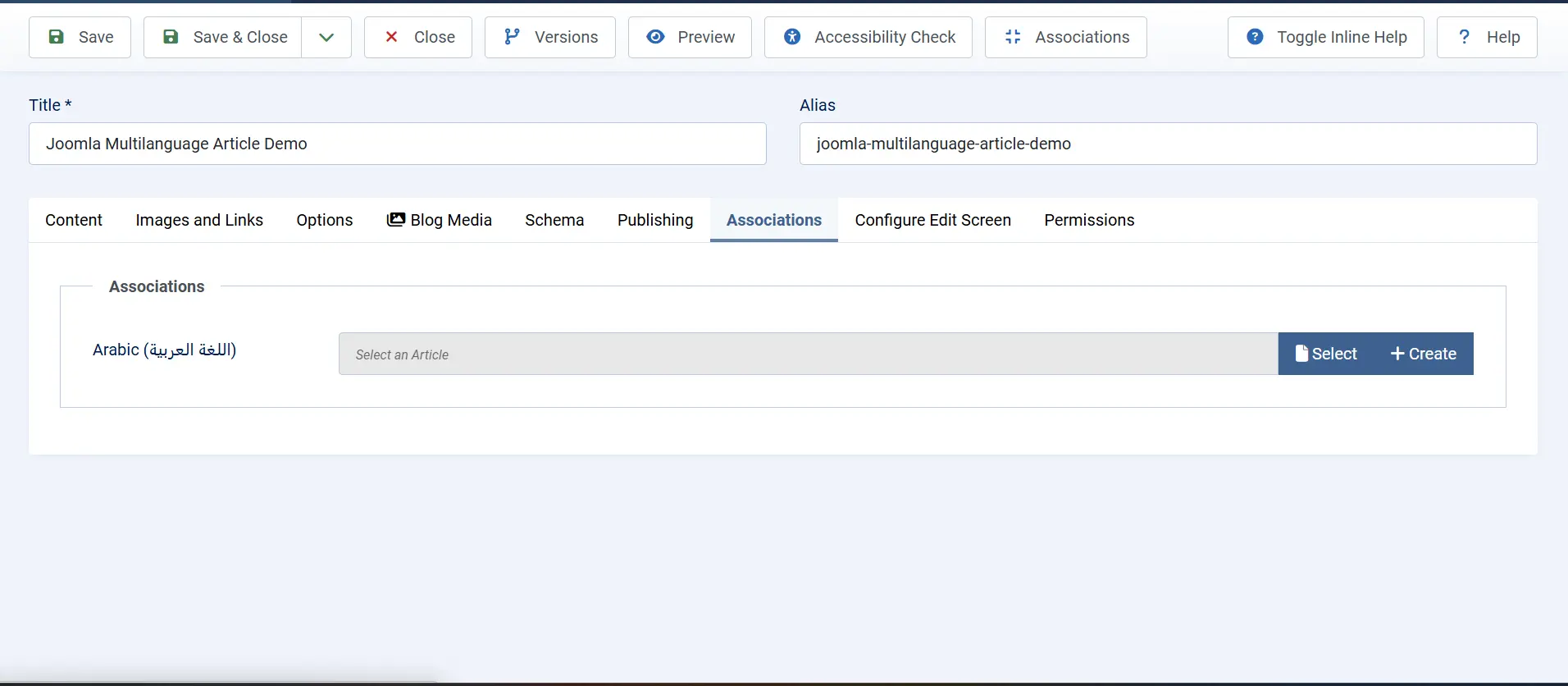
For example, you can associate an English article called “Joomla SEO Guide” with its Arabic or German version. These associations help Joomla send visitors to the matching translated page when they use the Language Switcher.
Step 7: Create separate menus for each language
I recommend a separate menu for each language. It keeps the backend easier to understand and makes it less likely that visitors see menu links in the wrong language. Create your English menu, then create another menu for Arabic, German or whichever language you add.
- Assign each menu item to its correct language.
- Link each menu item to content in the same language.
- Create a Home menu item for each language and set it as the default home for that language.
- Make sure a Home item for the “All” language also exists, because Joomla needs it.
- Do not link translated menu items to content in a different language.
After you create the menus, publish a Menu module for each one. Set the module’s language and menu assignment so Joomla shows the correct navigation on the right pages.
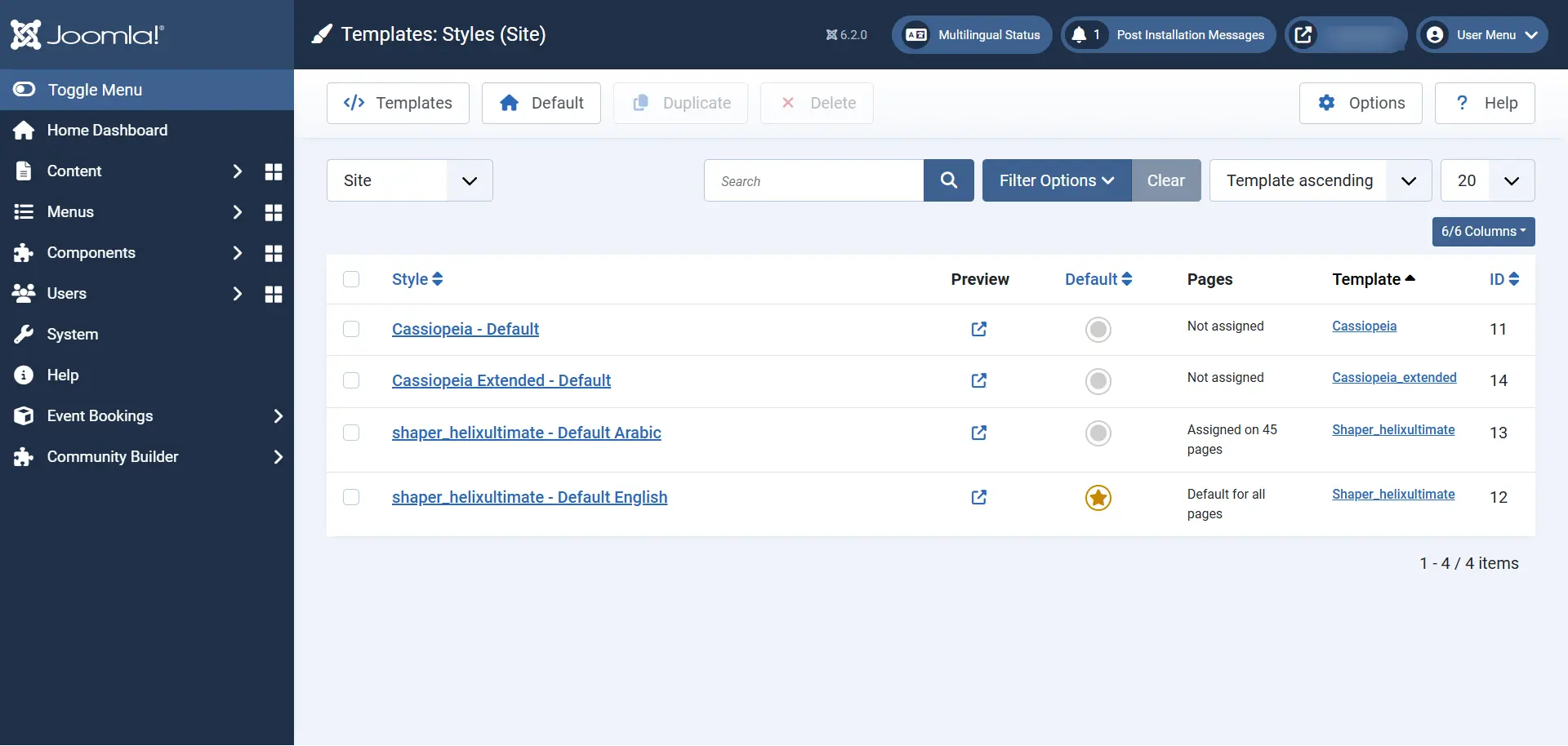
Step 8: Configure Template Styles for Each Language
You may want the website to look slightly different depending on the language. An Arabic site, for example, may need a different logo, header arrangement or right to left styling than the English version. Joomla template styles make this possible without a separate Joomla installation.
To create a template style for each language:
- Go to System, then Site Template Styles.
- Select your active site template style and use the Duplicate option. Keep the original style for your default language.
- Open the duplicated style and give it a clear name, such as “Template Style Arabic”.
- In the style settings, find the Language field and select the language this style should apply to.
- If needed, change options such as the logo, header, colors or layout.
- Open the Menu Assignment tab and assign the style to the menu items for that language only. Do not assign it to menu items from other languages.
- Save the style and repeat the process for each additional language.
The Language setting and the Menu Assignment both matter. After saving, open the frontend in each language and check that the right style appears on the right pages. If the appearance is wrong, check these two settings first.
Step 9: Add the Language Switcher module
Go to Content, then Site Modules, click New and choose Language Switcher. Select a position in your template, set how you want the languages to appear and publish the module. Also check its menu assignment so it shows where you want it.
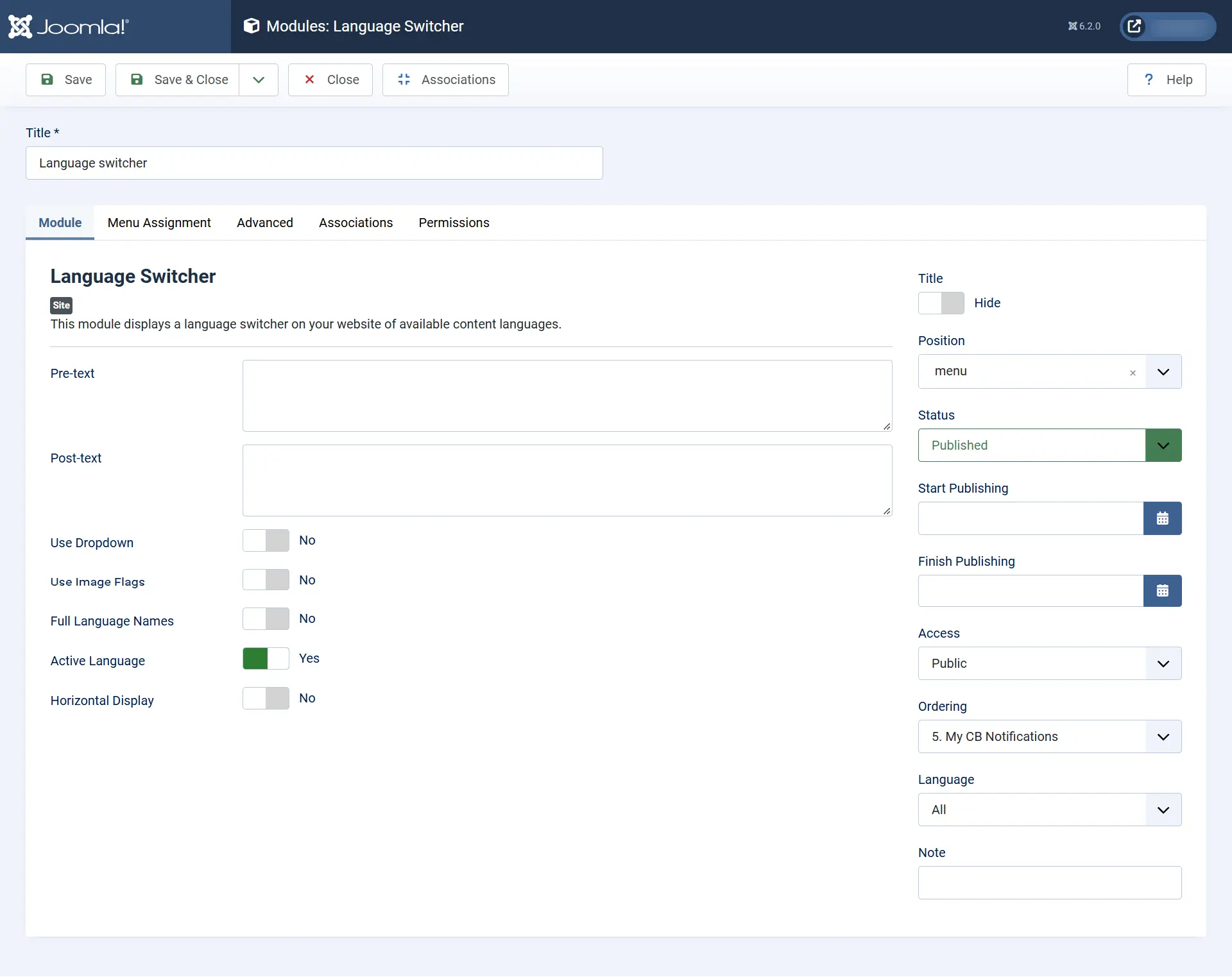
You can show language names, flags or other available options depending on the module settings. Most websites place the switcher in the header or main navigation, where visitors can find it without searching.

The frontend example shows one way a switcher can appear. Its exact look depends on your template and styling.
Step 10: Check Multilingual Status
Joomla includes a Multilingual Status panel that helps you confirm the main pieces are in place. Click Multilingual Status in the administrator toolbar and review the results.
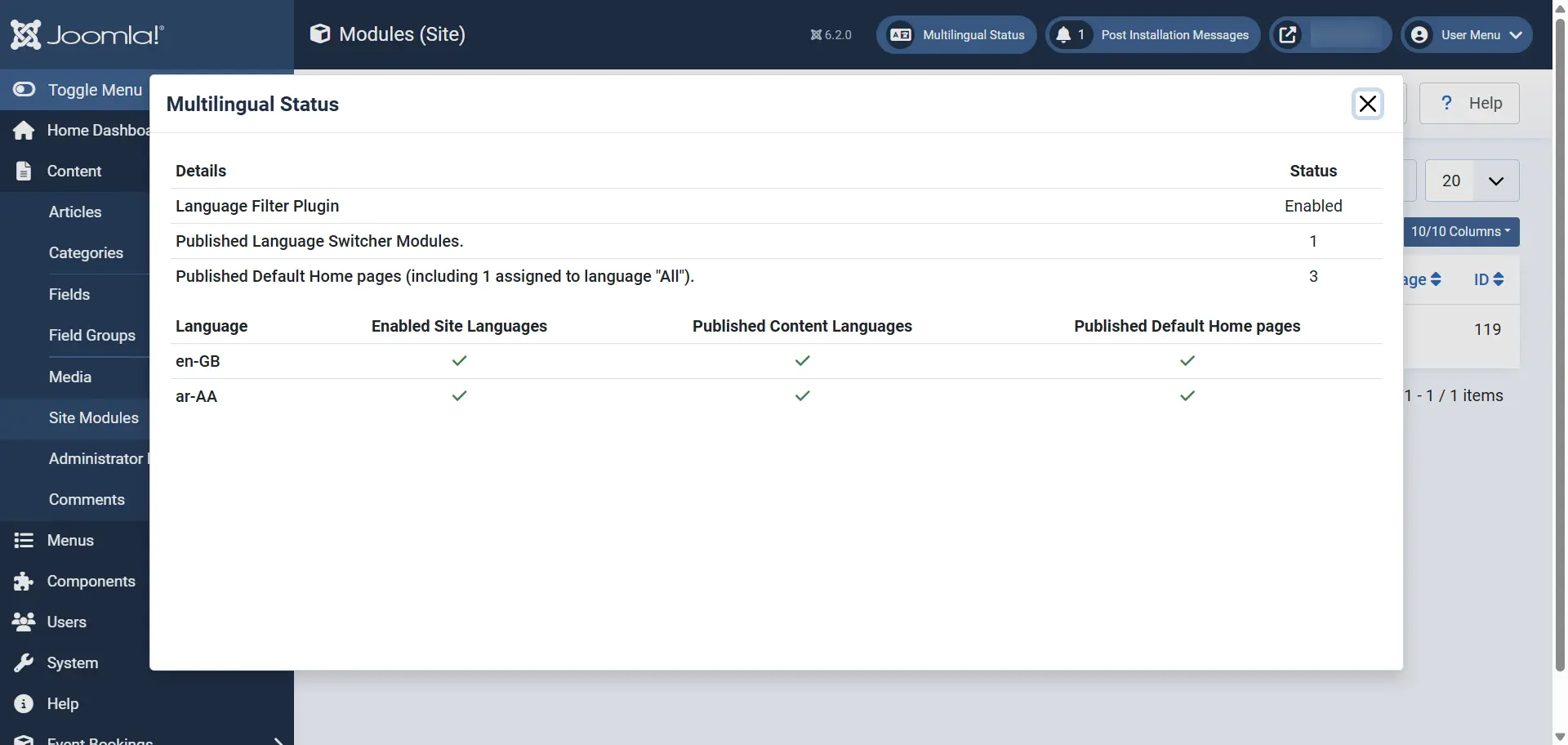
Check that the Language Filter plugin is enabled, at least one Language Switcher module is published and each language has a default homepage. The status panel is useful, but I still recommend testing the website yourself in every language.
Step 11: Test your multilingual website
Before you publish or announce the multilingual site, check these items:
- Each language homepage opens correctly.
- The correct menu appears for each language.
- Articles and categories use the correct language.
- The Language Switcher is visible and works.
- Switching languages opens the associated translation where one exists.
- Modules, forms, buttons and footer text are translated.
- Menu links do not send visitors to the wrong language.
- Important pages do not return 404 errors.
Common multilingual setup mistakes
1. Language pack installed, but Content Language not published
If you installed the language pack but the language is missing from the frontend, open Content Languages and make sure the language is published.
2. No language associations
If you have not connected translated articles through Associations, the language switcher may not take visitors to the matching page. Add associations wherever a translation exists.
3. One menu used for all languages
Using one menu for every language can make navigation confusing. Separate menus are generally easier to manage and troubleshoot.
4. Modules assigned to the wrong language
A module can be published but still appear on the wrong pages or in the wrong language. Check both its Language and its Menu Assignment settings.
5. Expecting automatic translation
Joomla’s built in multilingual features help you manage different language versions, but they do not translate article text, custom modules or page builder content for you. You need to provide those translations.
Do you need a third party extension?
For most websites with a few languages, Joomla’s core multilingual tools are enough. You may want an extension if you need a more advanced translation workflow or automatic translation, but I would start with the built in features first. Fewer extensions usually mean fewer things to maintain.
Frequently asked questions
Final thoughts
Setting up a Joomla multilingual website is mostly about connecting the pieces correctly. Language packs, Content Languages, translated articles, menus, template styles, associations and the Language Switcher each have their own role. Take your time with each step, then test the site as a visitor would.
If this is your first multilingual Joomla project, start with two languages and get both working from end to end. Once menus, content, template styles and language switching behave correctly, adding another language becomes much easier.
If you would rather have an expert set this up for you, see my Joomla multilingual website development service.