SEO and Performance Optimization in Joomla

Joomla SEO and Performance Optimization

Making your Joomla website easy to find on Google and fast to load is very important.

This guide will help you improve both SEO (how search engines find your site) and performance (how quickly it loads).

👉 Follow these simple steps to set up search-friendly links, add meta information, handle broken links, create a sitemap, and speed up your site.

Make Your Website URLs Search Engine Friendly

Search Engine Friendly (SEF) URLs make your website links clean and easy to read.
For example, instead of seeing a link like

www.yoursite.com/index.php?option=com_content&id=1,

you will see
www.yoursite.com/about-us.

Steps to enable SEF URLs:
  • Log in to your Joomla Administrator area.
  • Go to System → Global Configuration.
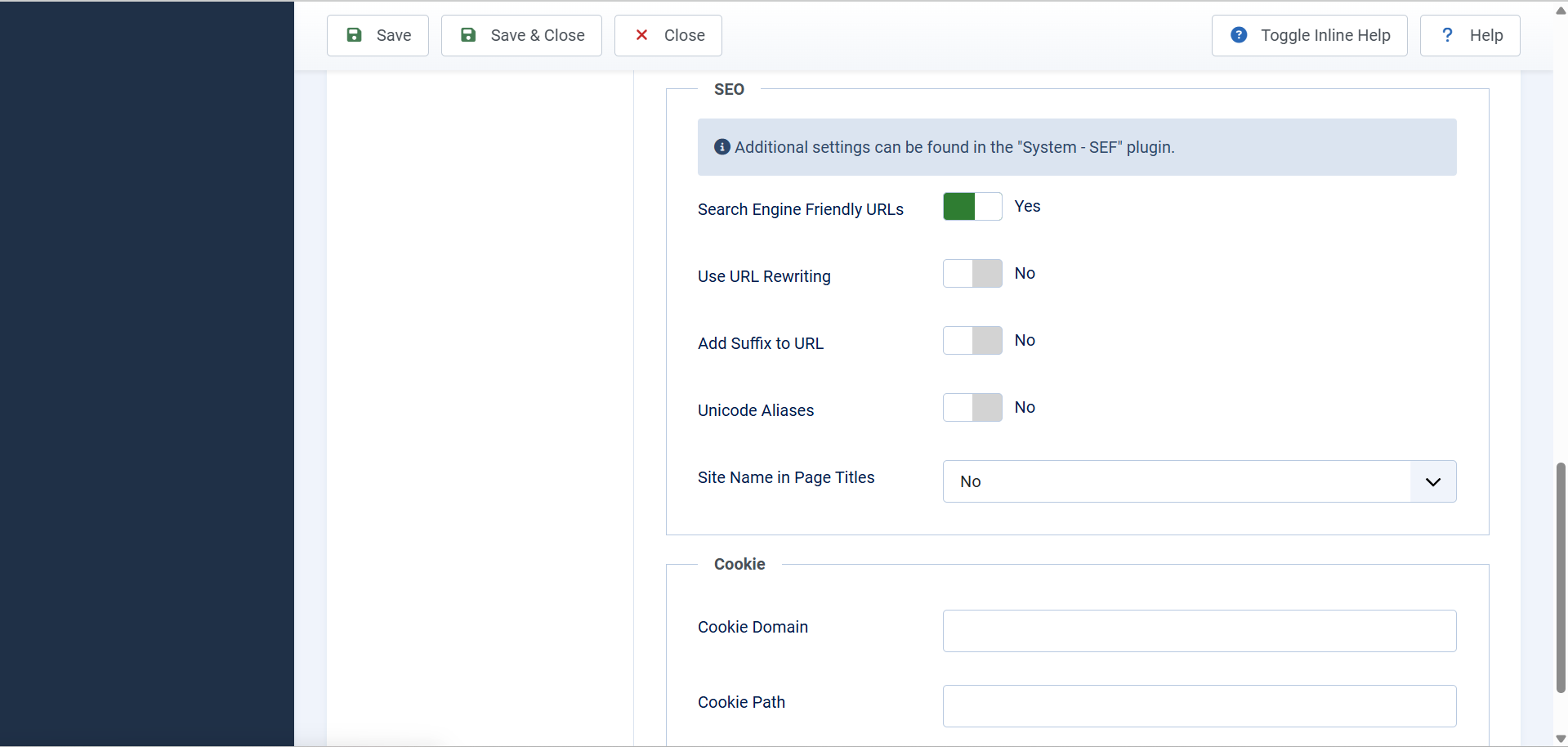
  • Under the Site tab, find the SEO Settings section.
  • Set these options:
    • Search Engine Friendly URLs: Yes
    • Use URL Rewriting: Yes
    • Add Suffix to URL: No (recommended)
  • In your website files, rename the file named htaccess.txt to .htaccess. You can do this using your hosting file manager or FTP.
  • Visit your website and make sure your links look clean without “index.php”.

If something stops working after these changes, your hosting might not support “URL rewriting”. You can contact your hosting support to help enable it.

Add Metadata and Social Sharing Information

Metadata tells search engines what your pages are about.

Social sharing tags (Open Graph tags) make your pages look good when people share them on Facebook, LinkedIn, or WhatsApp.
Set site-wide metadata:
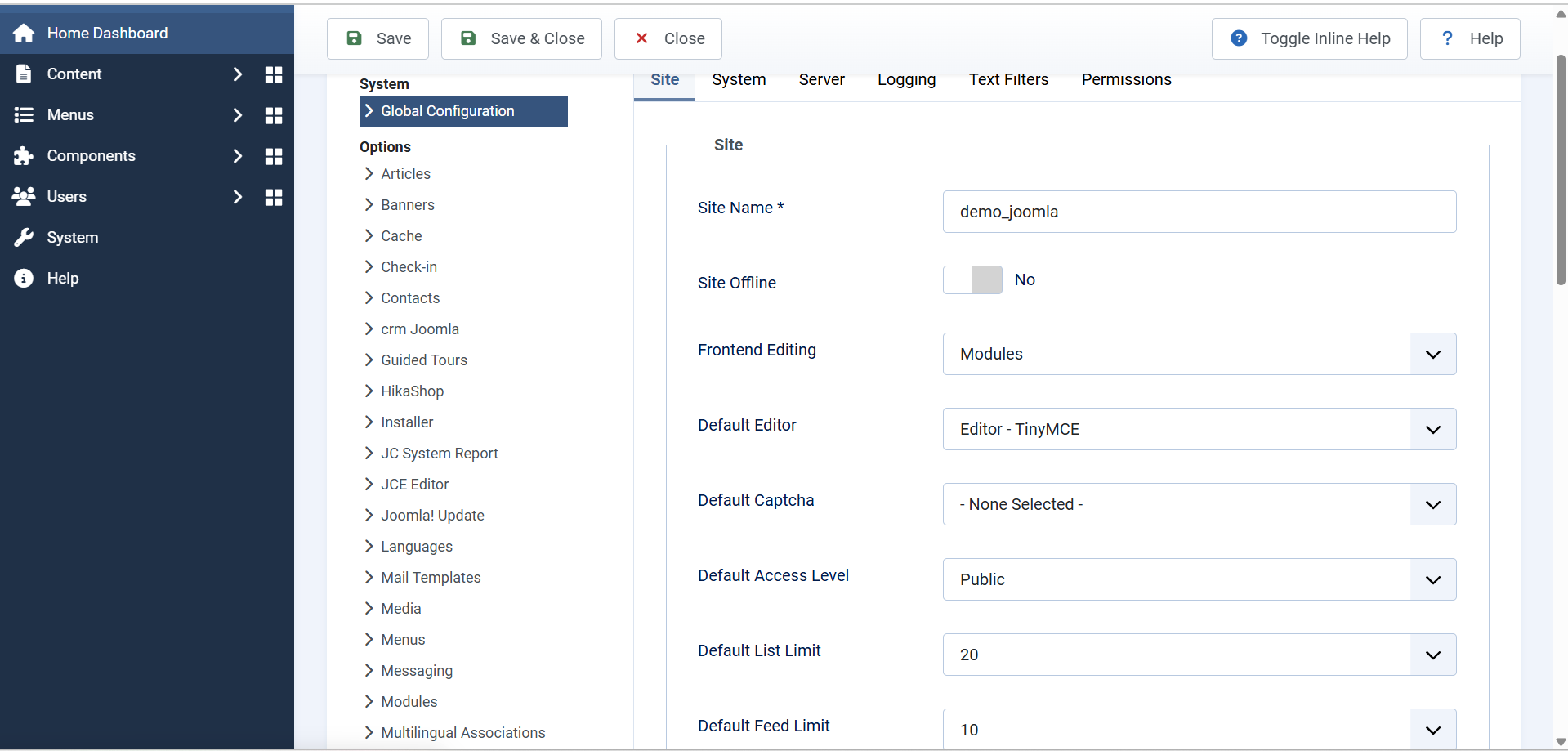
  • Go to System → Global Configuration → Site tab.
  • Fill in:
    • Site Name: Your website’s name
    • Meta Description: A short description of what your website offers
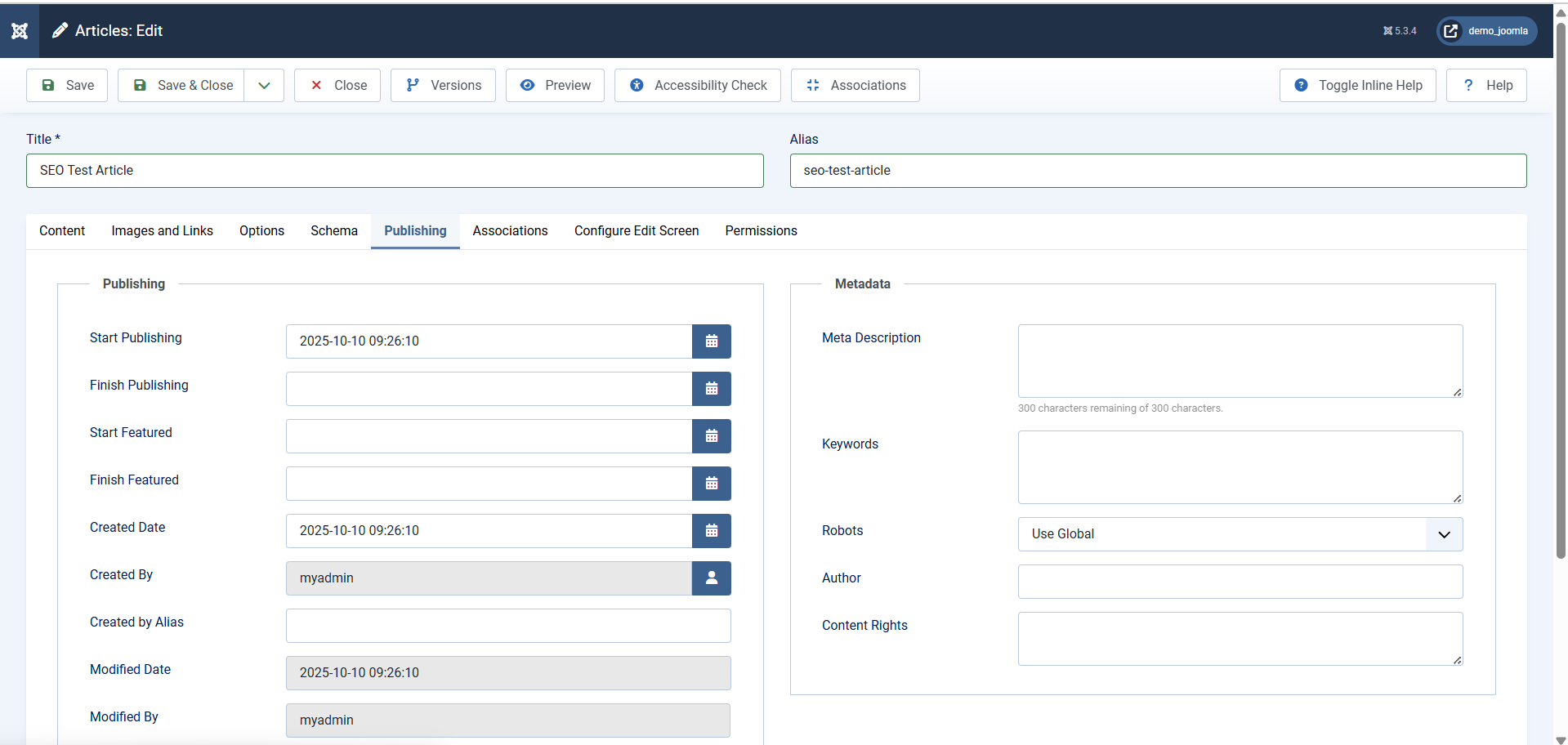
Set metadata for each article:
  • Go to Content → Articles
  • Click on any article you want to edit.
  • Open the Publishing tab.
  • Add a short Meta Description (one or two sentences describing the page).

Handle Broken Links with Redirect Manager

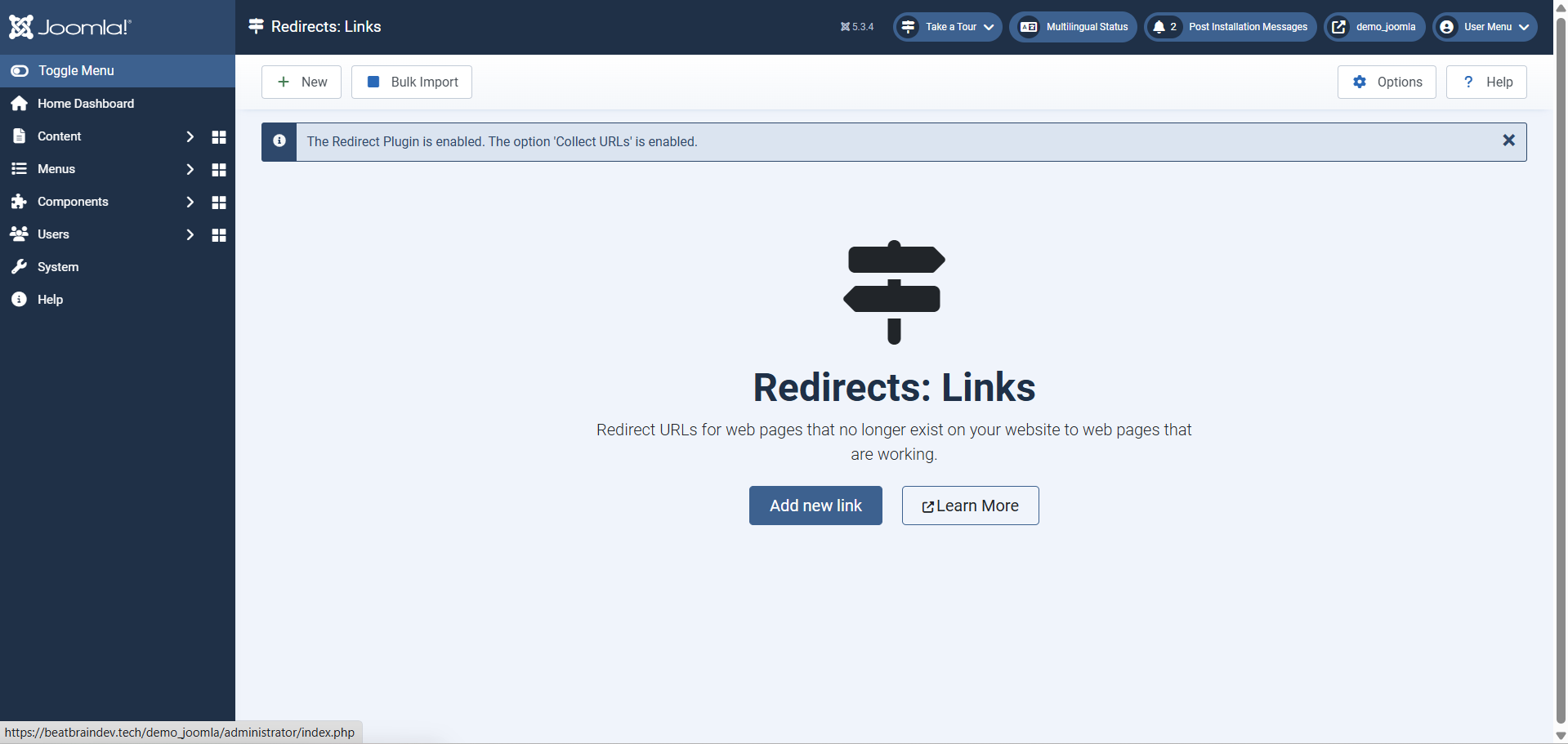
If a visitor or search engine clicks a link that no longer exists, Joomla can automatically send them to a working page.

This keeps your visitors happy and protects your search ranking.
Set up the Redirect Manager:
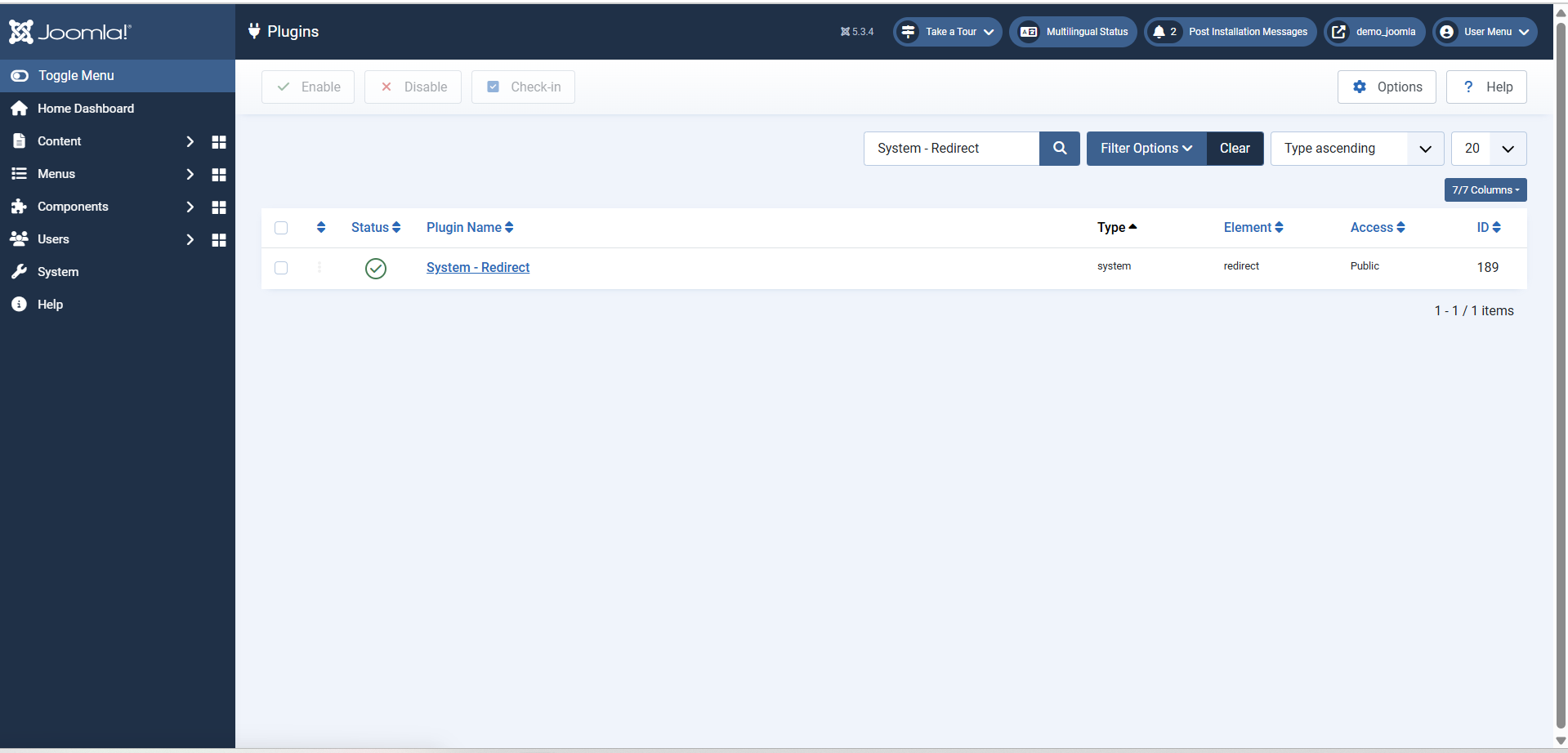
  • Go to System → Manage → Plugins.
  • Search for System – Redirect and enable it.
  • Go to System → Manage → Redirects.
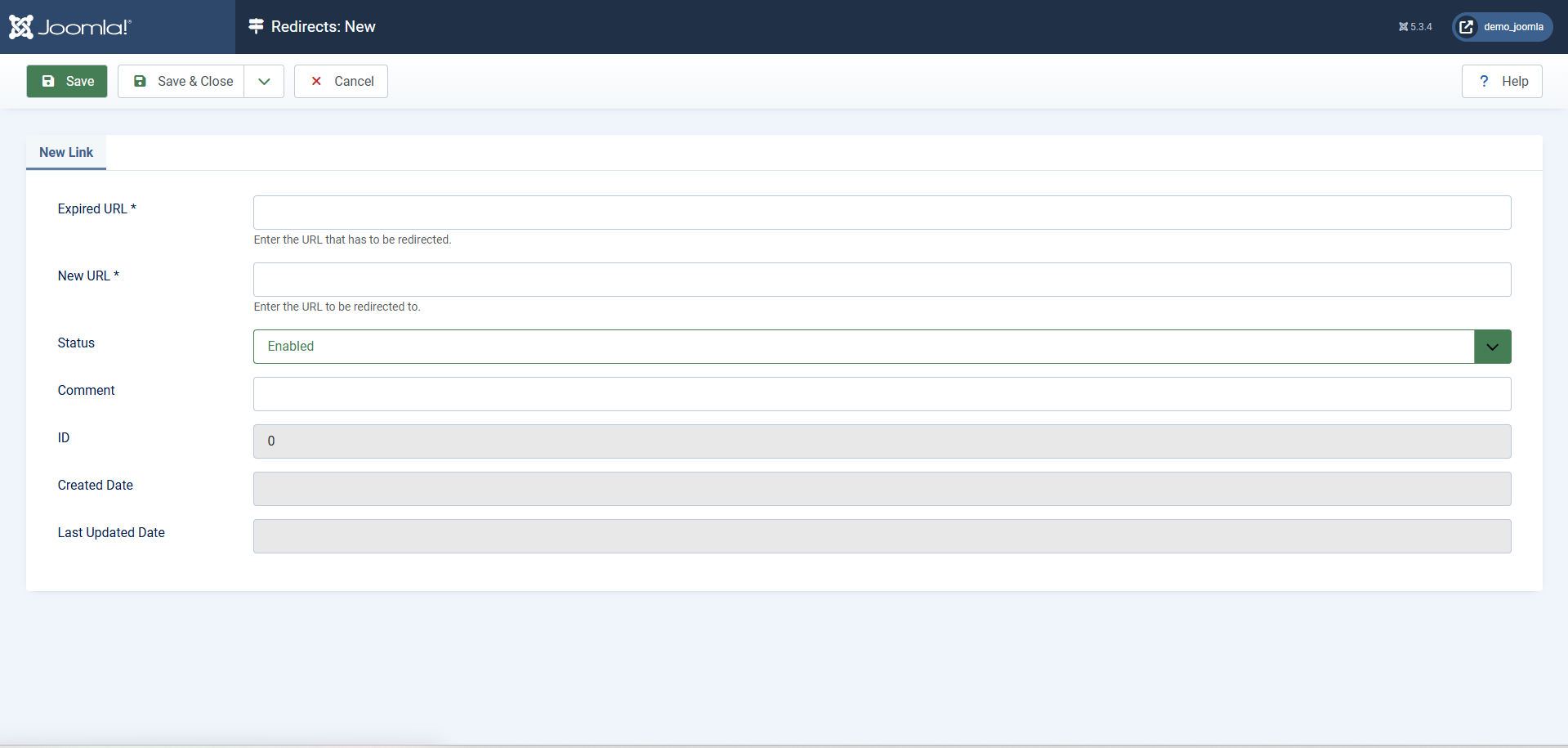
To create a redirect manually:
  • Click New.
  • Enter the old (broken) link in the Expired URL.
  • Enter the new working link in the New URL.
  • Click Save & Close

If the Redirect plugin is enabled, Joomla will automatically collect broken links so you can fix them later.

Create a Sitemap for Google

A sitemap is like a map of your website that helps Google find all your pages.

To create a sitemap using OSMap:
  • Install the OSMap Free extension from the Joomla Extensions Directory.
  • After installing, go to Components → OSMap Free → Sitemaps.
  • Click New and select which menus or pages you want to include.
  • Save it and check your sitemap by visiting: www.yoursite.com/sitemap.xml.
Submit your sitemap to Google:
  • Go to Google Search Console.
  • Add your website if you haven’t already.
  • Open the Sitemaps section.
  • Type your sitemap link (for example, sitemap.xml) and click Submit.

This helps Google find and list all your pages faster.

Speed Up Your Website with Caching and Compression

A fast website improves your SEO ranking and makes visitors stay longer. Joomla has built-in tools to make your site faster.
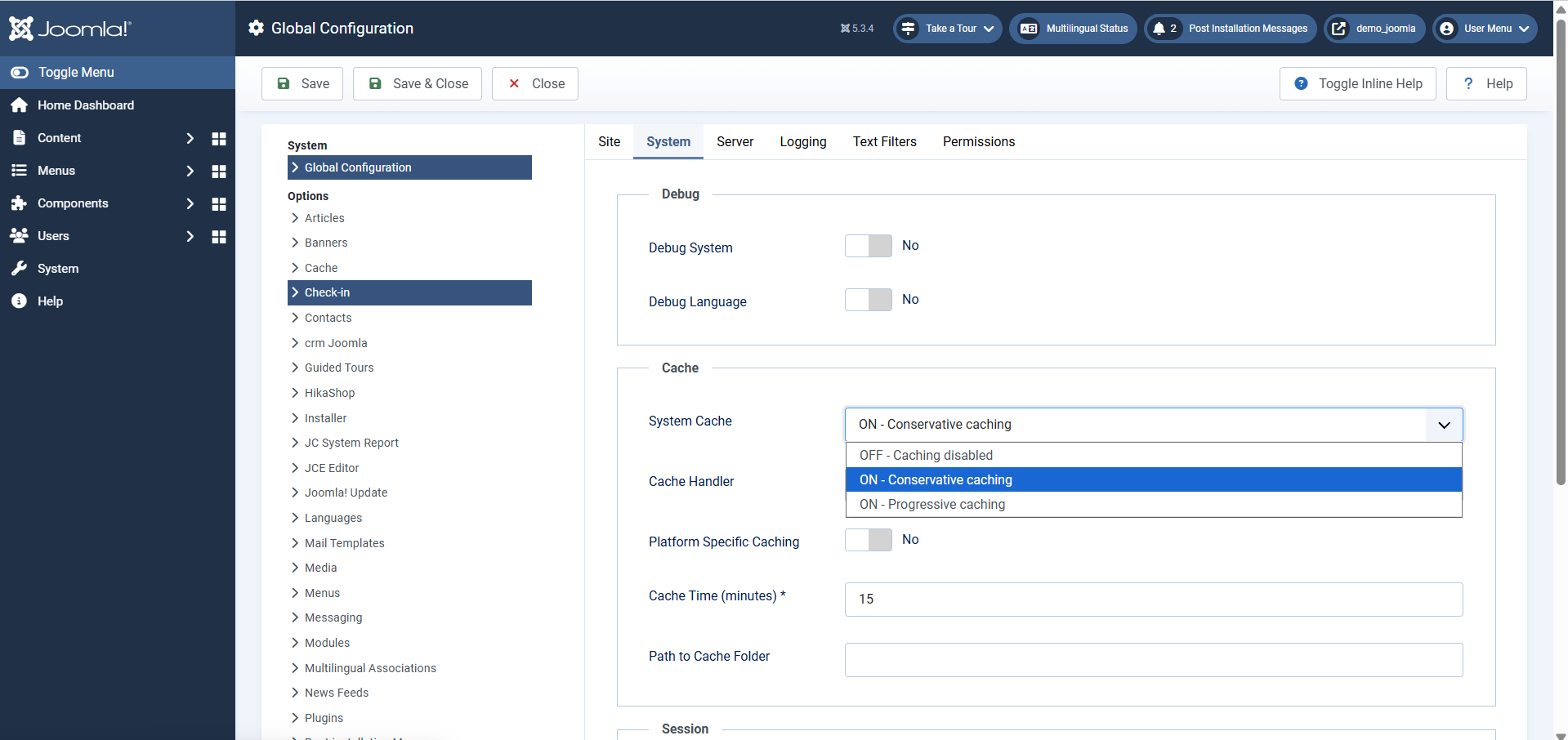
Turn on caching:
  • Go to System → Global Configuration → System tab.
  • Under Cache Settings, set:
    • System Cache: ON (Conservative Caching)
    • Cache Time: Around 30 to 60 minutes
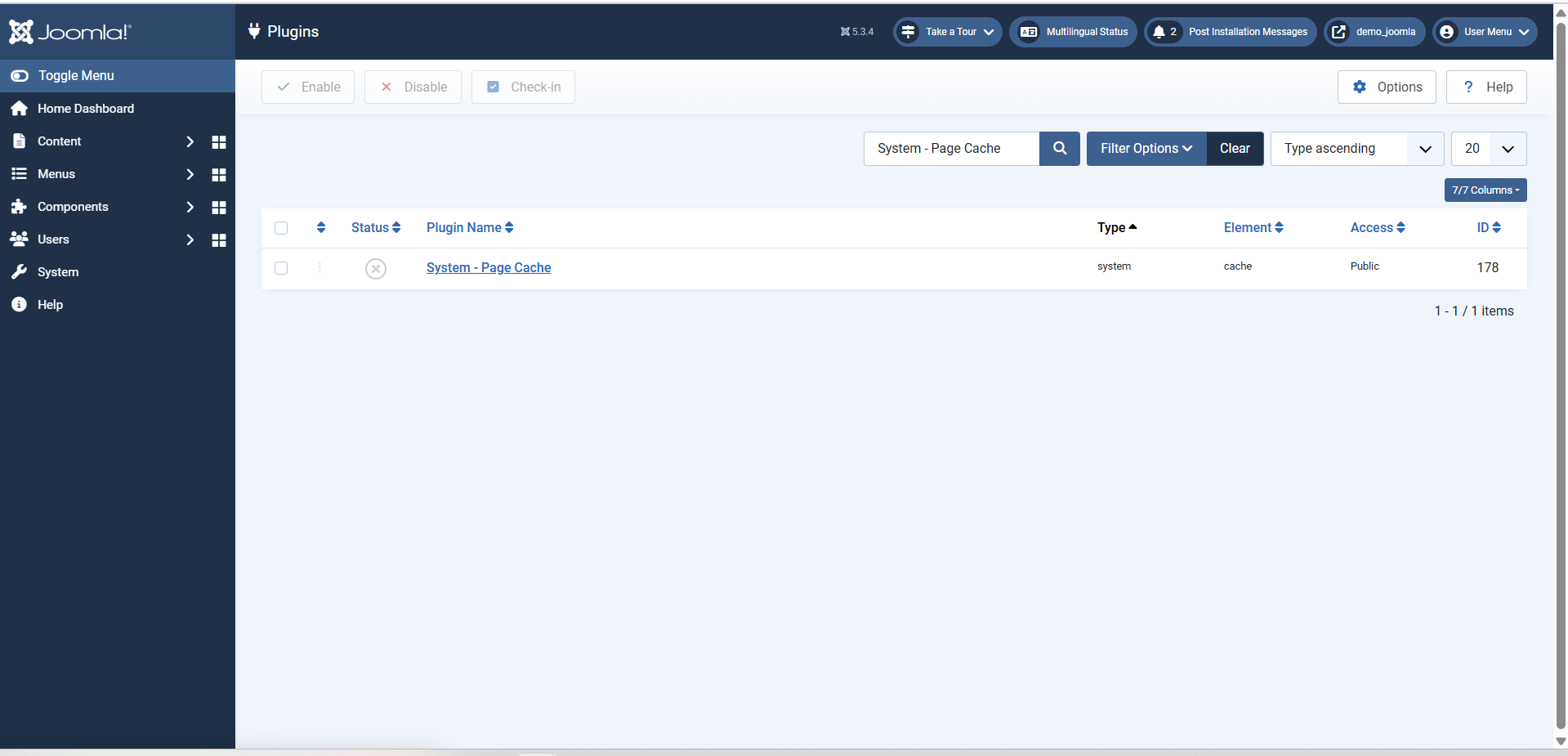
  • Enable the Page Cache plugin:
    • Go to System → Manage → Plugins.
    • Search for System – Page Cache.
    • Enable it.
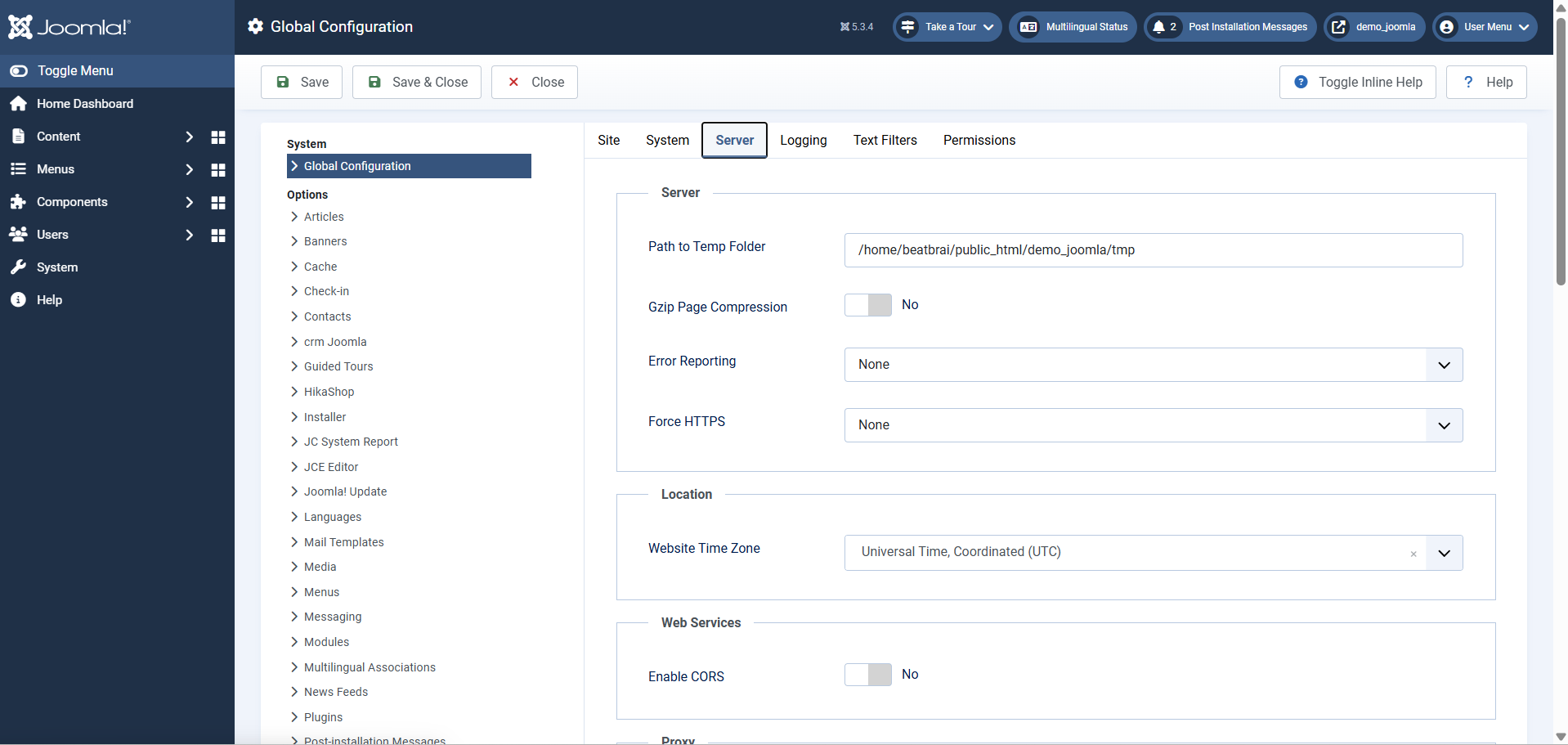
Turn on Gzip compression:
  • Go to System → Global Configuration → Server tab.
  • Find Gzip Page Compression and select Yes.

This helps your pages load faster by sending smaller files to visitors’ browsers.

Optional: Use a CDN (Content Delivery Network)

If your website has many visitors or large images, you can use a CDN like Cloudflare.

A CDN stores your website content on servers around the world so it loads faster for everyone.

💡 Need Help with Your Joomla Website?

Whether you’re starting a new Joomla project or need help fixing an existing site, our experienced team is here to help.

Schedule a Free Consultation

We’ll review your needs and guide you through the next steps—no obligation.

Conclusion

Congratulations! You have now improved your Joomla website’s SEO and performance. Your site will be easier to find on Google, faster to load, and more enjoyable for visitors. You don’t need to be a developer to get these results, just follow these simple settings and review them from time to time.

Author Bio

Abdulgani Tumbi is a Joomla CMS expert with over 11 years of experience in Joomla website development, upgrades, migrations, and custom solutions. As an Upwork Top Rated Plus professional (Top 3%), he has completed 30K+ hours of Joomla projects, helping businesses and agencies build secure, high-performance, and scalable Joomla websites. Passionate about solving complex Joomla challenges and optimizing Joomla performance, he actively shares insights and expertise to help website owners get the best out of Joomla. Connect with him for expert Joomla guidance and reliable solutions. Read more…