

By default joomla modules can only appear in the module positions your template define header, sidebar, footer, and so on. They can't sit in the middle of an article body text. The Content Load Modules plugin removes that limitation.
Without it, there's no way to place a module a Custom HTML box, a banner, a related-content list directly within the flow of an article. The plugin adds this capability by letting you insert special tags into the article body ({loadposition}, {loadmodule}, {loadmoduleid}), which are replaced with the actual module output when the page renders.
Syntax Reference
{loadposition position,[style]}
{loadmodule mod_type,the title,[style]}
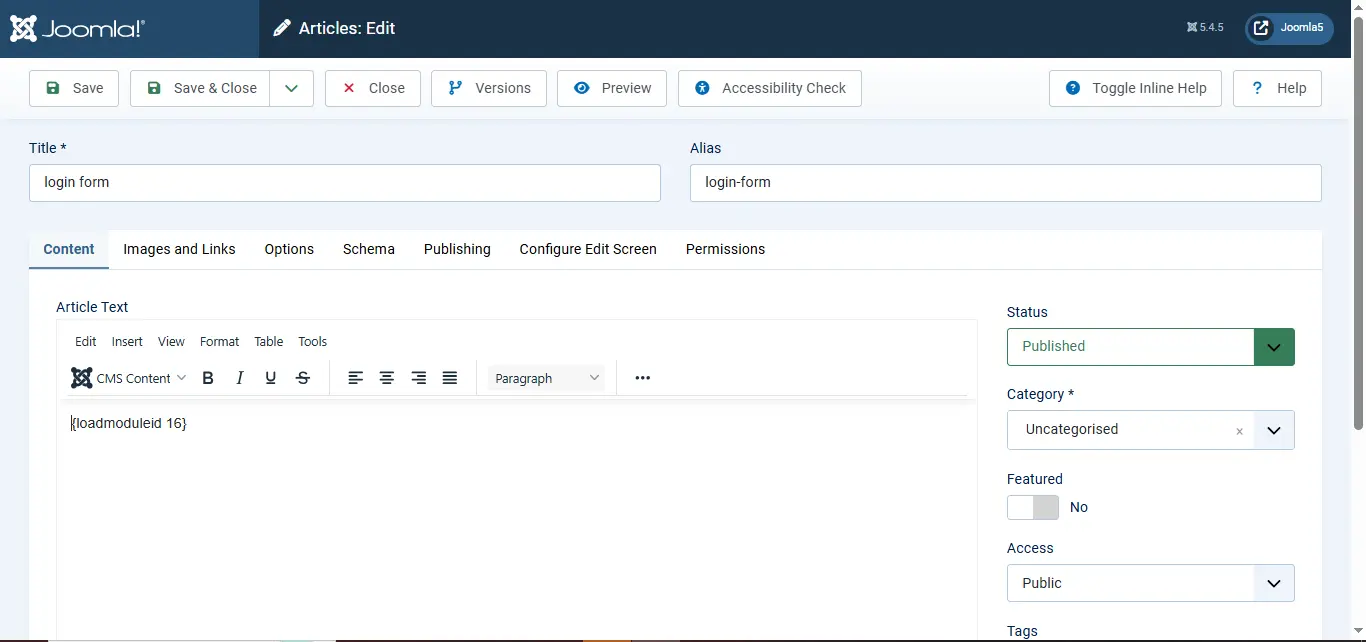
{loadmoduleid moduleId}
{loadposition}
{loadposition myposition}
{loadposition myposition,style}
Loads all modules published to the position named myposition.
How to use it:
- Create a module and set its Position to a custom name (e.g. myposition) type it in manually and press Enter rather than picking from the dropdown, since it won't exist in the template's official list of positions.
- Assign the module to All menu items so it isn't tied to a specific page.
- In the article, insert {loadposition myposition} where the module should appear.
Example: {loadposition myposition,card}
{loadmodule}
Loads a module by matching its type rather than its position.
{loadmodule login}
This finds the first module whose type matches login (example: mod_login) and loads it. The type is not always obvious from the module's name in the admin panel, you often need to check the module's folder name (dropping the mod_ prefix). For example, the Language Switcher module's type is languages.
Example: {loadmodule mod_login,Login 2}
{loadmoduleid}
{loadmoduleid z}
Loads the module whose numeric ID matches z, as shown in the Module Manager.
Example: {loadmoduleid 200} loads the module with ID 200.
Editor button shortcut
If the Button - Module editor plugin is enabled, you don't have to type these tags by hand:
- Click the numbered button in the Title column to insert by ID ({loadmoduleid}).
- Click the button in the Position column to insert by position ({loadposition}).
How to Use It
1. Enable the plugin
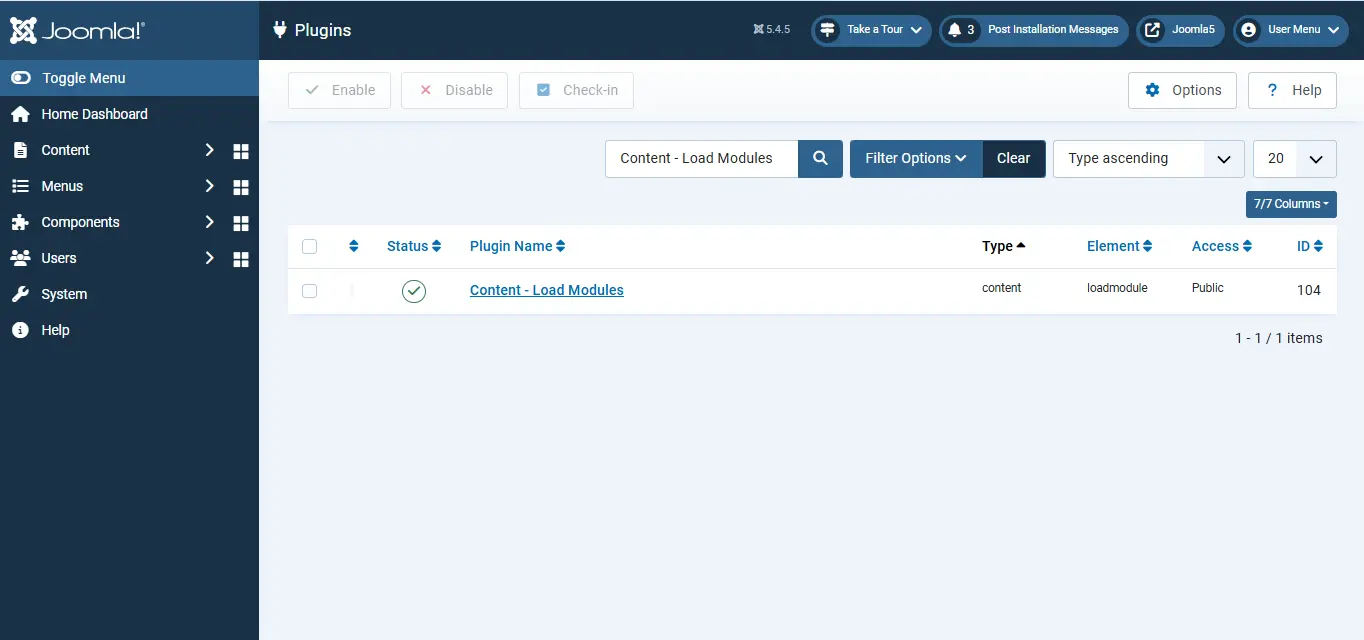
System → Plugins → search for "Content - Load Modules" → Enable it.
2. Embed a module into an article
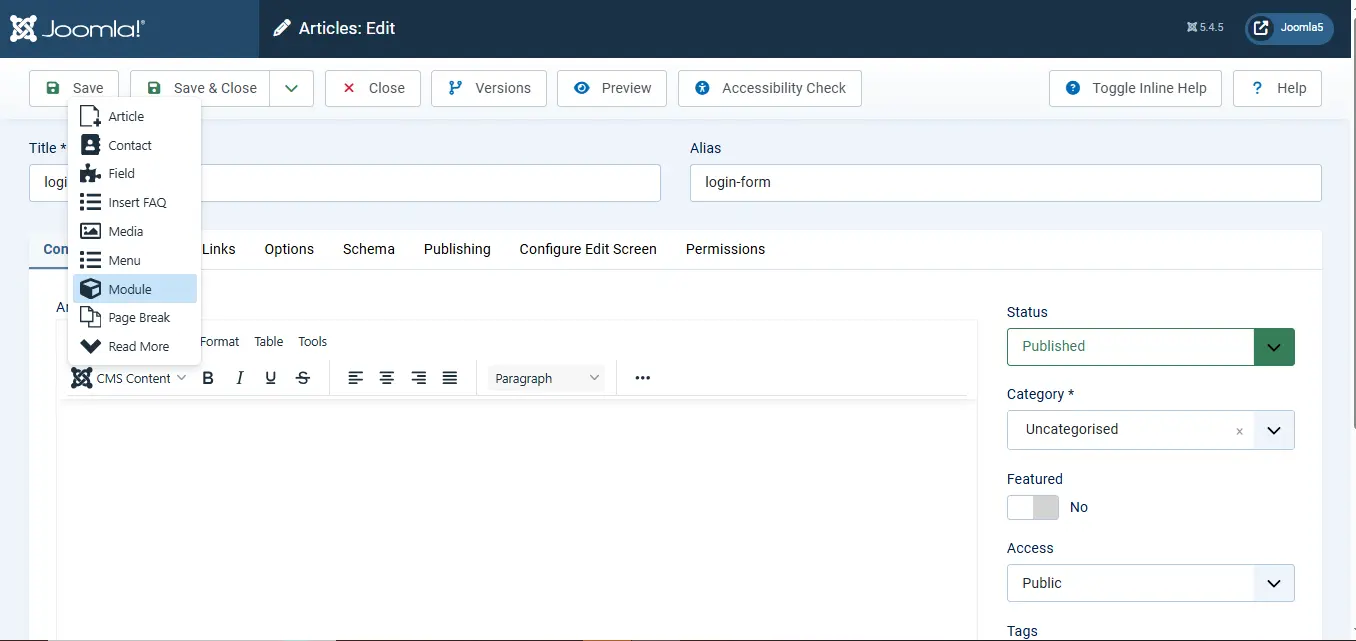
Content → Articles → New → in the editor, click the Module button below the editor → select your module. This inserts the appropriate tag into the article body.
Need Help With Joomla Modules?
We can configure module positions, layouts, and content structure exactly how you need it, cleanly built on Joomla core with no shortcuts.
Get Joomla Help
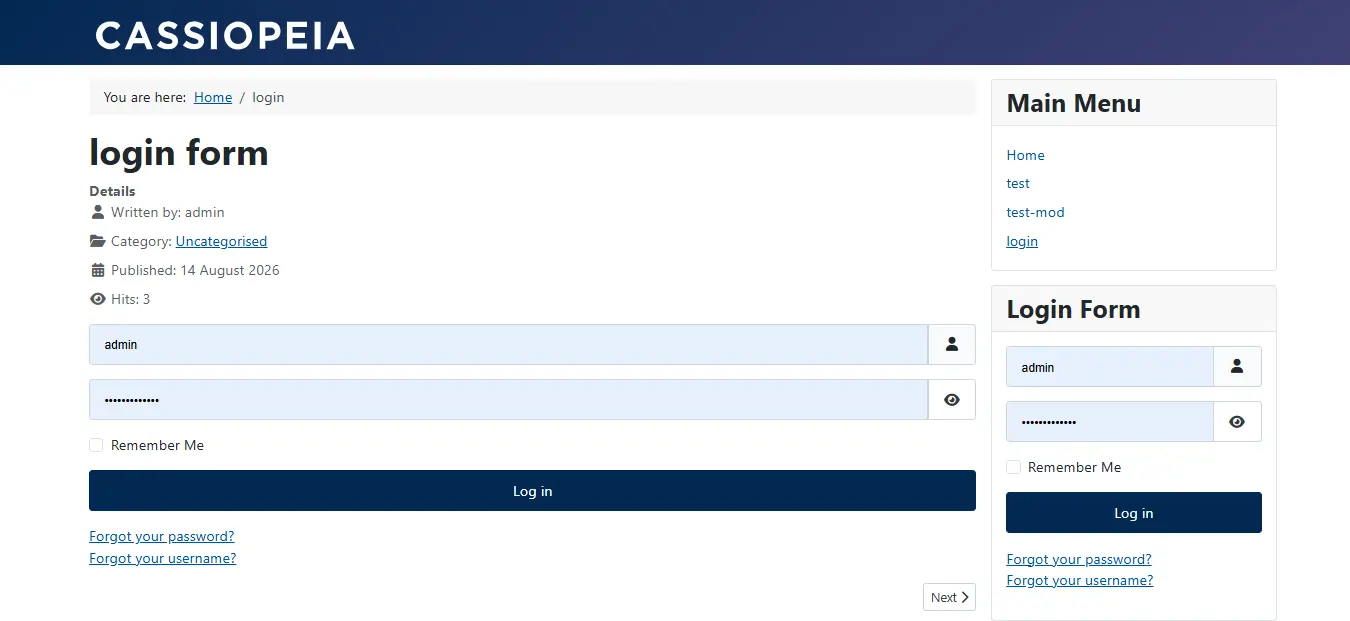
3. Display on the frontend
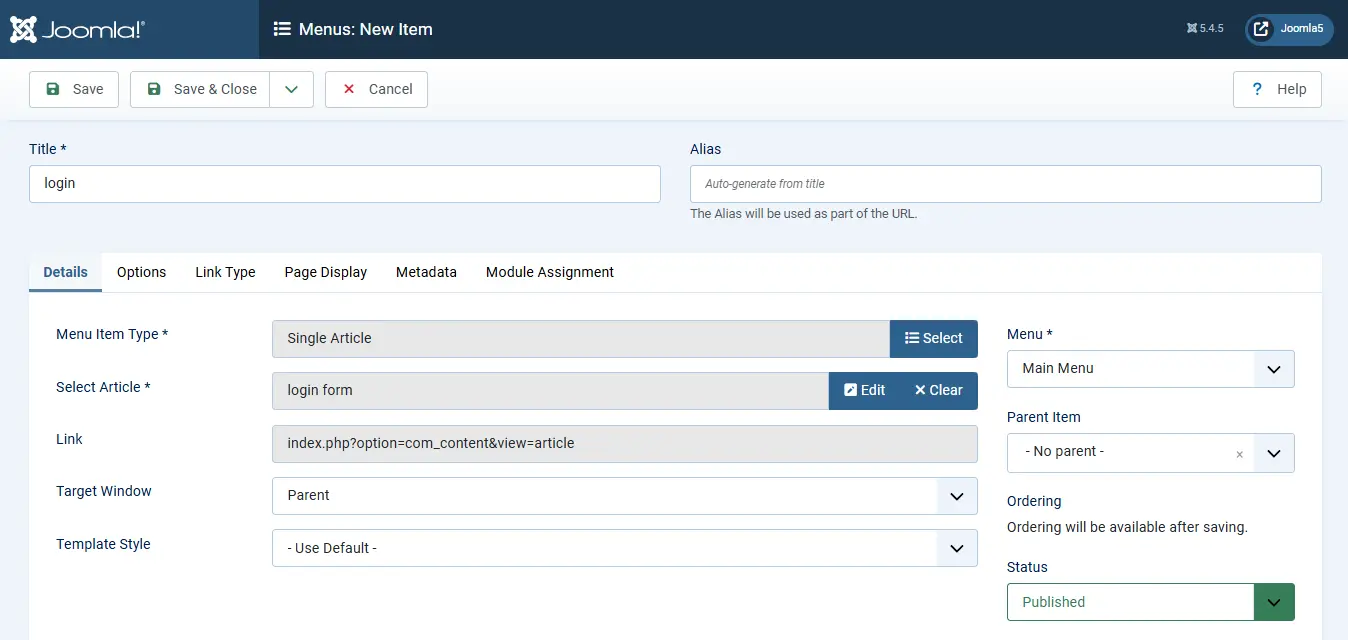
Create a menu item so the article is reachable:
Menus → (your menu) → New → Menu Item Type: Articles → Single Article → select your article → Save.
Benefits of the "Content - Load Modules" Plugin
Place modules anywhere in an article. Modules are normally restricted to the positions your template defines. This plugin lets you drop a module anywhere inside an article's body including the middle of the content regardless of what positions your template offers.
Reuse content across multiple articles. Typing or copying the same content (a newsletter sign-up a call to action box, a group of common notices), into each article you create it once as a module and use it where needed. Change the module. It changes everywhere it is used. No searching through separate articles.
Assign content to a single article. Modules are usually tied to menu items, so they display based on which page a visitor is on. This plugin lets you attach a module to one specific article directly, without needing a menu item to control its visibility.
Multiple ways to target a module. With three tags {loadposition}, {loadmodule}, and {loadmoduleid}you can reference a module by position, by type/title, or by exact ID. That flexibility avoids ambiguity when a site has many similar modules.
No extra extension required. This is a core Joomla plugin, not a third party add-on, so the functionality is available out of the box once enabled nothing to install.
 Need Help With Advanced Joomla Development?
Building complex article layouts that mix content and modules?
JoomConsultant can help you structure them cleanly on Joomla core.
Get Expert Joomla Help →