

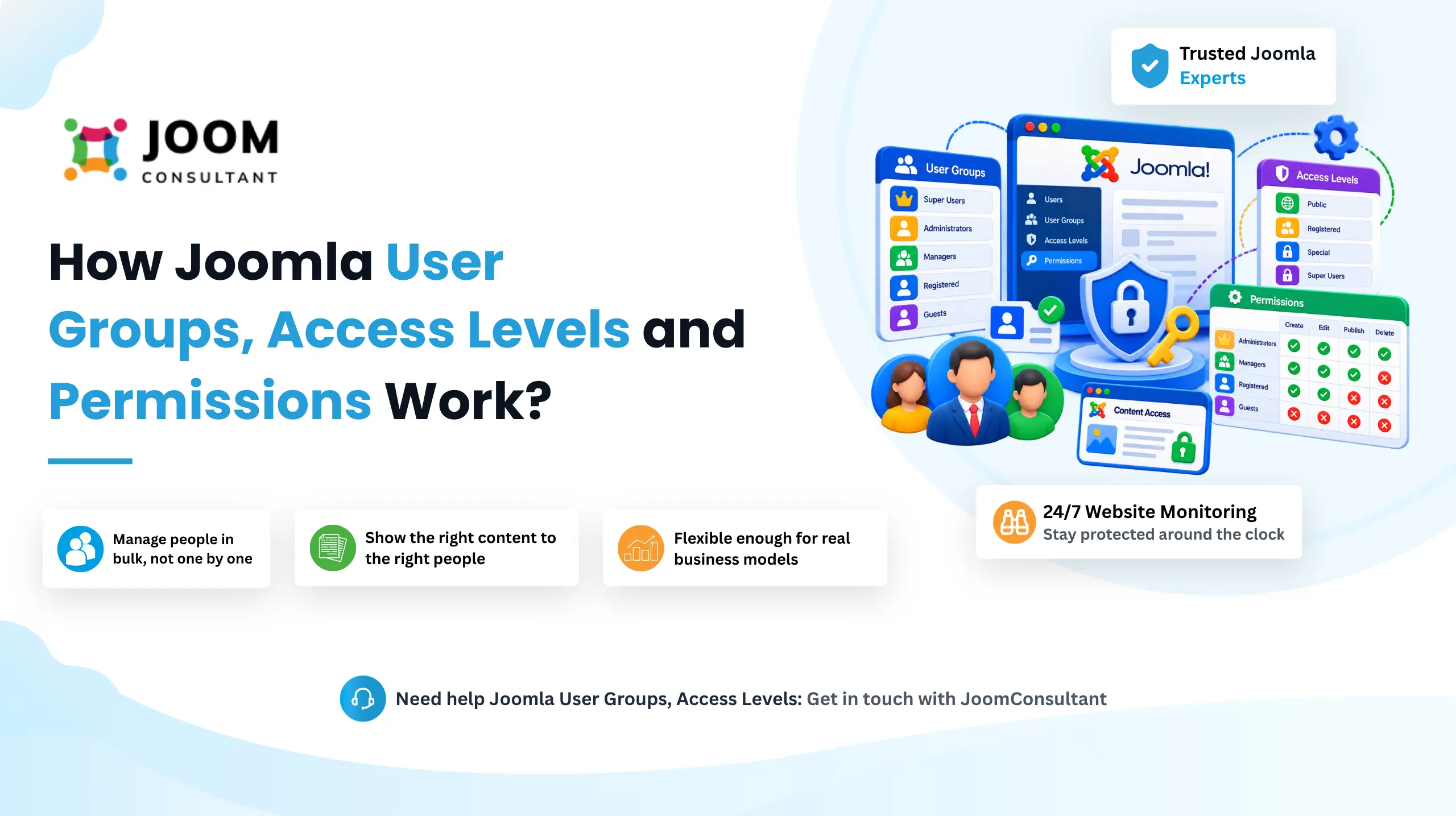
If you've ever wondered how to hide certain content from the public, give your editors just enough access to do their job (and nothing more), or build a members-only area, the answer lives in three Joomla features that are easy to confuse: User Groups, Access Levels, and Permissions.
They sound similar, but each one does a very specific job. Once the roles click into place, you can run a site with staff, editors, customers, and paying subscribers without babysitting a single user account.
Here's the quickest way to keep them straight:
- User Groups decide who someone is on your site.
- Access Levels decide what content they're allowed to see.
- Permissions decide what they're allowed to do.
The first two ("who can see it") work together. The third ("what they can do") stands on its own. Get all three cooperating and you've basically got a small, flexible access-control system one where you manage groups, not people. When someone new joins, you drop them into the right group and Joomla handles the rest. That's what makes it scale.
User Groups
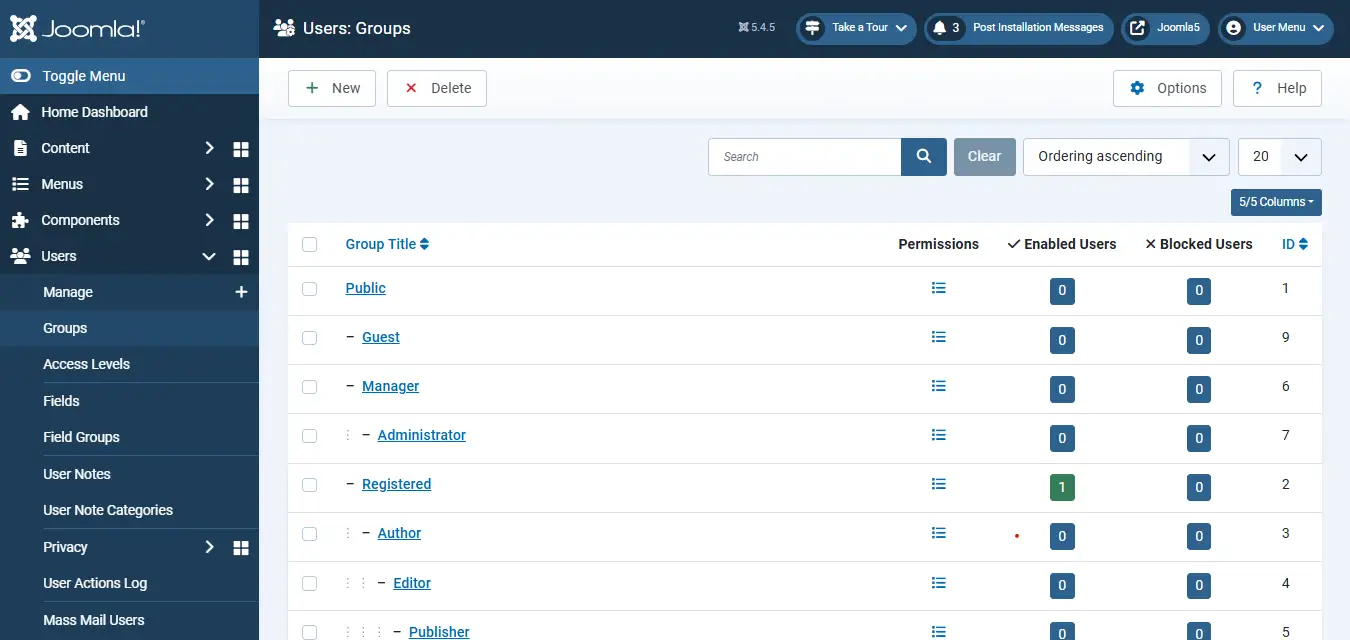
A User Group is a role. Every single user on your site belongs to at least one Public, Registered, Author, Editor, Administrator, or something custom you have made up yourself, like Premium Members. Groups are arranged as a parent child tree, which turns out to be the whole trick, child group inherits whatever its parent already allows, so you can build up responsibility in layers instead of starting from scratch each time.
The real payoff is that you set permissions once, at the group level. Want to decide whether a group can reach the admin area, create articles, edit them, or publish them? You do it on the group, and every member inherits that setting automatically. Add ten new people to the group next month and there's nothing extra to configure they walk in with the exact same access.
One thing trips people up constantly, so it's worth saying plainly: User Groups don't control what content a user can see. A group only defines someone's role and what they can do. Visibility is a separate job handled by Access Levels, which we'll get to next.
You'll find your groups here:
Login into Administrator → Users→ Groups.
Access Level
If a User Group answers "who is this person?", an Access Level answers "what can they look at?" It's the bridge between the two. An Access Level doesn't care about individual users at all it points at one or more groups and says, "anyone in these groups gets to view this."
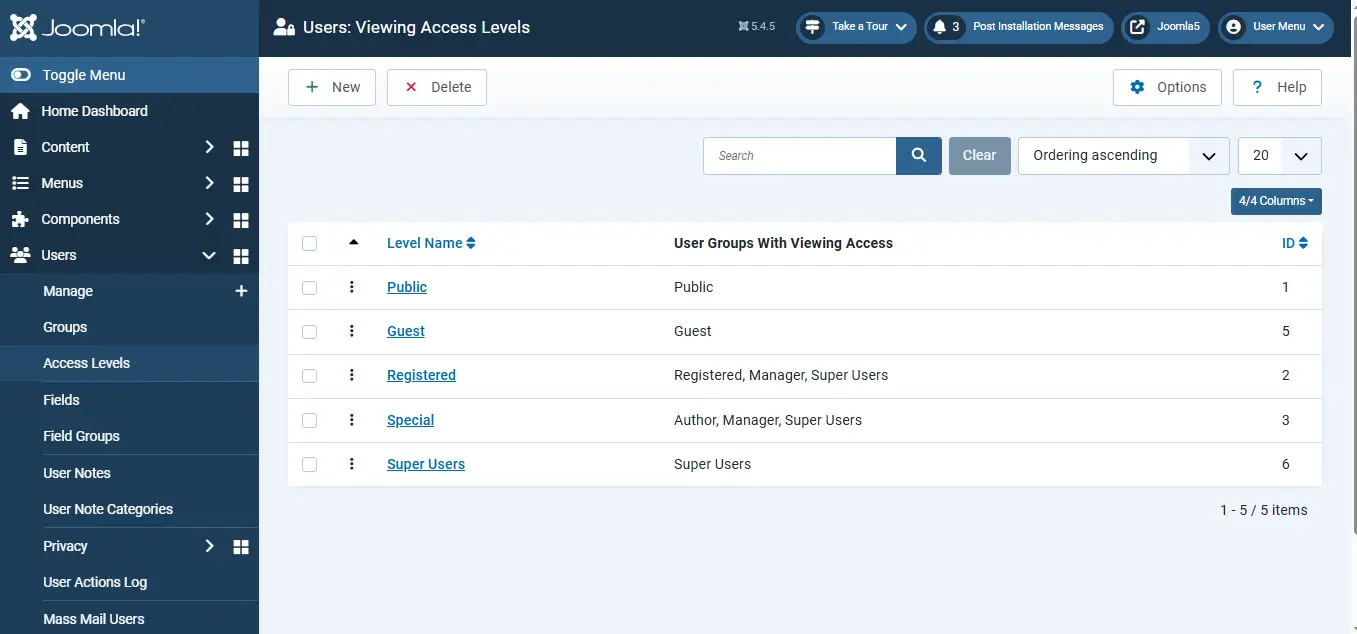
Joomla ships with a few out of the box Public, Registered, and Special and you can create your own whenever you need them: Premium Members, Staff Only, Wholesale Customers, whatever fits.
Creating one is refreshingly simple. You give it a name, then tick the User Groups that should be allowed to view content tagged with level. Everyone in those groups sees it; everyone else is locked out. Assign the Registered level to a module, for example, and only logged-in users will ever lay eyes on it.
You'll run into the Access field all over Joomla on Articles, Categories, Menu Items, Modules, Contacts, and plenty more. Pick a level from that dropdown and you've controlled visibility for that item without touching a single user account.
And the same warning applies in reverse: Access Levels only handle visibility. They don't let anyone create, edit, publish, or manage anything. That's Permissions' department.
Your Access Levels live here:
xLogin into Administrator → Users→ Access Level.
Permissions
Permissions are the "what can they actually do" layer. User Groups set the role, Access Levels set the view Permissions set the actions: creating, editing, publishing, deleting, managing content, changing settings.
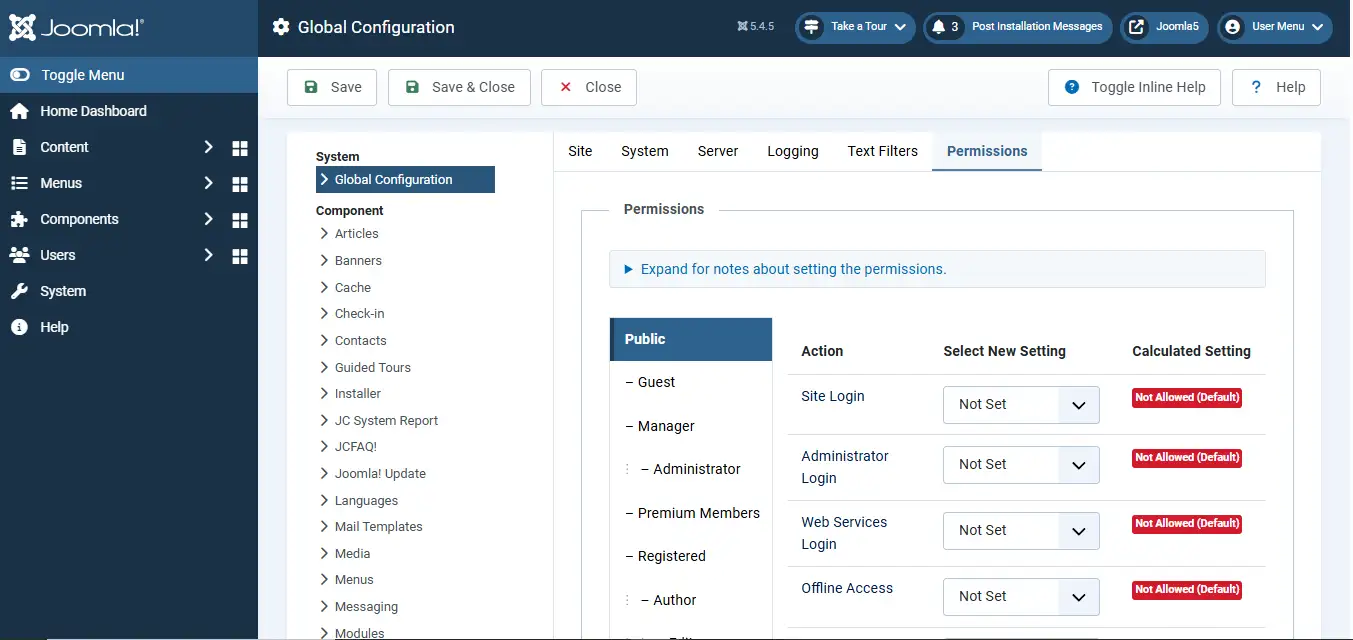
Everything starts in Global Configuration. Think of the permissions you set there as the site-wide default components, categories, and individual items all inherit from them. When a specific area needs different rules, you override the default further down, exactly where it matters, and leave everything else alone.
Because permissions flow down through that same parent-child group hierarchy (starting from Public), you can grow roles naturally. Maybe one group can create and edit articles. A group nested beneath it can do all that plus publish and manage categories. You're never rewriting rules for individuals you're shaping groups and letting inheritance do the rest.
Here are the actions you'll be toggling most often
- Login to Site : lets users log in on the front end.
- Login to Administrator : lets users into the admin back end.
- Create : create new content.
- Edit : edit any existing content.
- Edit Own : edit only the content they created themselves.
- Edit State : publish, unpublish, archive, or trash content.
- Delete : delete content.
- Configure : manage configuration settings.
- Administer : full administrative control over an area.
To set the site-wide defaults:
Administrator → System → Global Configuration → Permissions
Putting It All Together: A Step-by-Step Walkthrough
Theory's fine, but here's the actual order of operations for building a restricted section from nothing.
1. Create a User Group
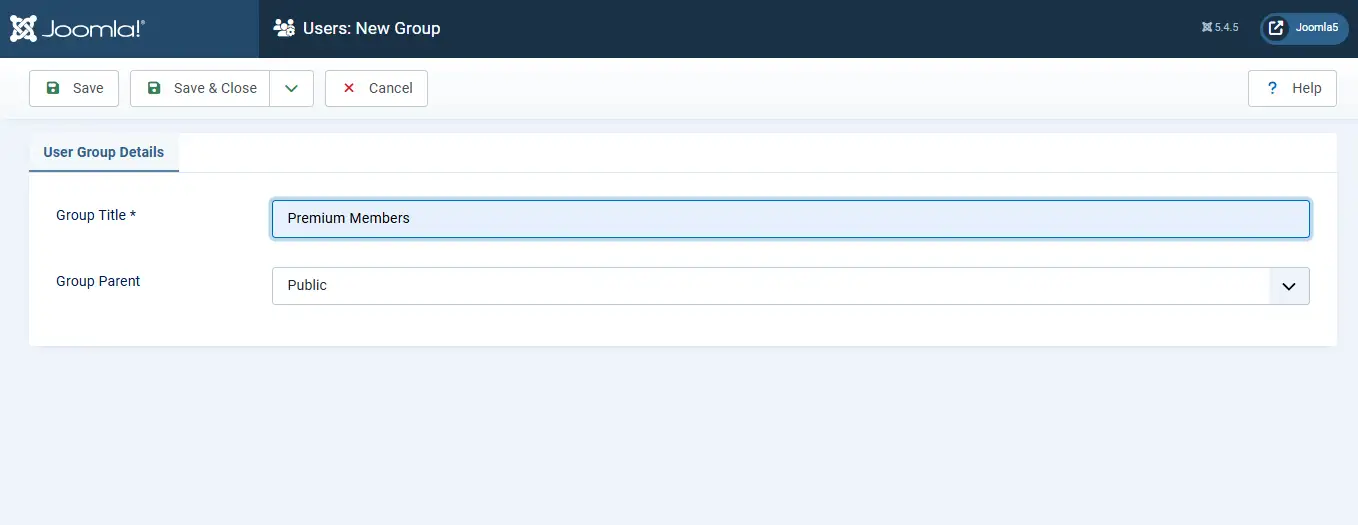
Creating a custom User Group allows you to manage content visibility, staff roles, and membership levels through a single centralized role instead of configuring each user individually. Once created, any user assigned to that group will automatically inherit its permissions and access settings.
To create a User Group:
Administrator → Users → Groups → New → Enter Group Title and Parent Group → Save
2. Create Access Level
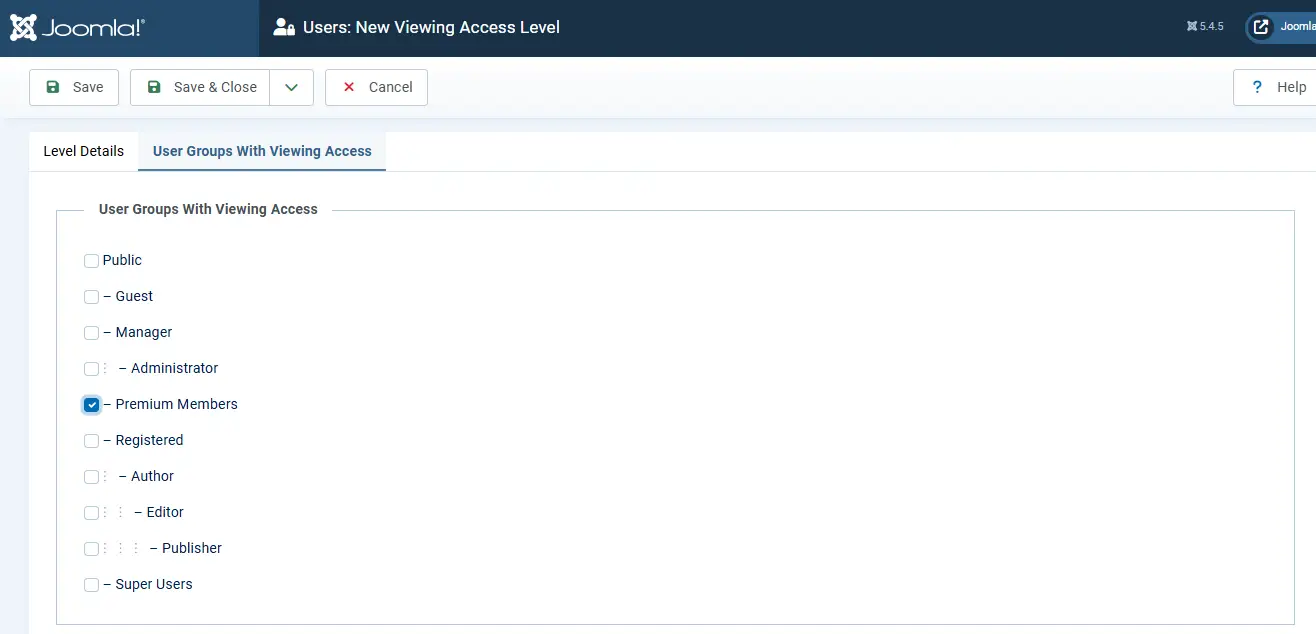
Creating an Access Level allows you to control exactly which articles, categories, menu items, modules, and other content are visible to specific groups of users. This makes it possible to display premium content to members, staff-only content to employees, and public content to all visitors automatically.
Access Level can include one or multiple User Groups. Any user who belongs to one of the selected groups will be able to view content assigned to that Access Level.
To create an Access Level:
Users → Access Level → New → Enter Level Name in Level Detail & select your User Group with viewing access → Save.

3. Setting Permission
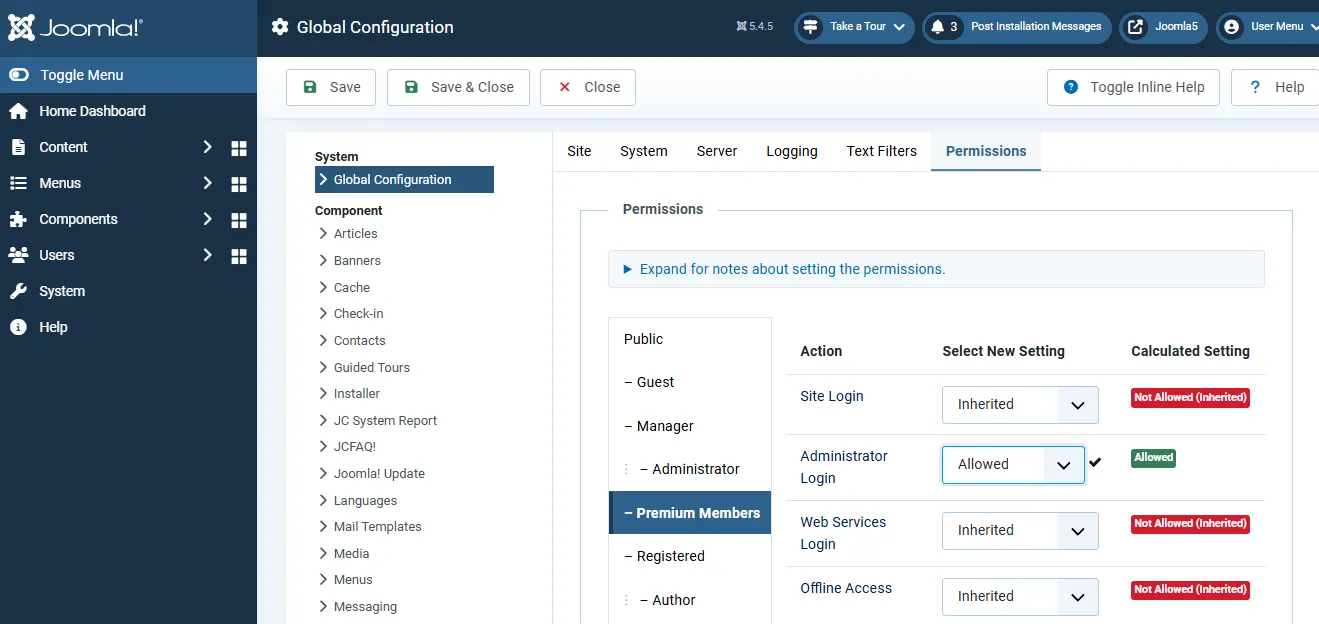
After creating your User Groups, you can define what actions members of those groups are allowed to perform by configuring Joomla's Permissions settings.
Permissions can be configured globally for the entire website or applied more specifically to individual components, categories, and items when different levels of access are required.
To configure permissions, go to:
Administrator → System → Global Configuration → Permissions
Alternatively, you can open a specific User Group from:
Administrator → Users → Groups
From here, select the group and configure the permissions that group should be allowed to perform such as creating, editing, publishing, deleting, or managing content with site settings.
4.Tag Content with an Access Level
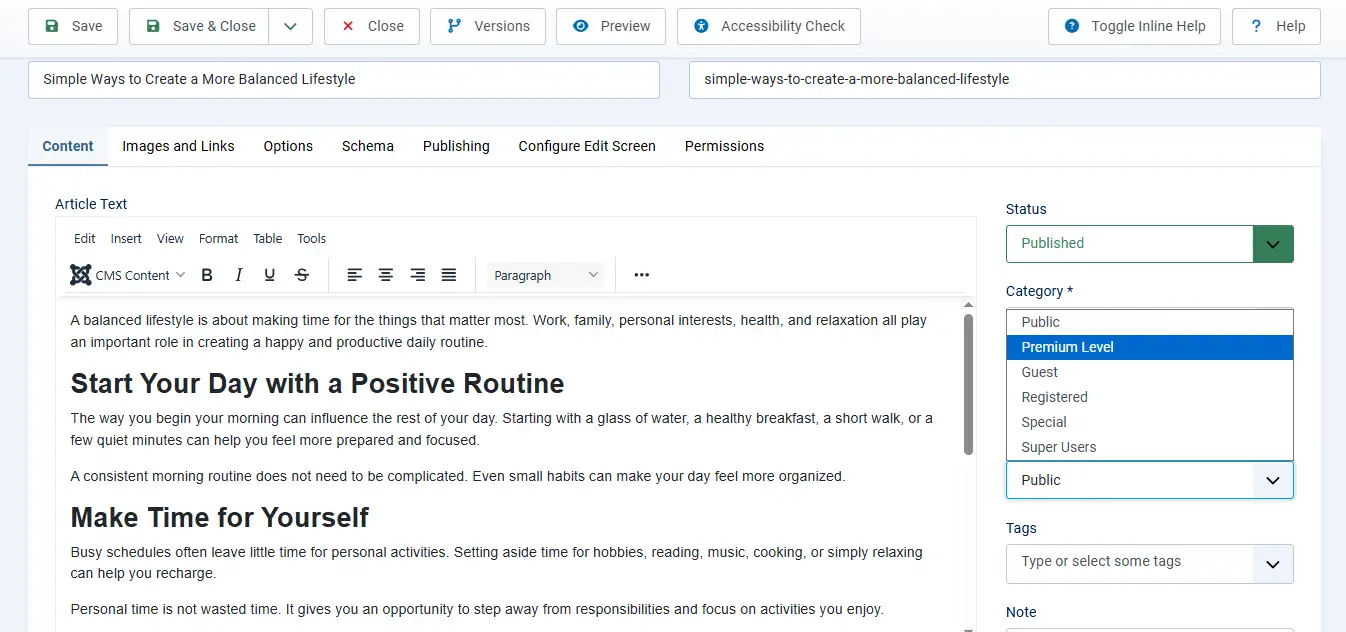
Assigning an Access Level to an article controls exactly who can view that content. Only users who belong to the User Group(s) included in the selected Access Level will be able to see the article, while all other users will be restricted from viewing it.
To assign an Access Level to an article:
Administrator → Content → Articles → Open the Article → Locate the Access field on the right side → Select the desired Access Level → Save
The same approach can also be used for Categories, Menu Items, Modules, Contacts, and many other Joomla items that include an Access setting.
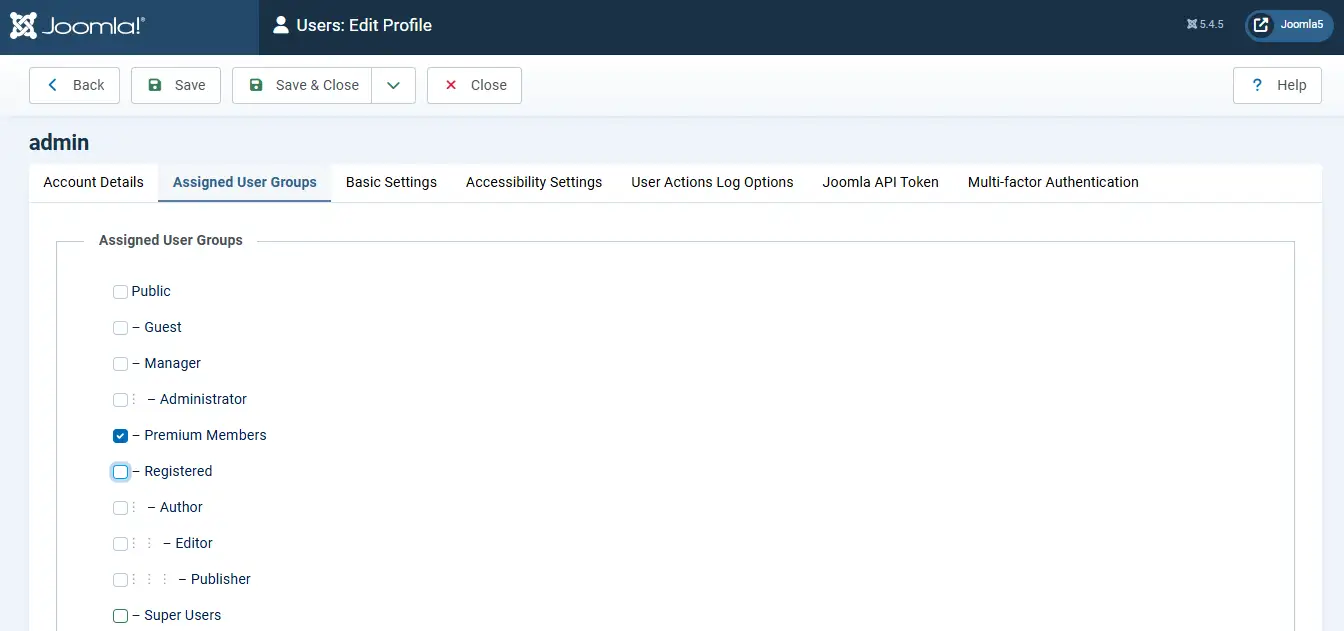
5.Assign Users to a User Group
After creating your User Group, Access Level, and protected content, the final step is assigning users to the appropriate User Group. Once assigned, users automatically gain access to any content linked to Access Levels that include that group.
Without users assigned to the correct group, the restricted content will remain inaccessible, even if Access Level and permissions have been configured correctly.
To assign a user to a User Group:
Administrator → Users → Manage → Open the User → Assigned User Groups → Select the desired User Group → Save
User can belong to multiple User Groups at the same time, allowing them to inherit permissions and viewing access from all assigned groups.
Article Permissions: One Level Deeper
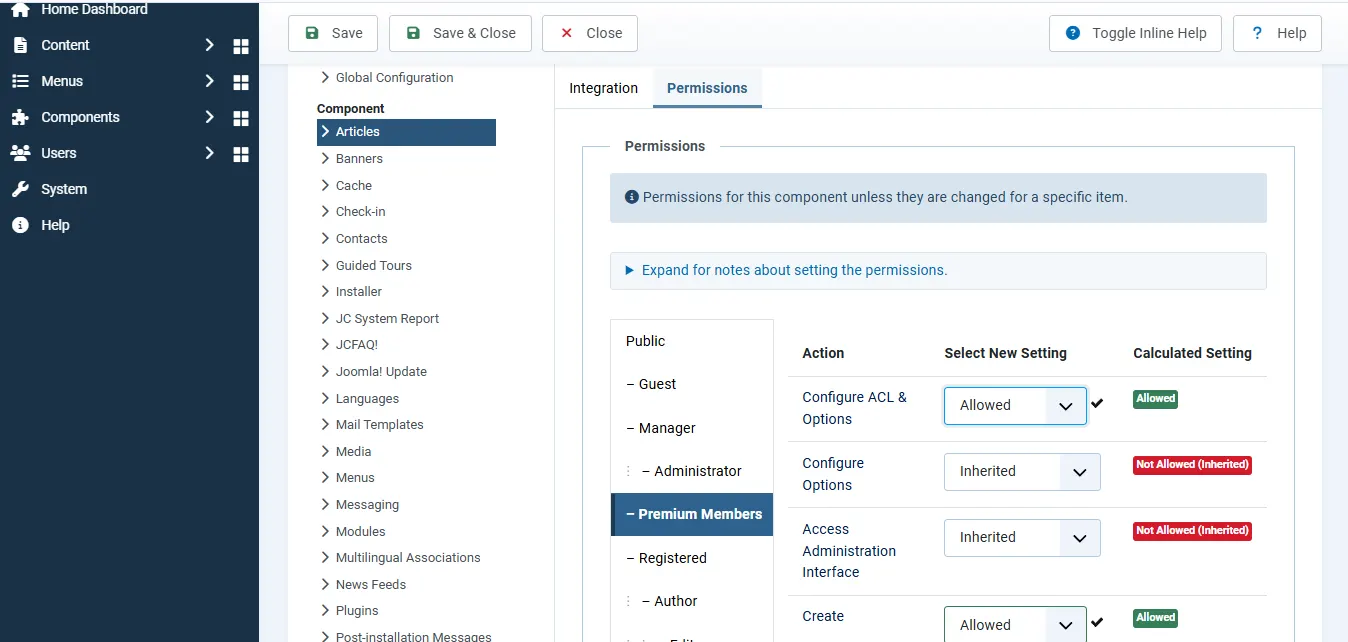
The Articles component carries its own permission set, separate from Global Configuration. Global permissions deal with big-picture stuff like admin access and login; Article permissions are all about content creating, editing, deleting, publishing, and managing article workflows.
This is Joomla's structure working as intended: every component can expose the permissions that make sense for it. It lets you grant or restrict actions for a group within articles only, without disturbing anything else on the site. A classic example let a group create and edit articles, but hold back the ability to publish them, so an editor always signs off first.
To configure Article Permissions :
Administrator → Content → Articles → Options → Permissions → Configure permissions for the desired User Group → Save
Single-Article Permissions: The Finest Control
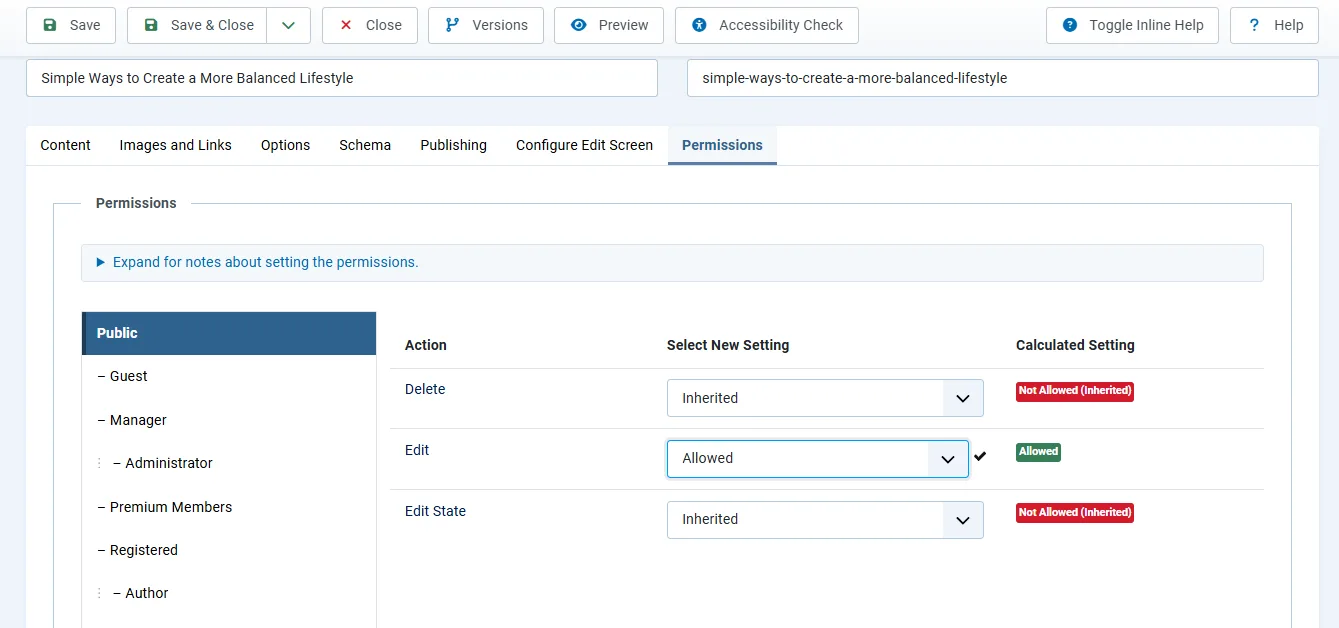
Sometimes one specific article needs to play by different rules than the rest. Joomla lets you set permissions on that individual article, and those settings override whatever it inherited.
Handy when, say, a single sensitive post should be editable by only one group even though the wider Articles component is more open.
To configure permissions for a single article:
Administrator → Content → Articles → Open the desired Article → Permissions → Configure permissions for the desired User Group → Save
Why This System Is Worth Setting Up
Once it's in place, you get a lot back:
- Manage people in bulk, not one by one: Handle everything at the group level. New users inherit permissions and access the moment you add them no per-account fiddling.
- Real role-based access : Spin up roles like Author, Editor, Manager, Administrator, or Premium Member, each holding only the access it actually needs. Less over-permissioning means fewer security headaches.
- It scales cleanly : As the site grows, you change a setting once on the group and it ripples out to everyone in it. No hunting through individual accounts.
- Show the right content to the right people : Members-only areas, staff resources, customer portals, premium posts, wholesale pricing Access Levels serve each audience automatically based on their group.
- Tighter security by design : Separating roles, permissions, and visibility means users get only what they need, and sensitive content stays with the groups you've approved.
- Flexible enough for real business models : Membership sites, learning portals, customer dashboards, intranets build custom groups and levels to match almost any structure you can think of.
 Need Help With