

How to Configure Registration Options, and Manage User Profiles
User registration and login management in Joomla allow you to control how visitors create accounts, sign in, and access protected areas of your site. Whether you’re running a community site, membership portal, or simply want users to log in to post comments, Joomla gives you full flexibility.
This guide will walk you through setting up registration options, and managing user profiles all without needing technical skills.
1. Understanding Joomla’s User System
Joomla’s user system is based on user groups and access levels.
- User groups determine what actions a user can perform (like creating content or accessing restricted areas).
- Access levels control what parts of your website users can view.
By managing registration and login settings, you decide who can register, how they log in, and what they see after login.
2. Enabling User Registration
By default, Joomla allows you to decide whether users can create their own accounts.
To enable user registration:
- Log in to your Joomla Administrator area.
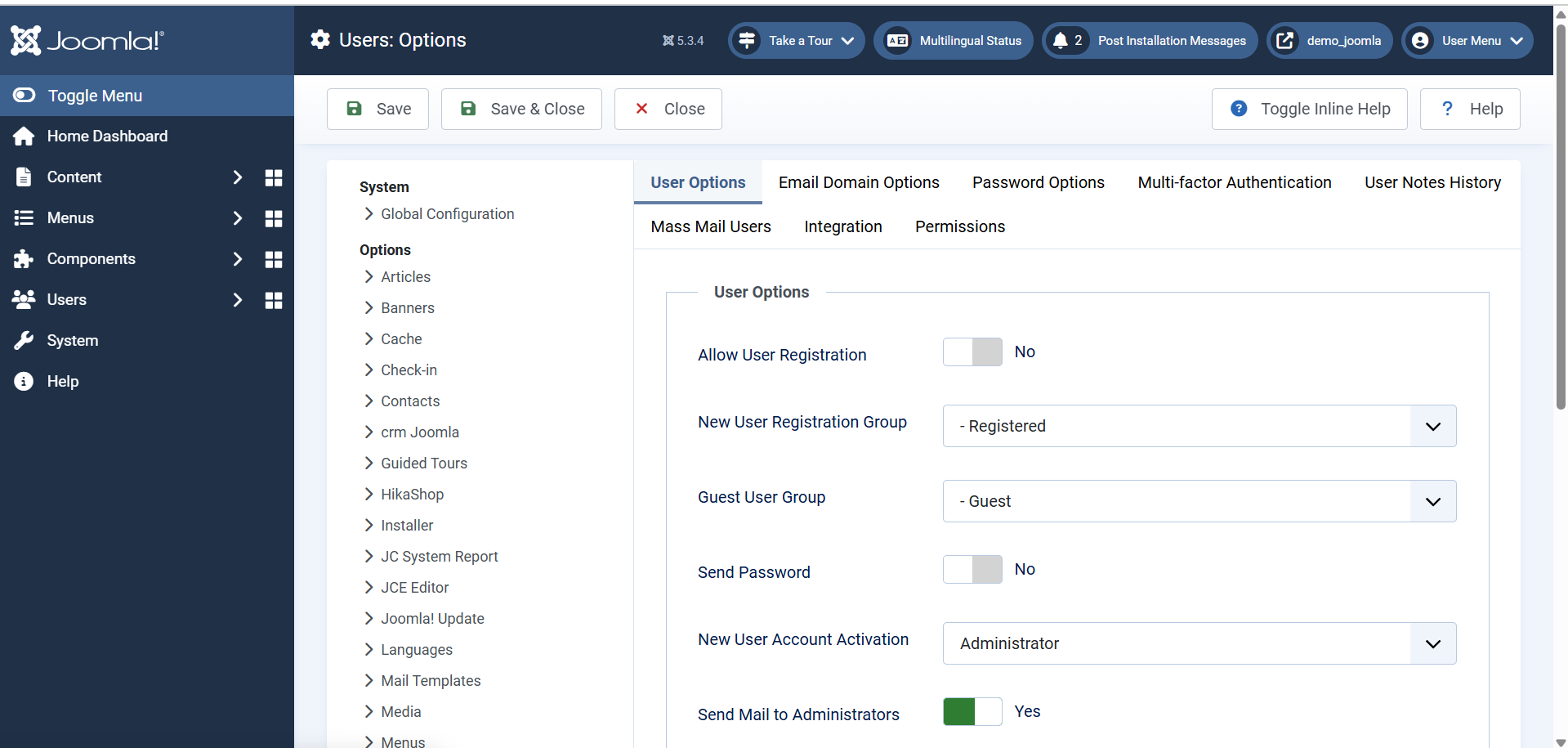
- Go to Users → Manage → Options (top right corner).
- In the User Options tab, find Allow User Registration and set it to Yes.
- Choose New User Account Activation:
- None – Accounts are activated immediately.
- Self – Users receive an activation email.
- Administrator – An admin must approve the account.
- Save your changes.
Tip: If you only want approved members, choose Administrator activation.
3. Setting Up the Registration Form
The registration form collects user information. You can customize what fields appear.
To manage registration fields:
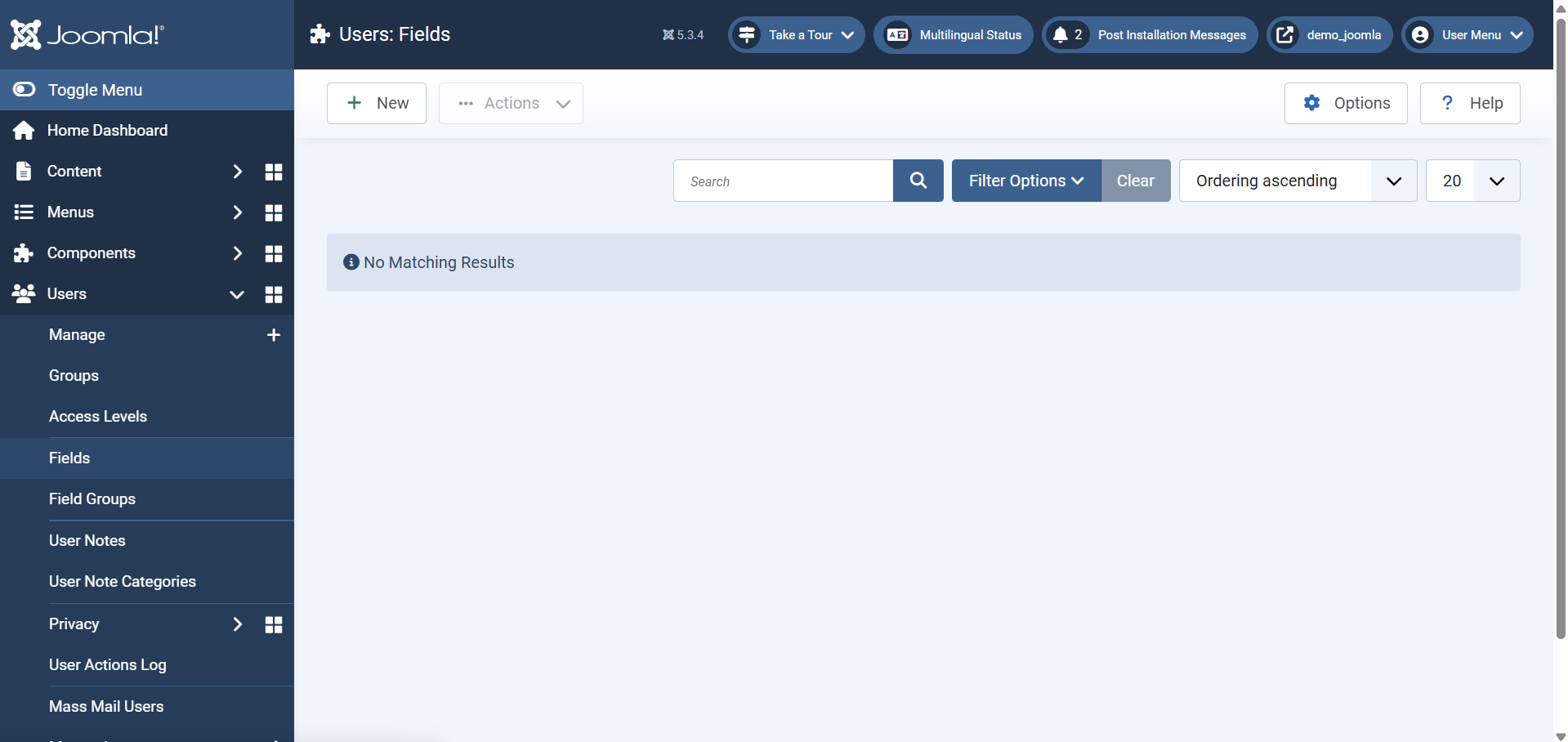
- Go to Users → Fields.
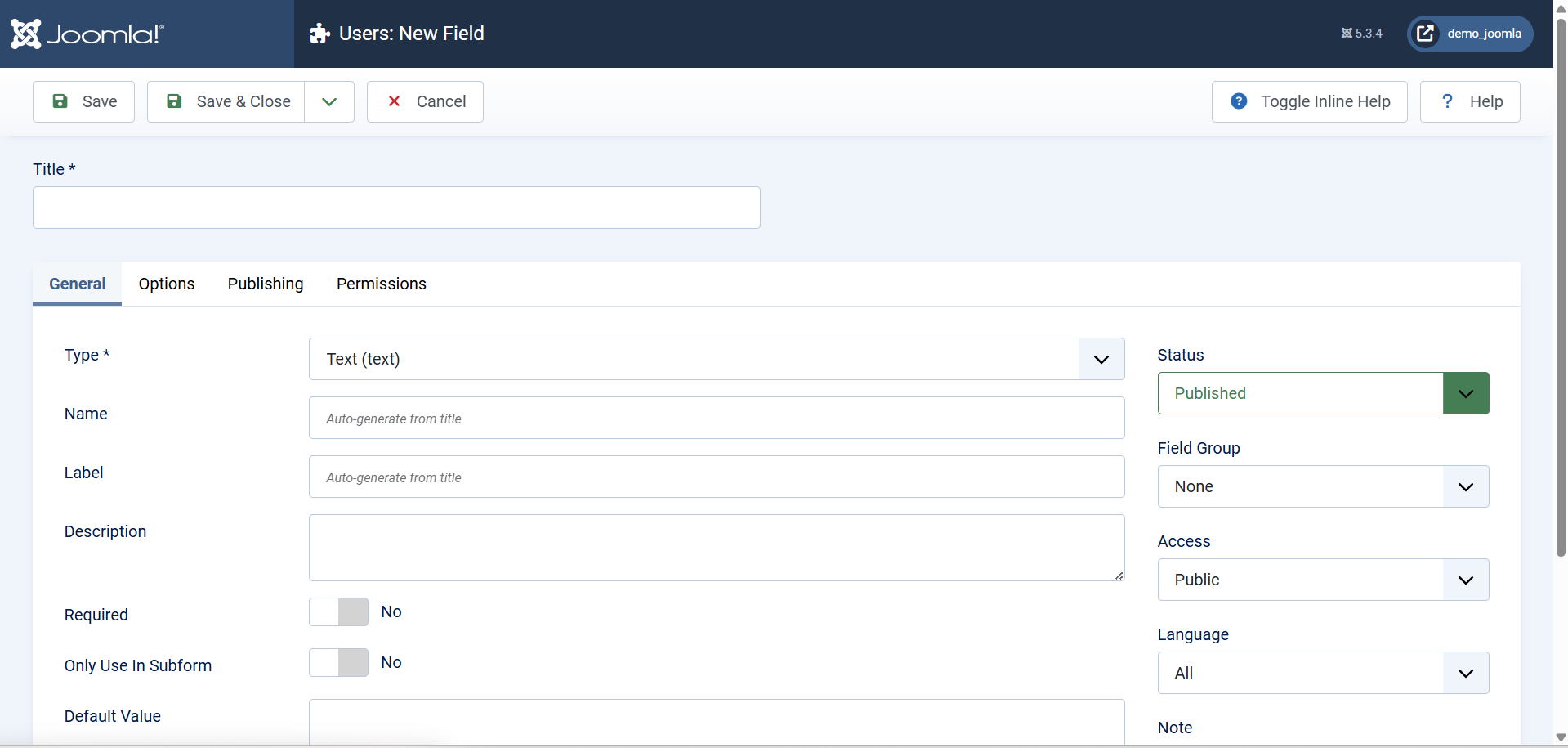
- Click New to add fields like Phone, Company, or Address.
- Assign them to the User category so they appear on the registration form.
- Save and check the form from the frontend.
You can also use extensions like Community Builder or Easy Profile to create more advanced registration forms.
4. Adding a Login and Registration Menu
To allow visitors to register or log in easily, add menu links for these pages.
To add a login link:
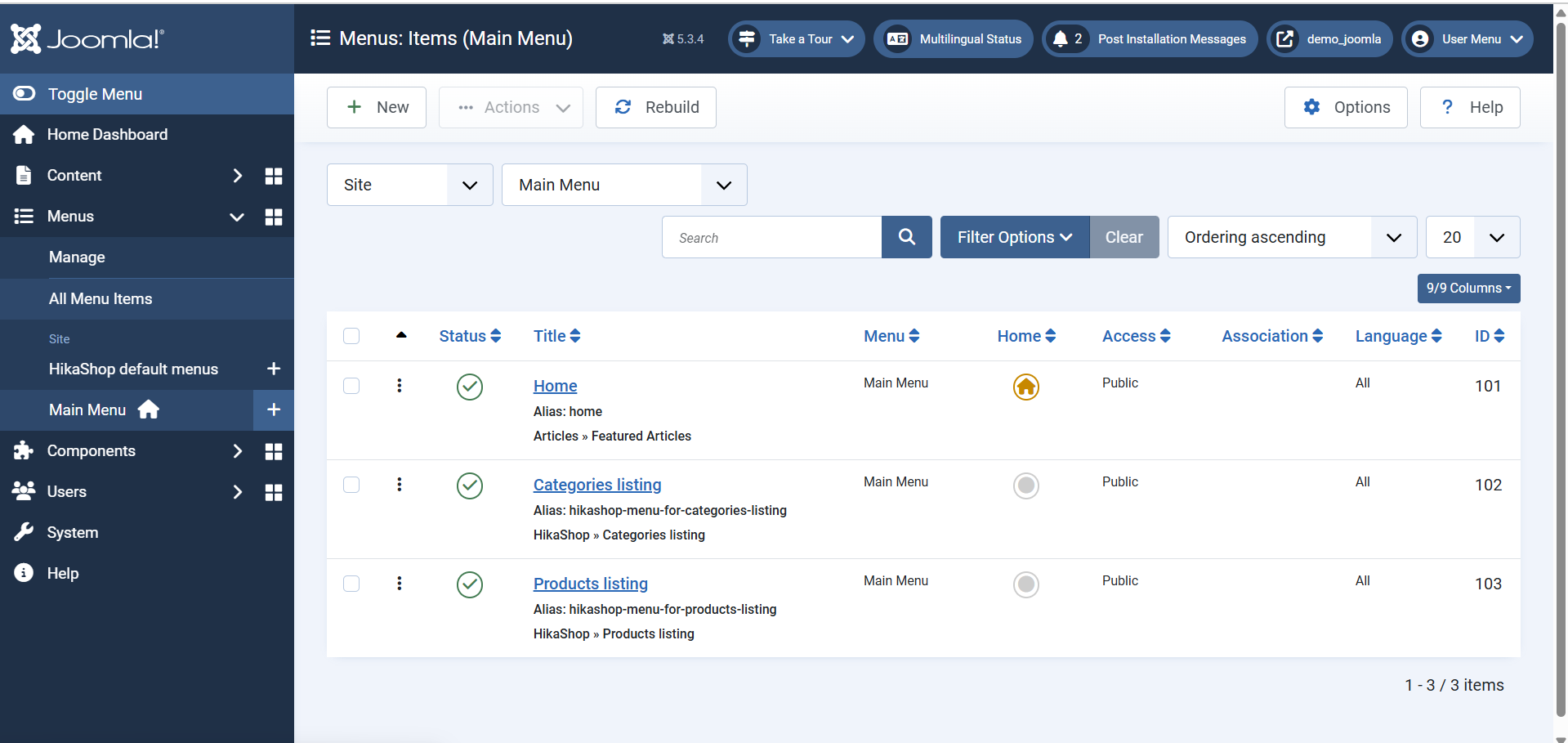
- Go to Menus → Main Menu → New.
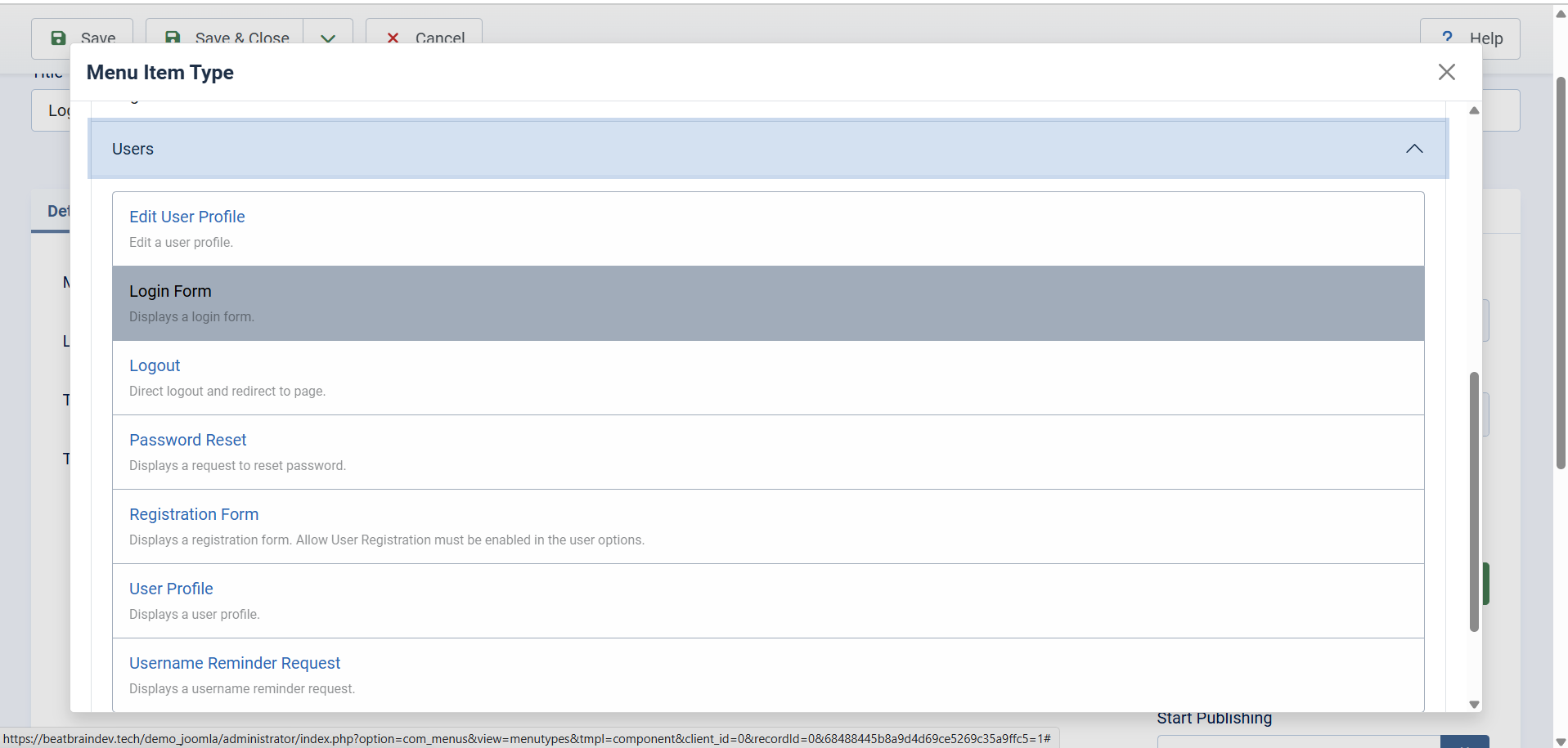
- Choose Users → Login Form as the menu type.
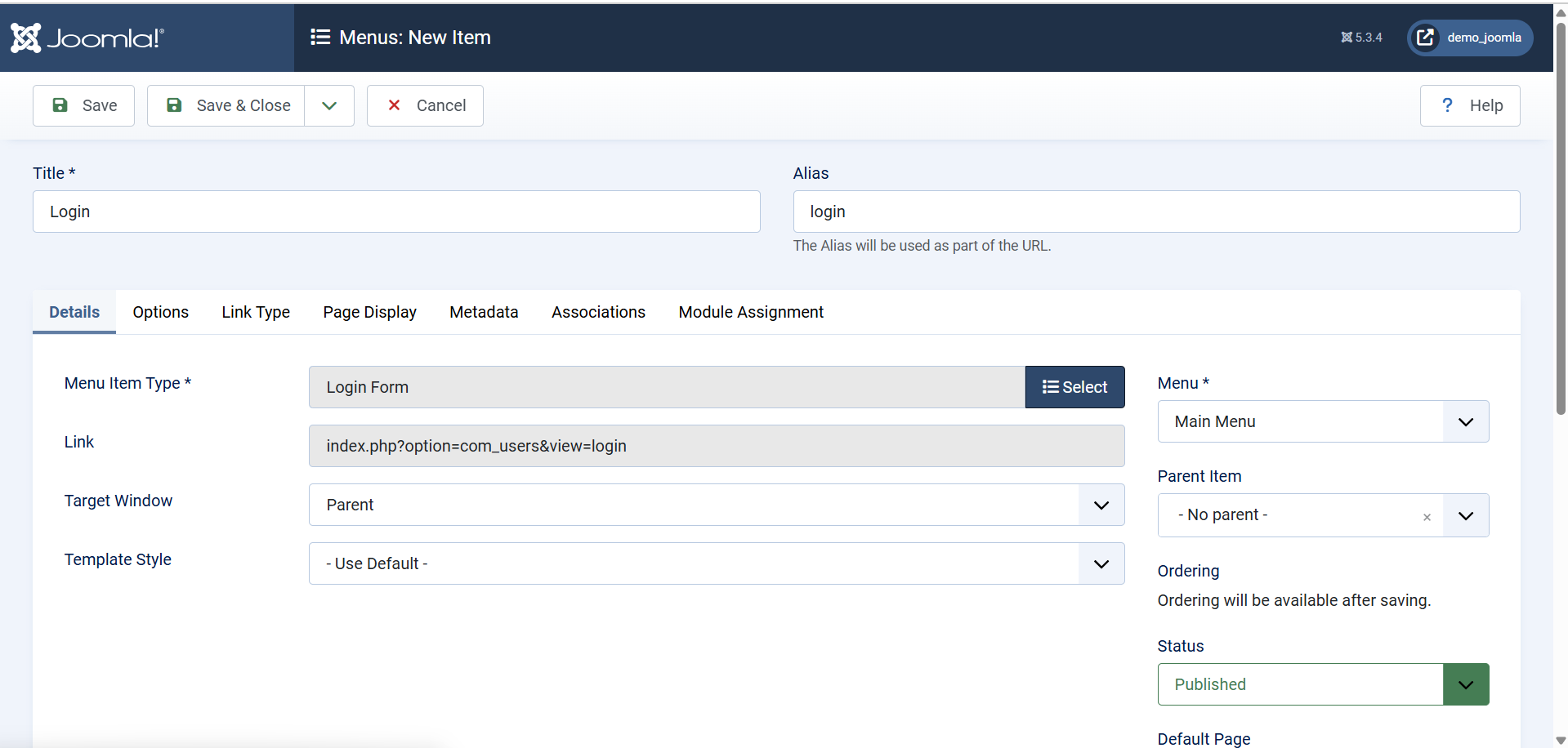
- Set a title like “Login” and save.
To add a registration link:
- Add another menu item.
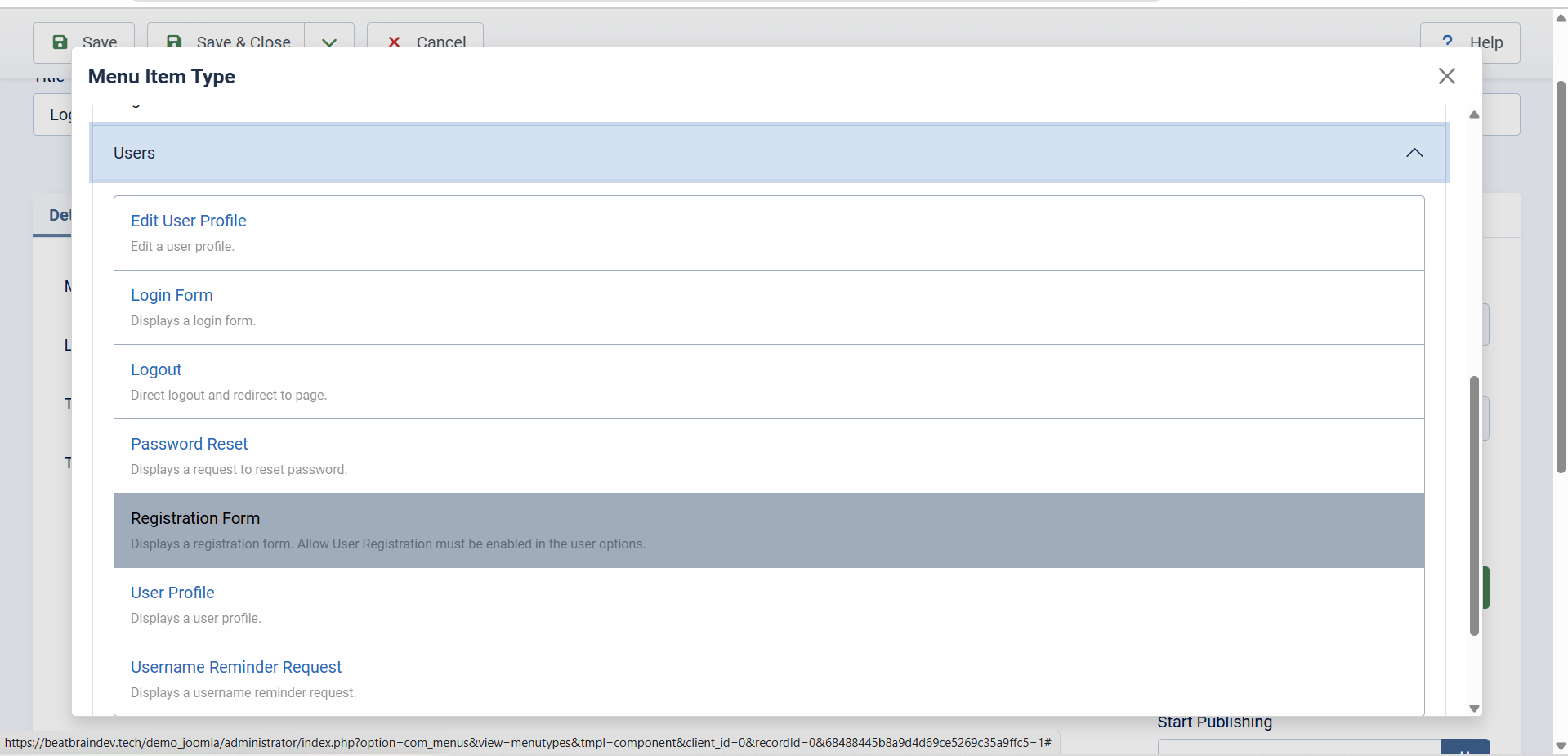
- Choose Users → Registration Form.
- Save it and test from the front end.
Now visitors can register or log in directly from your menu.
5. Managing User Profiles
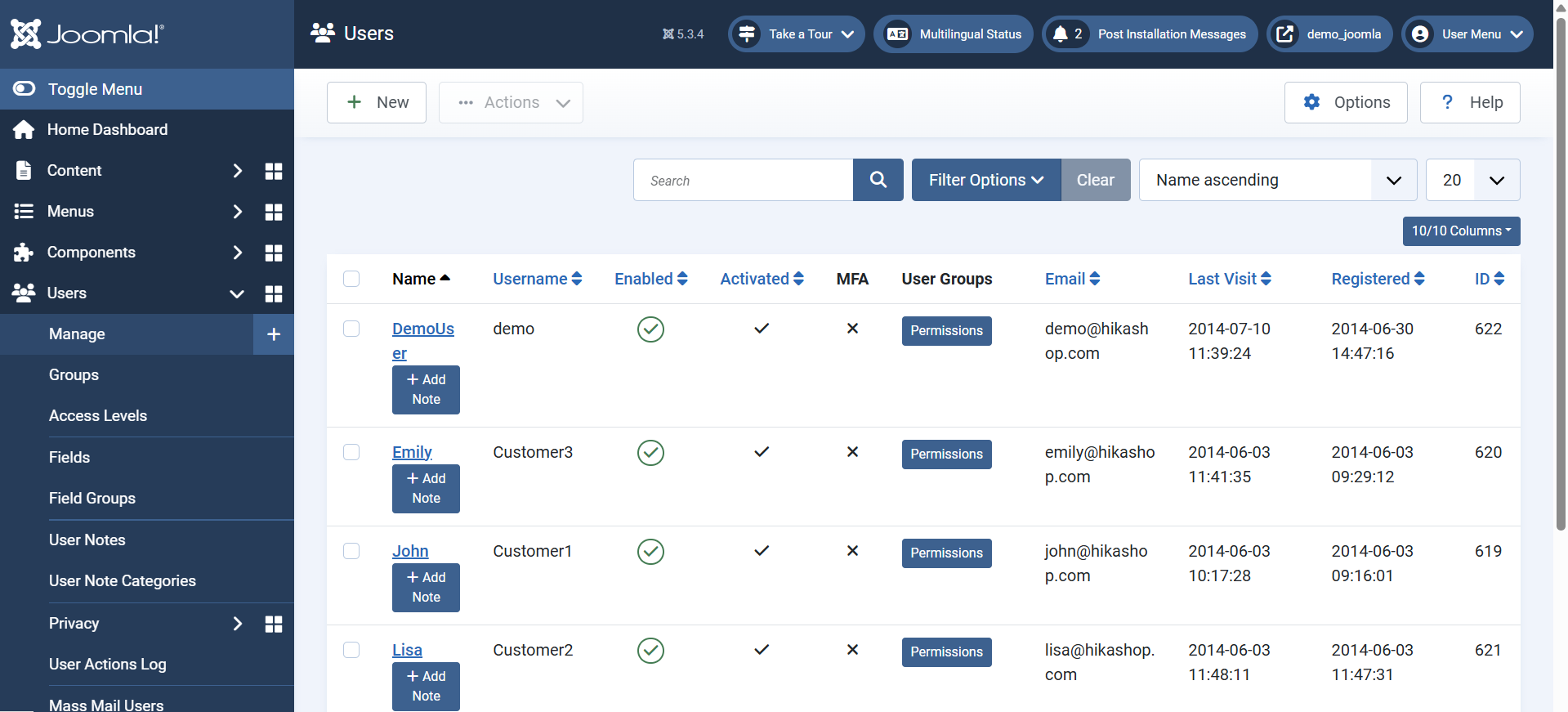
Once users are registered, you can manage them easily in the backend.
To view and edit users:
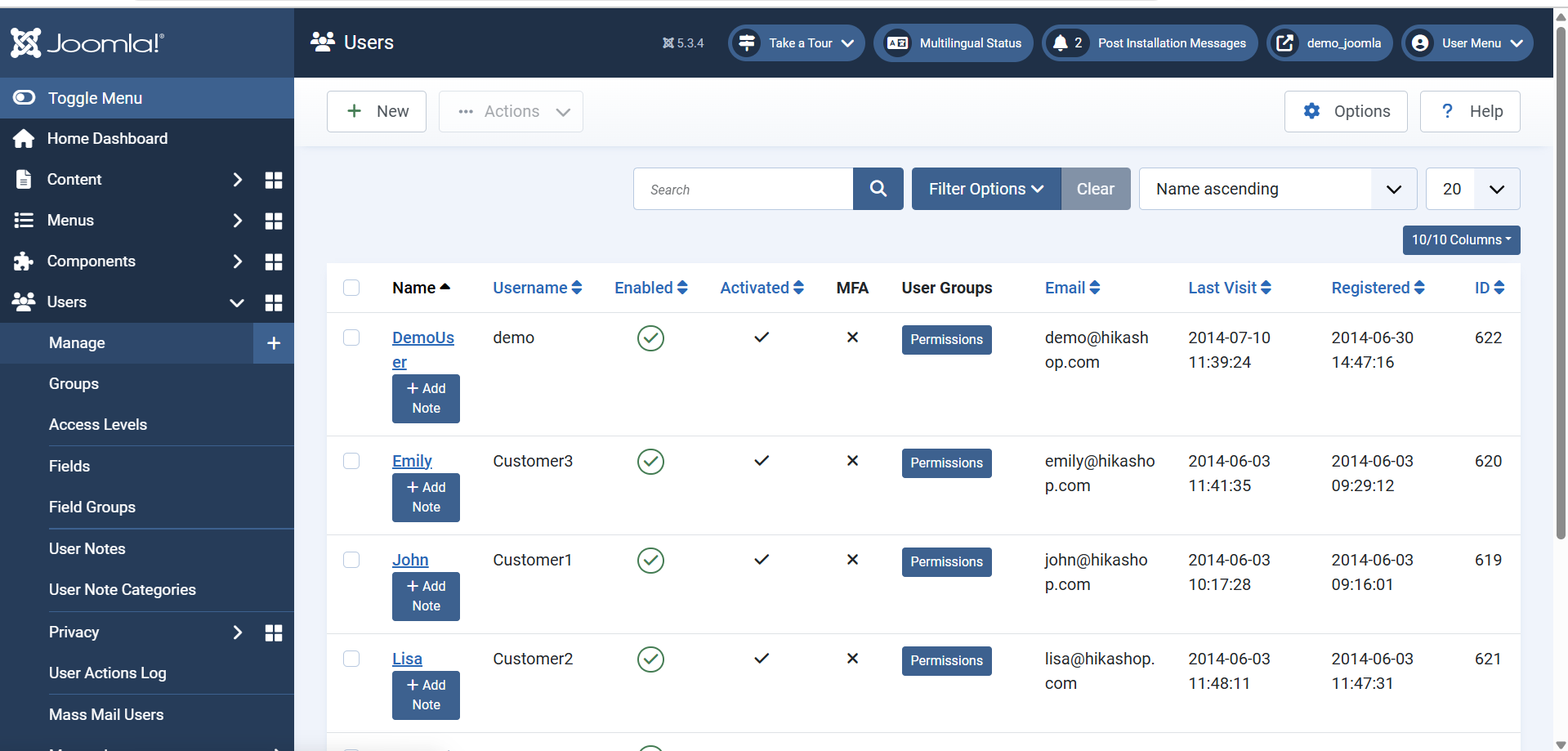
- Go to Users → Manage.
- Click on a user’s name to view their profile.
- You can change their user group, reset passwords, or block/unblock accounts.
Profile customization:
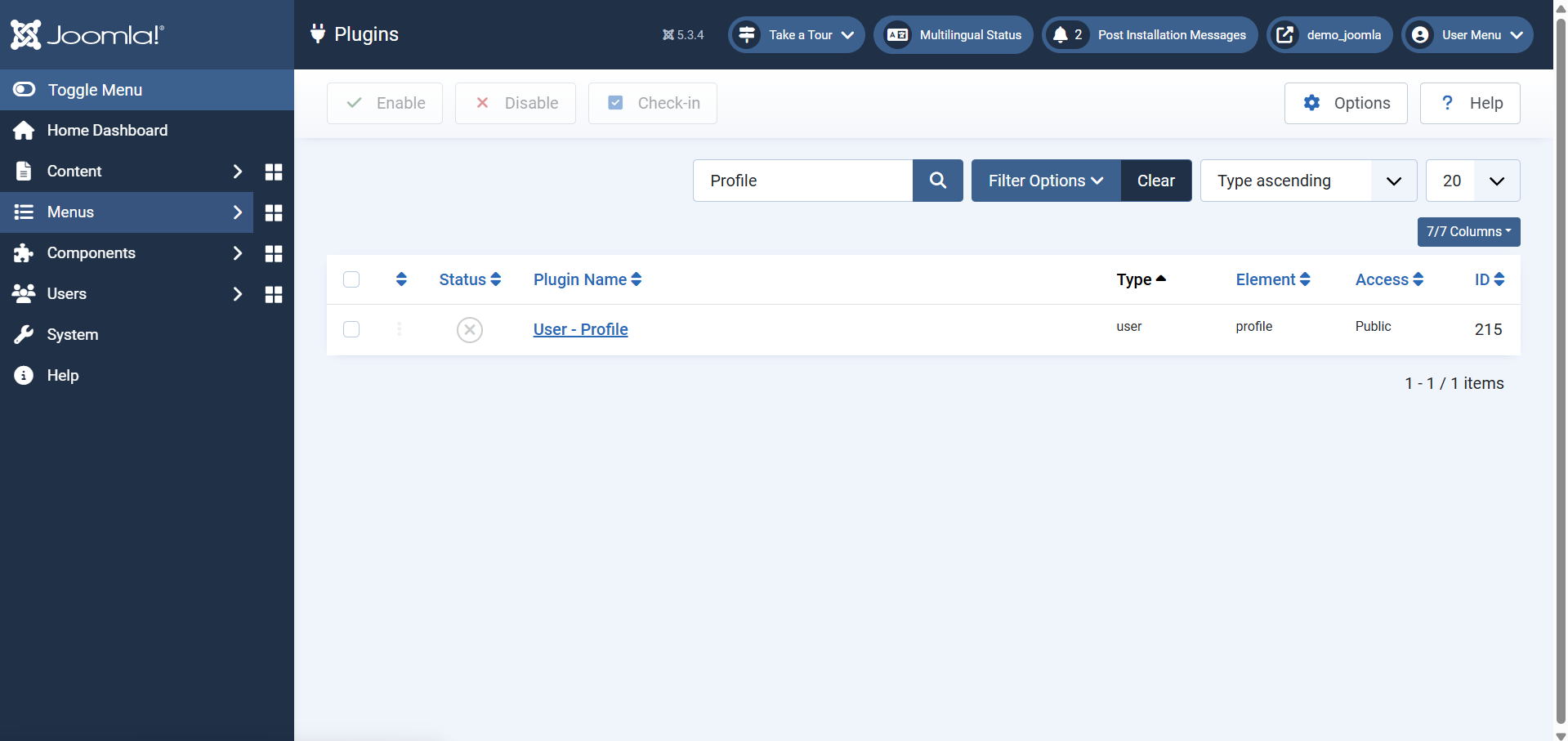
- Use the User Profile Plugin (enable it under Extensions → Plugins → User – Profile) to add extra fields like website or bio.
- Users can update their own profiles from the frontend by logging in and choosing Edit Profile.
6. Redirecting Users After Login and Logout
You can control where users go after logging in or out.
To set redirection:
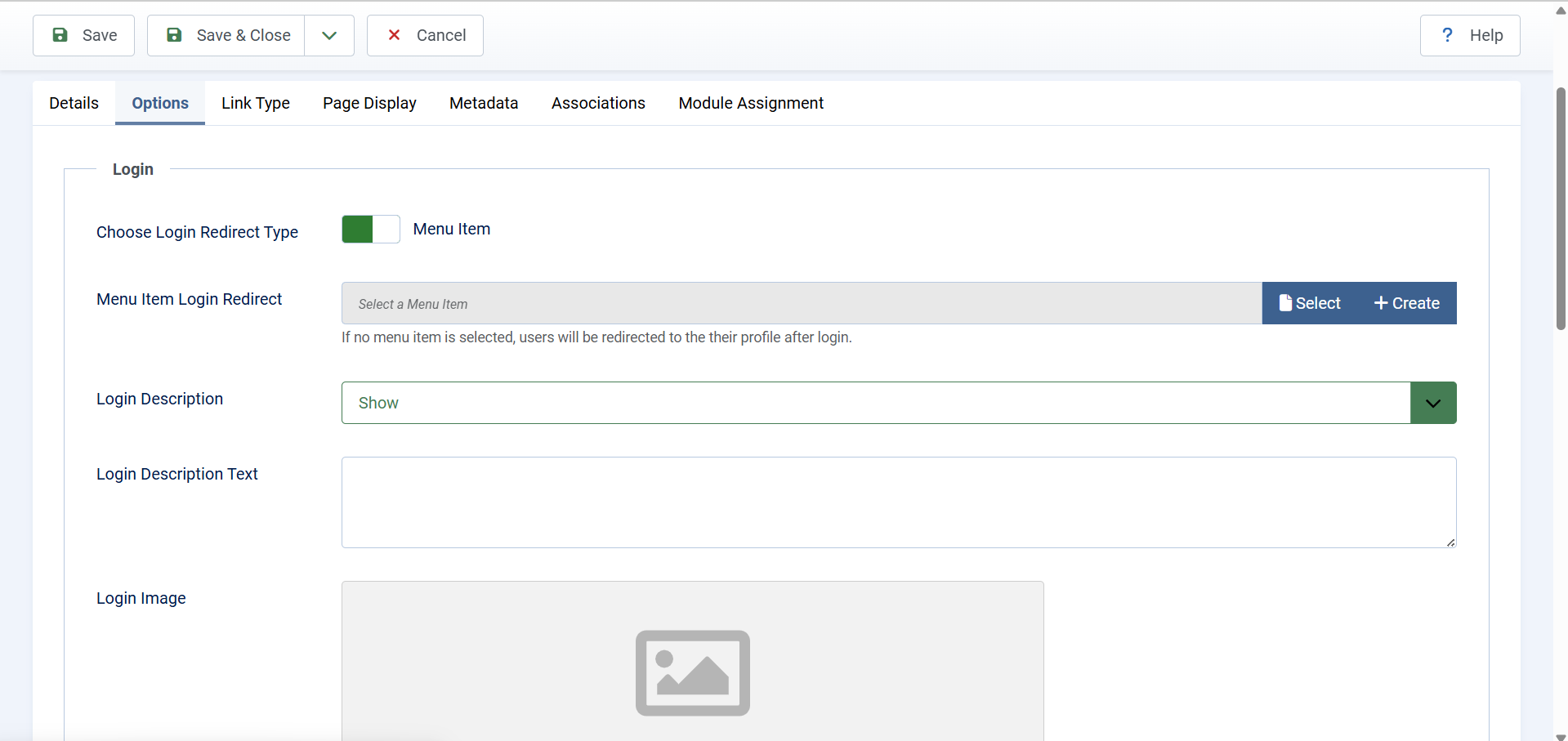
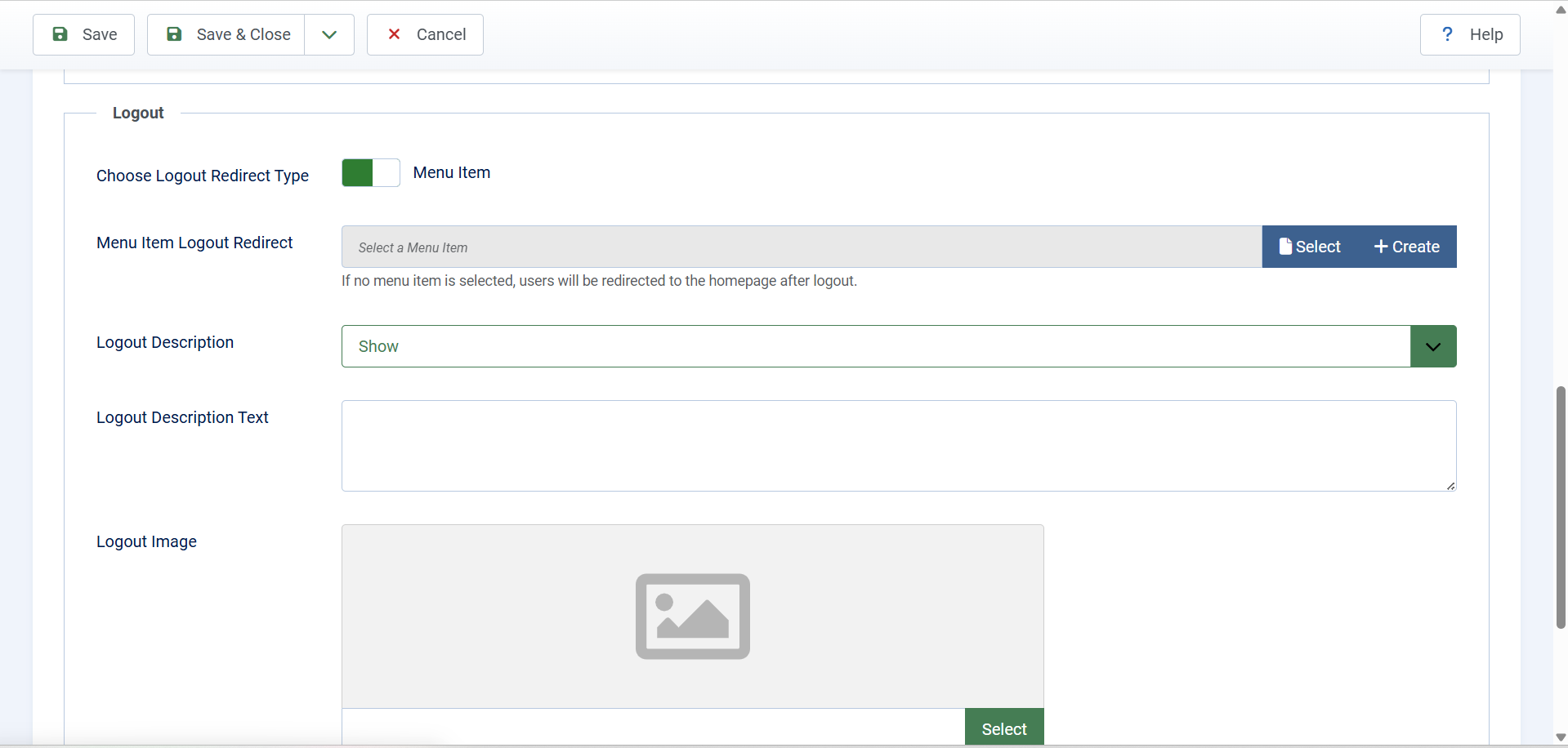
- Go to Menus → Main Menu → Login (or your login menu item).
- Under Menu Item Type, click Options.
- Choose your Login Redirect URL and Logout Redirect URL (for example, a dashboard or homepage).
- Save the changes.
This helps create a smoother user experience.
7. Managing Password Reset and Username Reminder
Joomla automatically provides links for:
- Forgot your password?
- Forgot your username?
These can be customized or placed in a separate module using Users → Login Form Module. Make sure email sending is properly configured under System → Global Configuration → Server → Mail Settings so password reset emails reach users.
8. Tips for Better User Management
- Regularly review users under Users → Manage.
- Assign users to correct groups for access control.
- Use extensions for membership levels, email verification, and security.
 Need Help with Your Joomla Website?
Whether you’re starting a new Joomla project or need help fixing an existing site, our experienced team is here to help.
We’ll review your needs and guide you through the next steps—no obligation.
Final Thoughts
With these steps, your Joomla site will have a fully functional user registration and login system. You can easily control who joins, how they log in, and what they can do once inside. As your website grows, you can enhance it with advanced membership or community extensions for an even better experience.


