


Marketing scripts such as Facebook Pixel, Google Ads Tag, or LinkedIn Insight Tag help track website visitors and measure the effectiveness of your online campaigns. Joomla allows you to add these tracking codes easily without needing any technical knowledge.
Adding Facebook Pixel or other marketing scripts to your Joomla website helps track user activity, run ads, and improve marketing efforts. Follow this simple guide to get started.
Step 1: Get Your Facebook Pixel or Marketing Script
- Log in to your Facebook Business account or other marketing platform.
- Locate the tracking or pixel code provided by the platform.
- For Facebook: go to Events Manager → Data Sources → Your Pixel → Install Code Manually.
- Copy the entire code snippet.
Step 2: Open Joomla Administrator
- Log in to your Joomla Administrator panel.
- From the top menu, go to System → Site Template Styles.
- Open your active template (the one marked with a star).
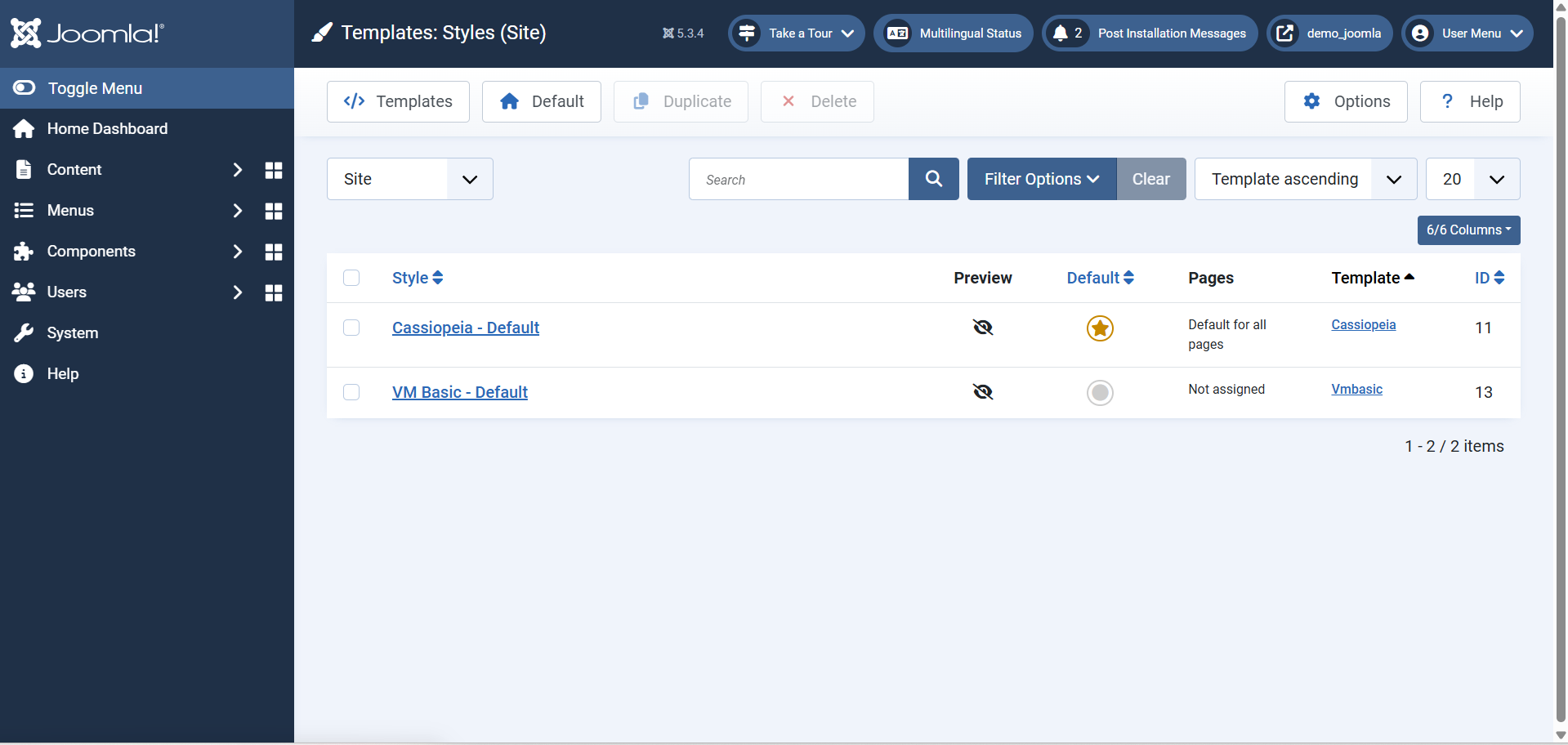
Step 3: Insert the Script in Template Options
Most Joomla templates include a Custom Code or Custom Scripts area.
- Check under Template Options or Advanced Settings for sections like:
- Custom Code / Header Script / Body Script / Footer Script
- Paste your copied tracking code into the appropriate area:
- Facebook Pixel or analytics scripts usually go in the Head or Before closing Body tag section.
- Click Save & Close.
If your template does not have a custom script option, follow the next method.
Step 4: Optional: Adding Scripts via Extensions (If Preferred)
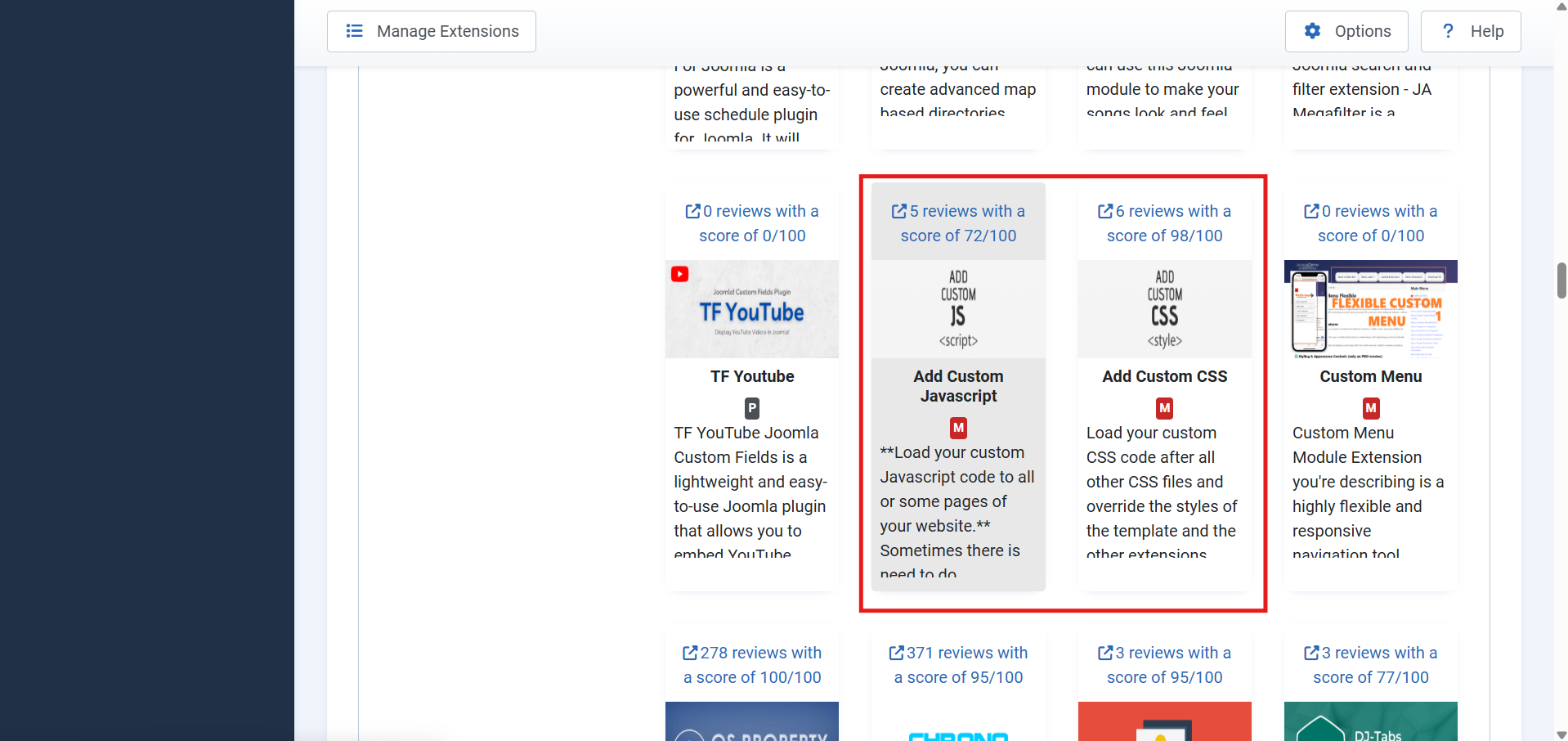
You can use a free plugin to insert scripts site-wide.
- Go to System → Extensions → Install Extensions.
- In the Install from Web tab, search for “Add Custom Code” or “Custom Header and Footer Scripts”.
- Install a suitable plugin.
- After installation, go to System → Plugins, open the plugin, and paste your tracking code in the desired position (Head or Body).
- Enable the plugin and click Save & Close.
Step 5: Verify Your Script
After saving, check if the code is working.
- Open your website in a new browser tab.
- Go to your website and open the browser console (press F12 or right-click and select Inspect).
- Use browser tools like Facebook Pixel Helper or Tag Assistant to confirm the script is active.
Tips
- Always copy the complete code snippet as provided by your marketing platform.
- Do not paste multiple codes in one field; separate them if you are using more than one script.
- Avoid editing core Joomla files, as your changes might be lost after updates.
 Need Help with Your Joomla Website?
Whether you’re starting a new Joomla project or need help fixing an existing site, our experienced team is here to help.
We’ll review your needs and guide you through the next steps—no obligation.
Conclusion
You’ve now added Facebook Pixel or any other marketing script to your Joomla website. This will help you track users, measure ad performance, and improve your marketing efforts. Remember to test it using browser tools or extensions to ensure it’s working as expected.


