

Learn how to track your website visitors, understand how users find your site, and improve your SEO performance by connecting Google Analytics and Google Search Console to your Joomla website.
What You Will Learn
- How to set up Google Analytics for your Joomla site?
- How to verify your website in Google Search Console?
- How to connect Analytics and Search Console together?
- Where to place tracking codes in Joomla?
Step 1: Create a Google Analytics Account
- Go to Google Analytics.
- Sign in with your Google account.
- Click Admin at the bottom-left corner.
- Under the Account column, click Create Account and fill in your website details.
- Under the Property setup, add your website name, time zone, and currency.
- Choose Web as the data stream type.
- Enter your Joomla website URL and click Create Stream.
- You’ll get a Measurement ID or a tracking code starting with “G-”. Keep it handy.
Step 2: Add the Analytics Tracking Code to Joomla
You can add your Google Analytics tracking code in one of the following ways:
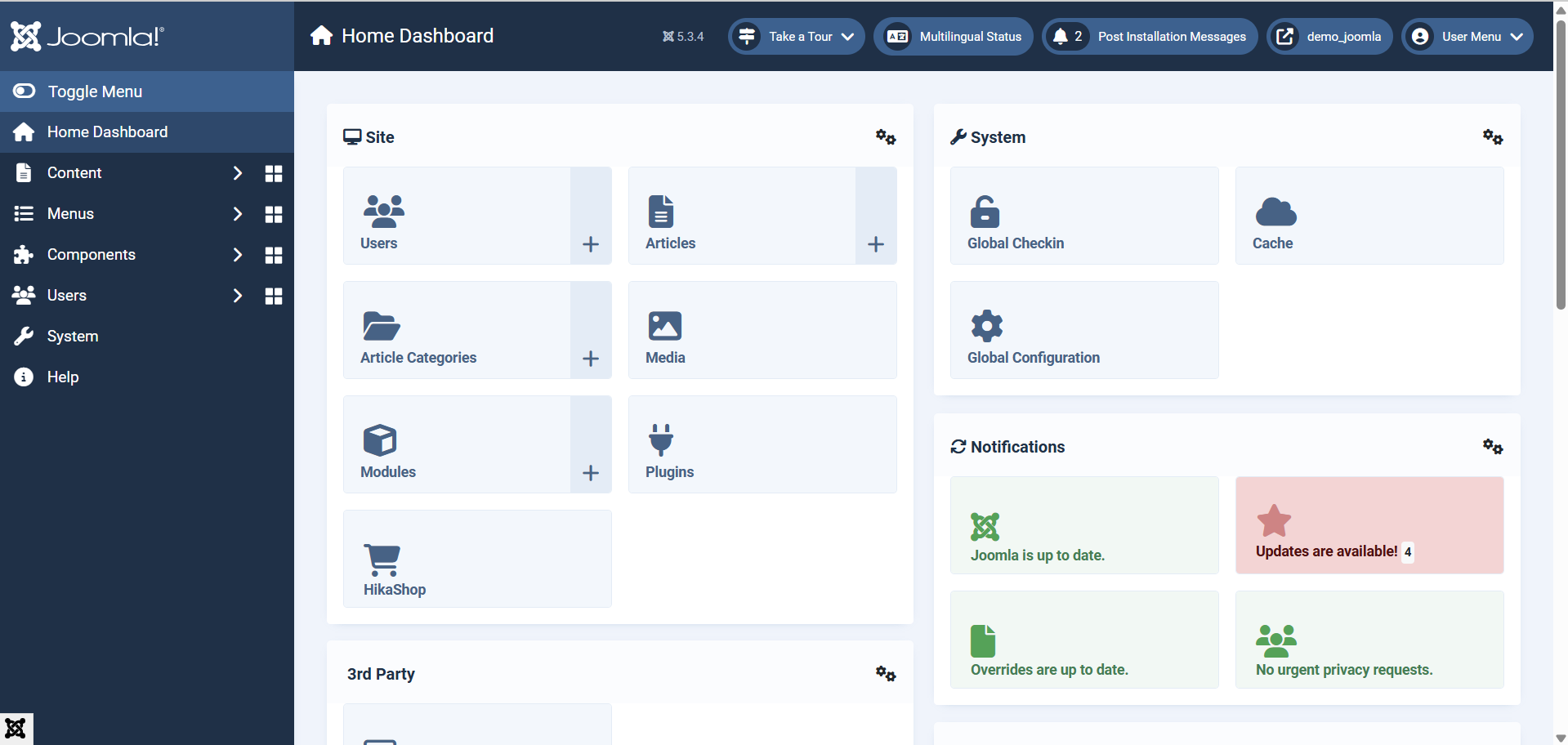
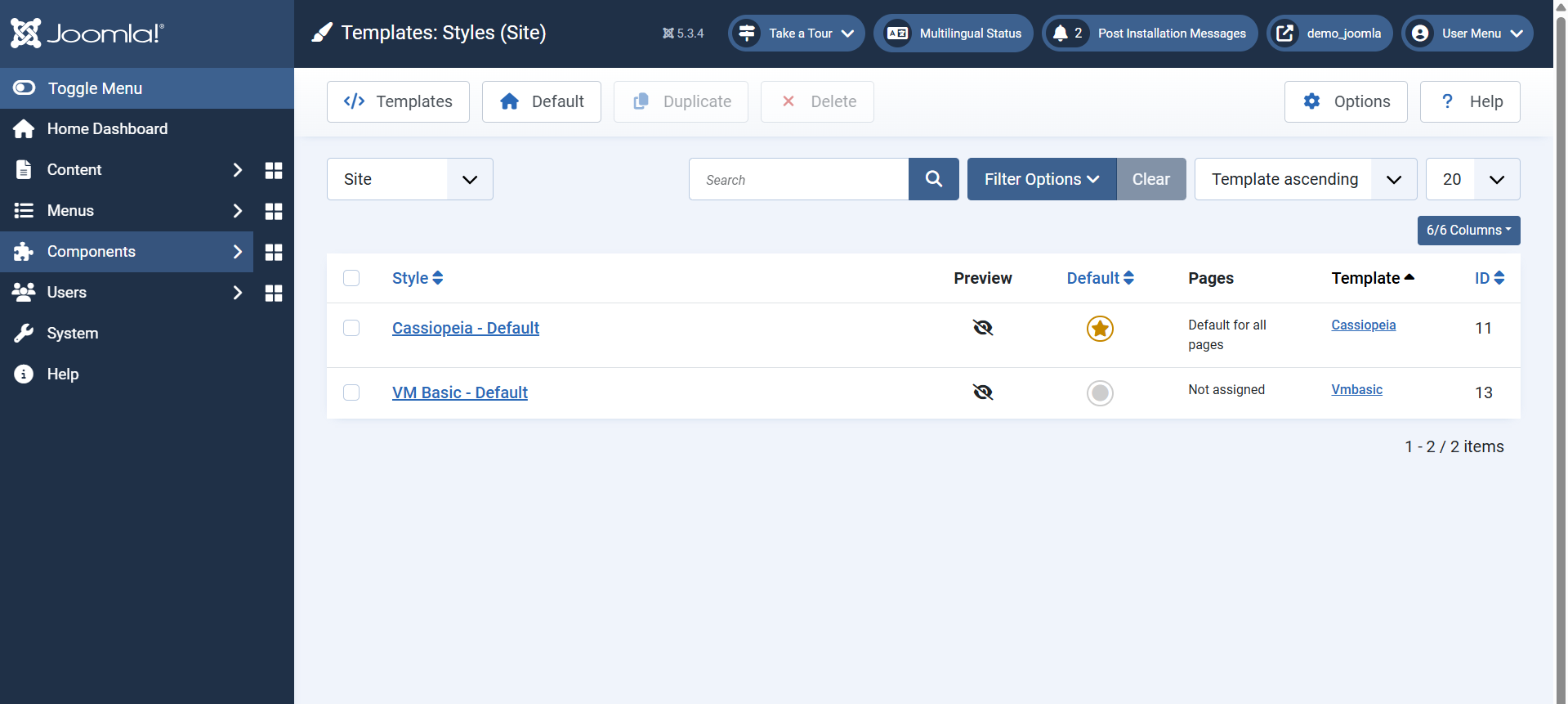
- Navigate to System → Site Templates → Templates → Your Active Template.
- Look for a field named Custom Code, Custom Scripts, or Head Custom Code.
- Paste your Google Analytics tracking code there.
- Save the changes.
This automatically inserts the script before the closing tag across your entire site.
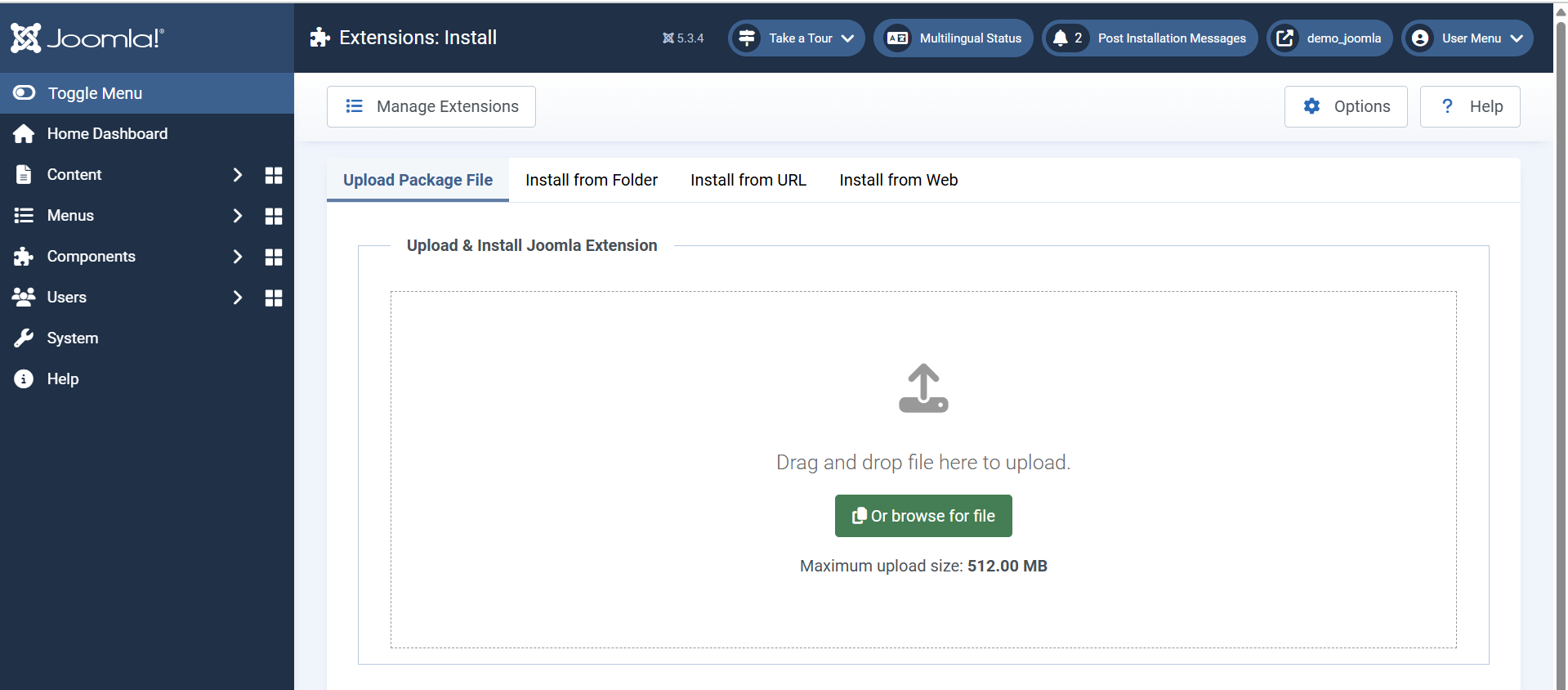
- Search for “Google Analytics plugin for Joomla”.
- Install a plugin such as “Google Analytics by JoomlaWorks” or “Advanced Google Analytics.”
- Open the plugin settings, paste your tracking ID, and enable it.
Step 3: Verify Your Site in Google Search Console
- Go to Google Search Console.
- Sign in with the same Google account used in Analytics.
- Click Add Property.
- Choose either Domain or URL Prefix:
- Domain: verifies all versions (http, https, www, non-www).
- URL Prefix: verifies only the specific URL you enter.
- If you choose URL Prefix, simply paste your site URL and click Continue.
- Select HTML Tag under the verification options.
- Copy the meta tag provided.
- Go back to Joomla → System → Site Templates → Templates → Your Active Template → index.php.
- Paste the meta tag inside the “head” section.
- Return to Search Console and click Verify.
Step 4: Link Google Analytics and Search Console
- In Google Analytics, go to Admin → Property Settings → Search Console Links.
- Click Link and select your verified site from Search Console.
- Save and publish the link.
This connection allows Analytics to show keyword and search performance data from Search Console.
Step 5: Check if Data Is Flowing
- Open your website and navigate a few pages.
- In Analytics, go to Reports → Realtime → Overview.
- You should see your activity on the site within a few minutes.
- Search Console data usually appears within a few days after verification.
Tips for Better Tracking
- Always use the HTTPS version of your site for tracking and verification.
- If you change your template, remember to reinsert the tracking code.
 Need Help with Your Joomla Website?
Whether you’re starting a new Joomla project or need help fixing an existing site, our experienced team is here to help.
We’ll review your needs and guide you through the next steps—no obligation.
Summary
By connecting Google Analytics and Search Console, you’ll gain valuable insights into who visits your website, what content performs best, and how your site appears in Google Search results. This setup is one of the most effective ways to monitor your Joomla website’s growth and optimize your SEO strategy.


